Find your way around the Web UI
A walk through every screen, so you know where things are and what they are for.
Think of this as the first walk around a new neighbourhood: we stop at each corner once, so that later you know where the bakery is. Have Pando open in the browser (pando app) or in the desktop app; they are the same interface.
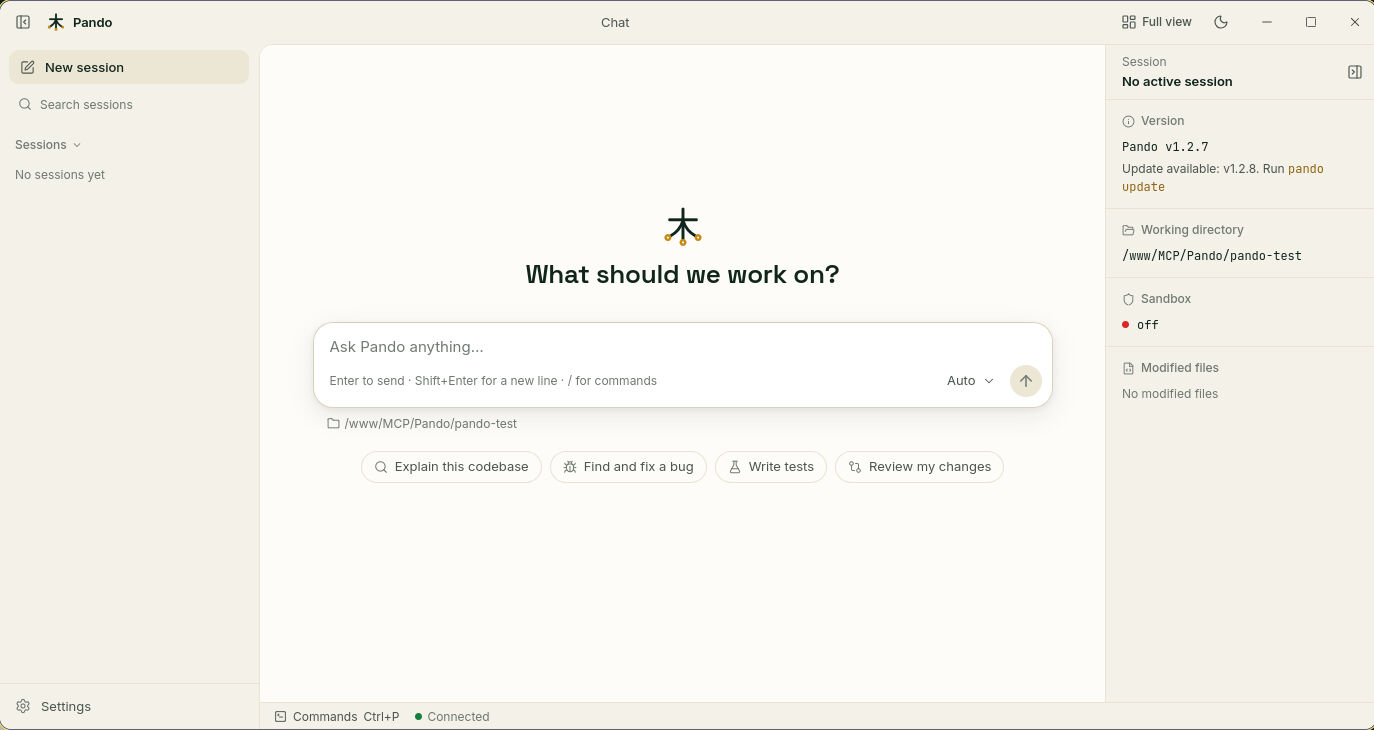
The chat: where you spend most of the time
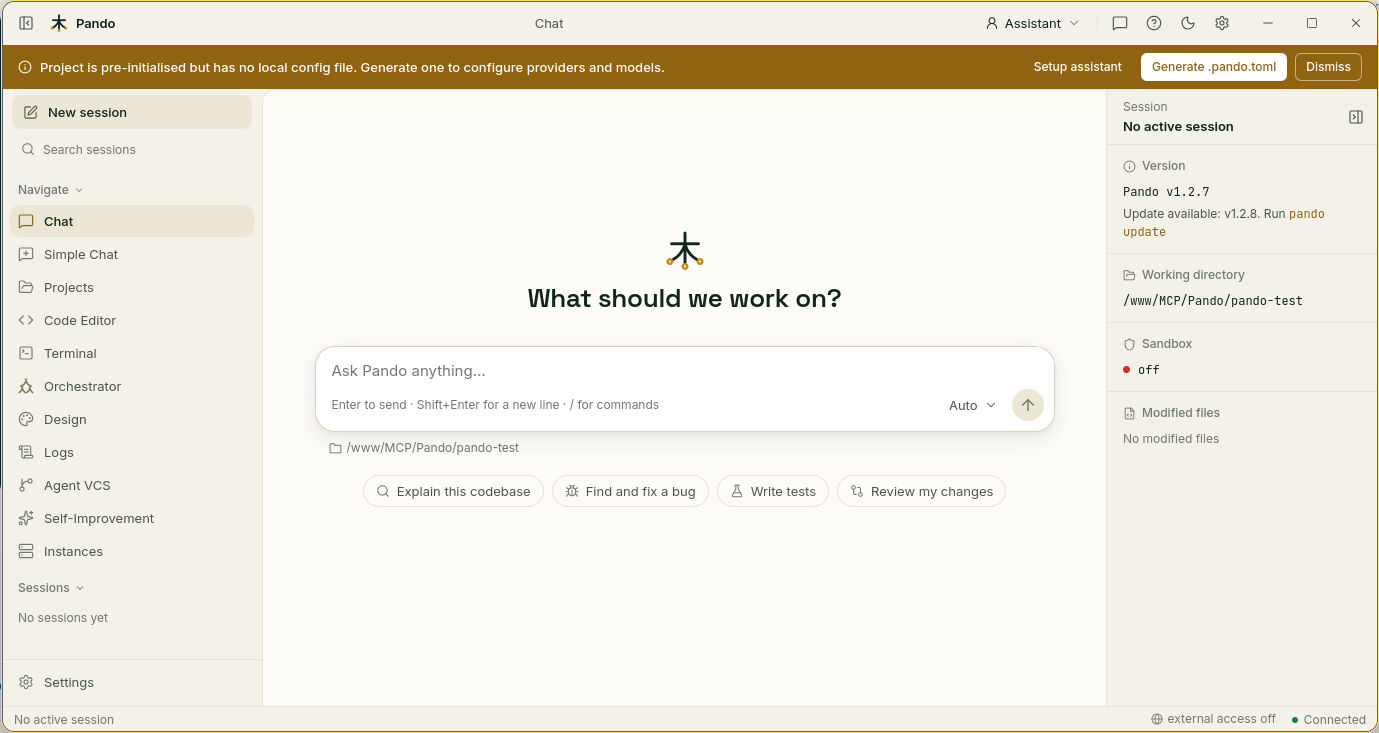
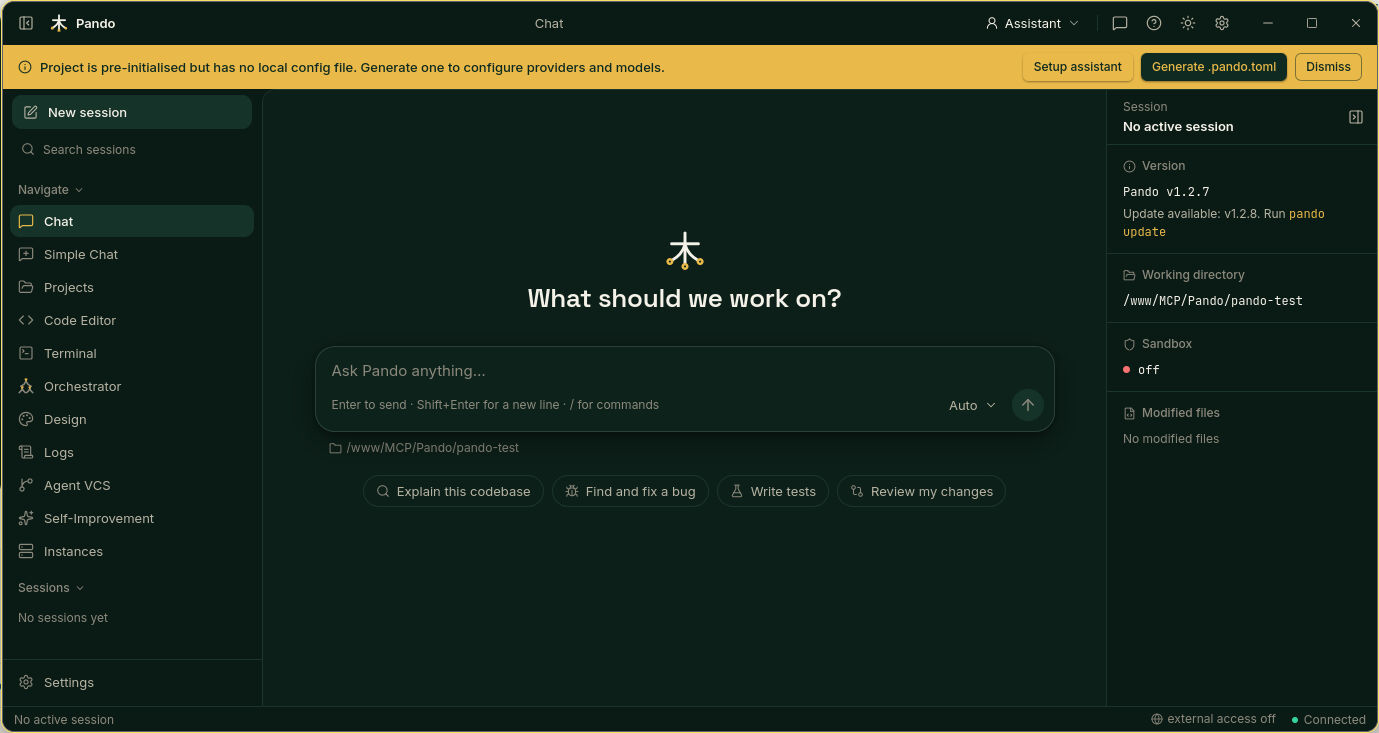
- The box in the middle is where you write. Enter sends, Shift+Enter adds a line.
- The buttons under it are ready-made requests to get started.
- The right panel is the fact sheet of the session: Pando version, working folder, sandbox state and the files Pando has changed. Hide it with the icon at its top corner.
- The left column is the map: New session, the search box, every screen under Navigate, and your past conversations under Sessions.
Sessions: your conversations, kept
Every conversation is saved by itself and gets a title. Click one in the left column to continue it. Type in Search sessions to find an old one. Long lists load as you scroll.
Who answers, and with which brain
Two selectors change how Pando replies:
- Persona, at the top right. A persona is a role, like asking the same person to wear a different hat: Assistant, Software Engineer, Qa, System Engineer. Auto lets Pando pick the hat for each request.
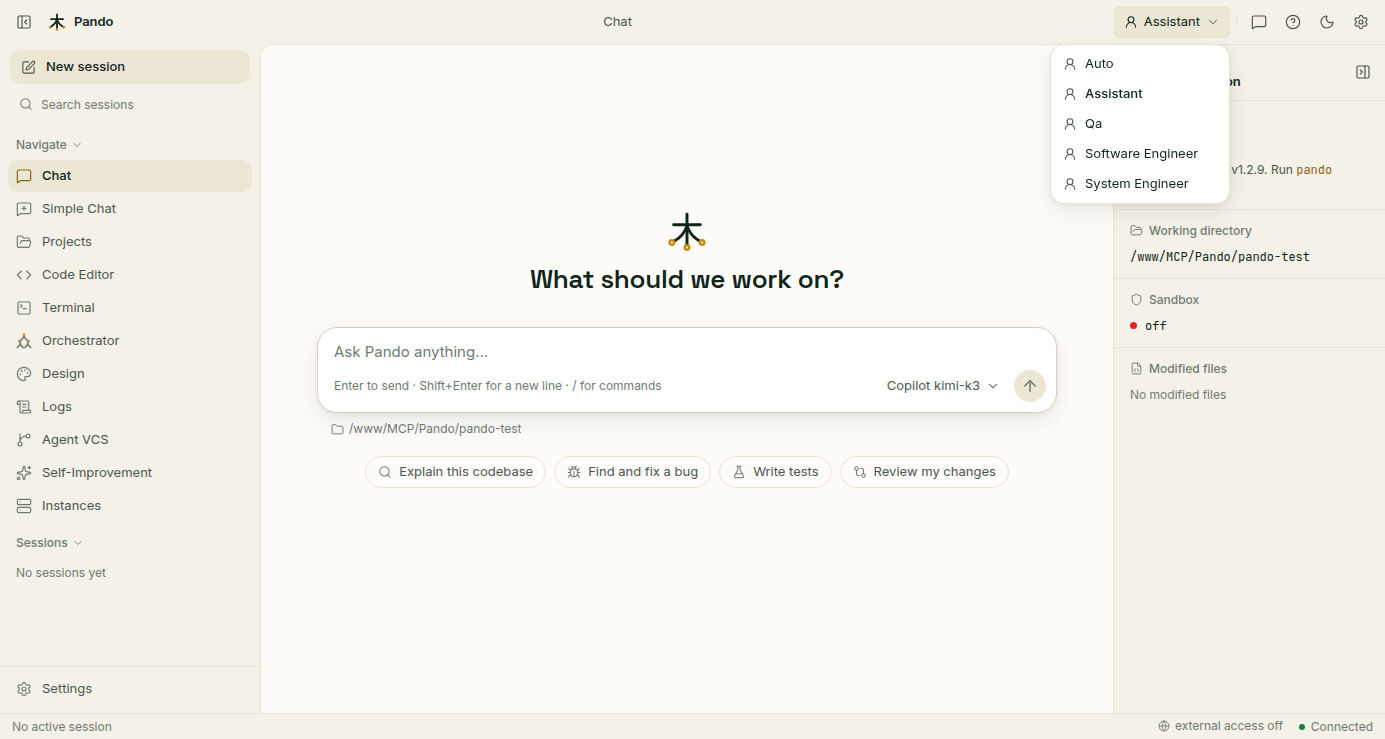
- Model, next to the send button. Click the name, search and choose. More in Accounts and models.
Slash commands: shortcuts with a bar
Type / in an empty box and a menu of commands opens. Keep typing to filter, press Enter to run. They are like the buttons on a remote control: one press instead of a long explanation.
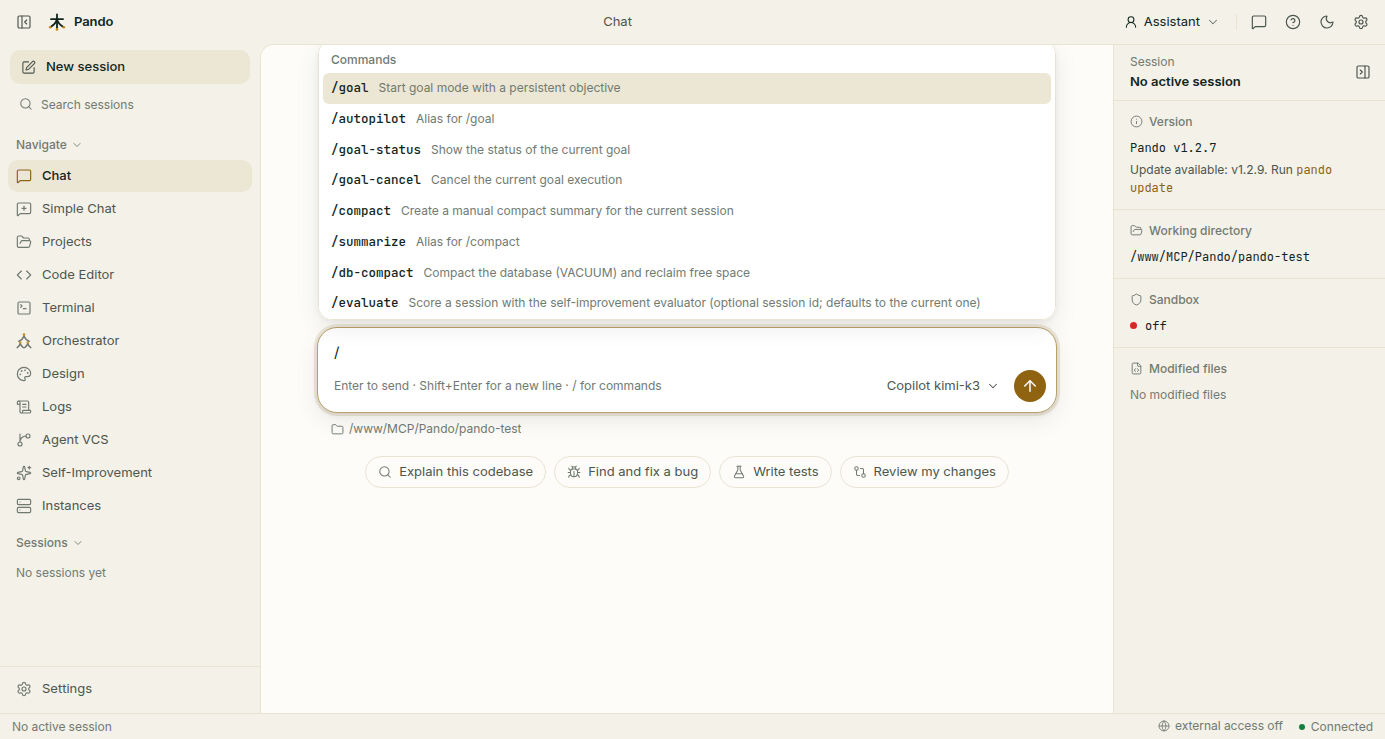
The full list, grouped by what you want to do, is in Slash Commands.
When Pando asks, and when you interrupt
- If Pando is unsure, it stops and shows a small card with options. Pick one, or type your own answer. See Interactive User Questions.
- If you want to change direction while it works, just send another message. It is queued and delivered at the next safe moment, without throwing away what is already done. See Steering.
Simple chat: the quiet version
Simple Chat in the menu keeps only the conversation, the session list and search. Full view at the top brings everything back. Pando remembers which one you prefer.
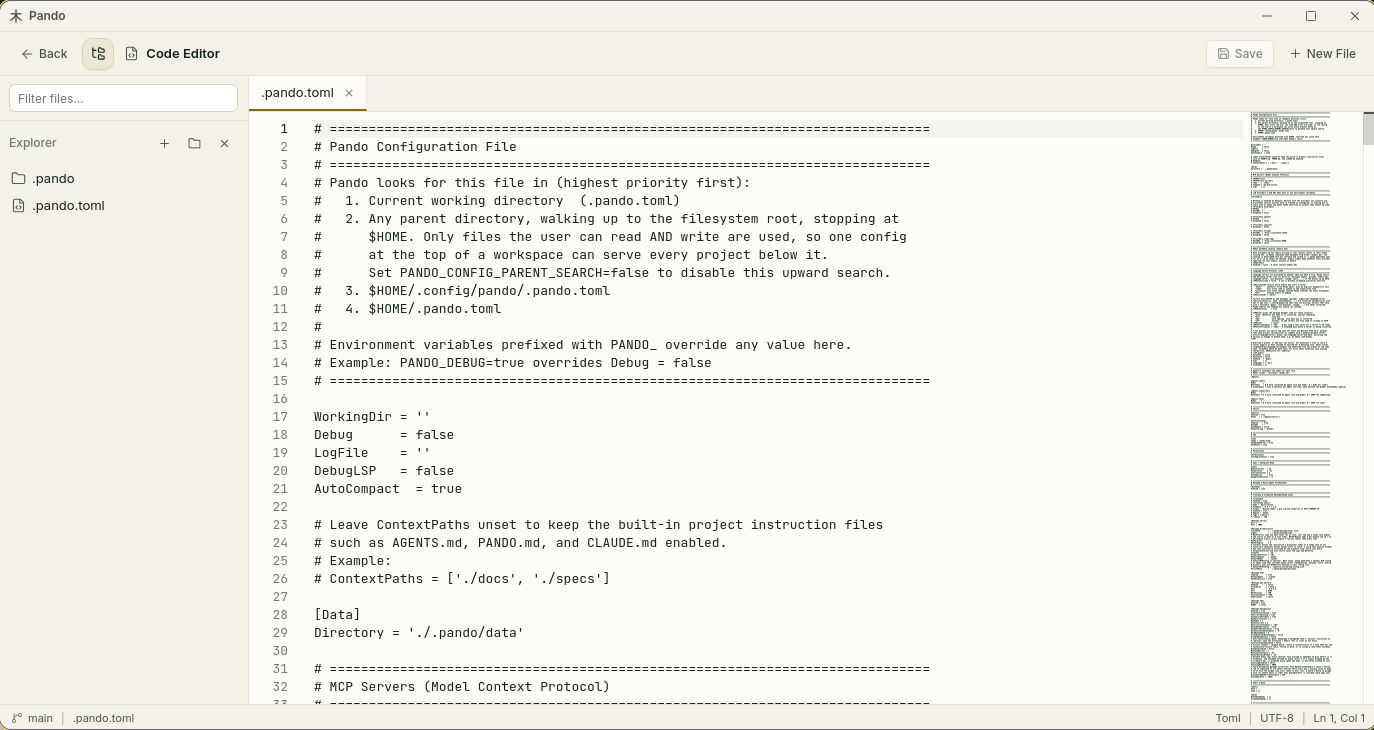
Code editor: look and touch
Code Editor opens your project’s files with colours for code. Browse the folder on the left, open several files in tabs, edit and Save. Handy to check what Pando wrote without leaving the window.
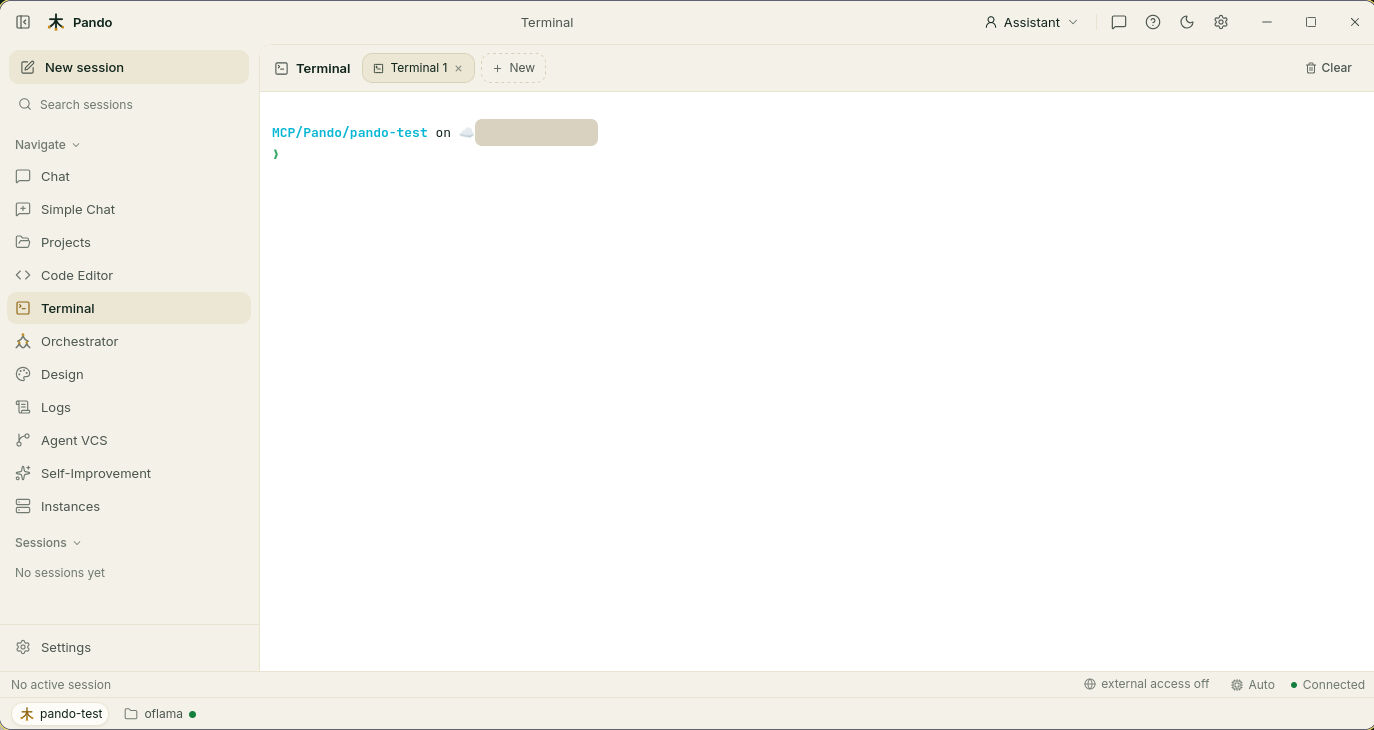
Terminal: a real one
Terminal is a real shell in your project folder. Open more with New. What you type here is yours: Pando does not confine or filter it.
The other rooms
Each of these has its own guide; for now, just know they exist:
| Menu | What it is | Guide |
|---|---|---|
| Projects | Your list of projects, each openable in its own tab | Projects and workspace tabs |
| Orchestrator | Jobs handed to helper agents, and scheduled jobs | Delegate with Mesnada |
| Design | Pages and slide decks Pando designs for you | Design Studio |
| Agent VCS | The history of what Pando changed | Review and undo |
| Self-Improvement | How Pando scores and improves its own work | Self-improvement |
Logs and instances: looking under the bonnet
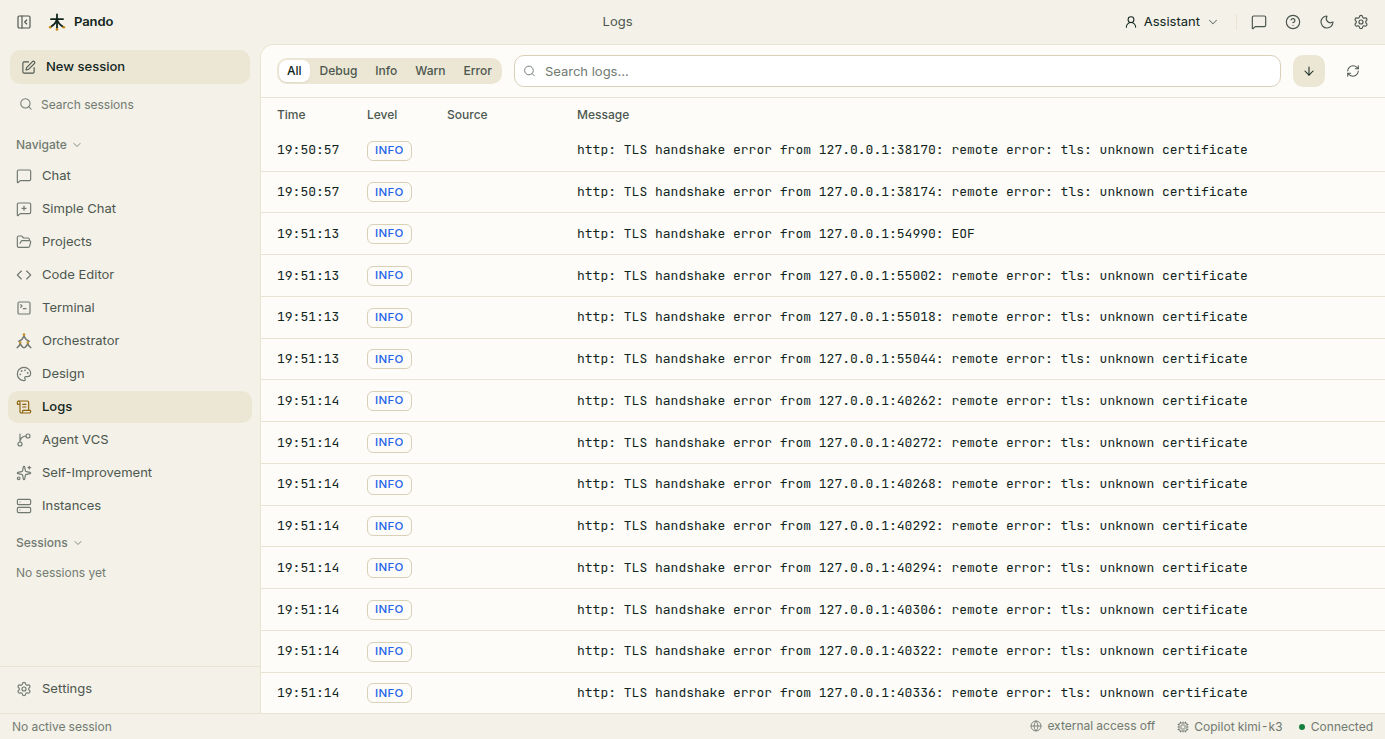
Logs is Pando’s diary: what it did and any error it met. Filter by level (Info, Warn, Error) or search for a word.
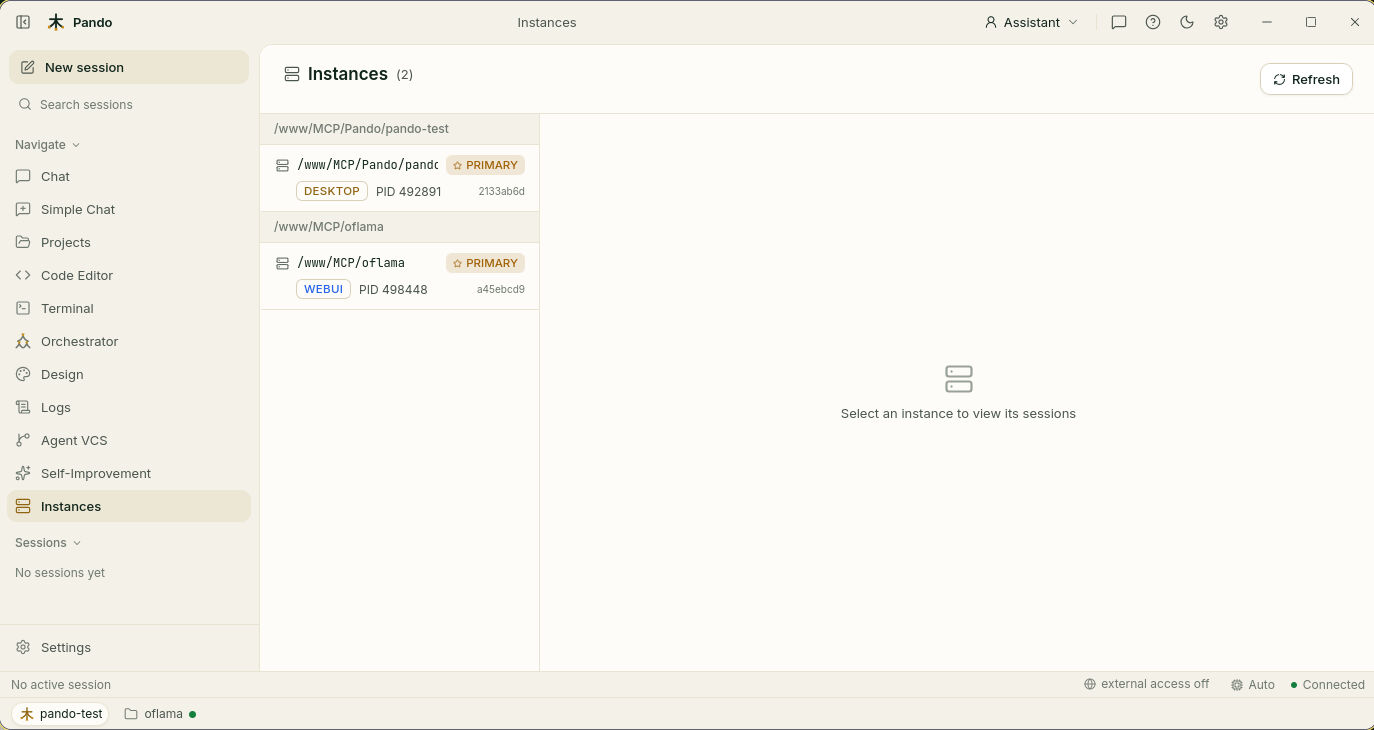
Instances lists every Pando running on this machine right now, and where each was started: desktop, web or an editor.
Make it yours
Open Settings at the bottom of the left column.
- Appearance: light, dark or follow your system; font size; four colour themes (Pando, Paper, Slate, Forest) and an accent colour. The moon icon at the top switches light and dark in one click.
- General > Language: English, Español, Français, Deutsch, Português, 日本語, 中文.
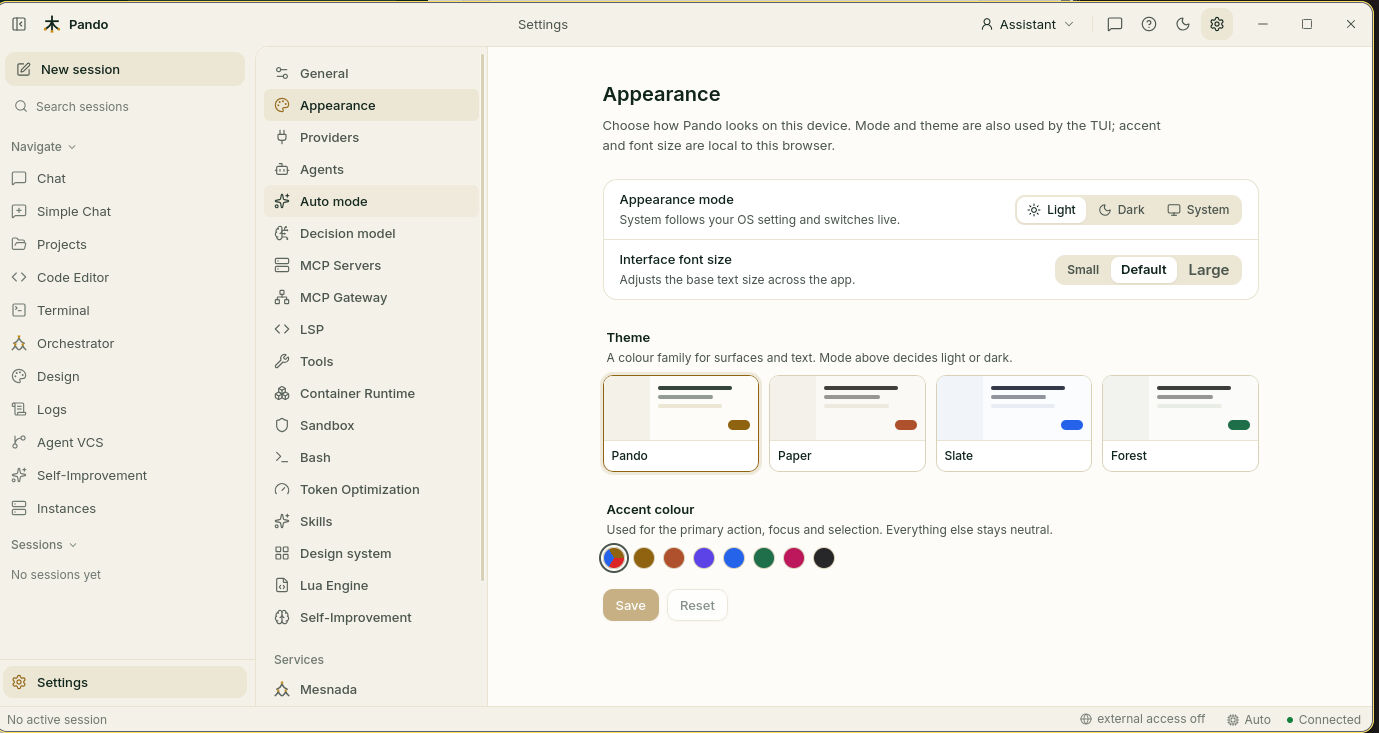
Press Save on each page. If you leave with changes pending, Pando asks before throwing them away.
Check it works
You can now, without looking anything up: start a new session, find an old one, change persona, run a slash command, open a file and open a terminal.
If something goes wrong
| What you see | What to do |
|---|---|
| The Connected mark at the bottom right disappears | Pando stopped or the network dropped. The page reconnects by itself and restores the chat when Pando is back |
| The right panel is gone | Click the panel icon at the top right of the chat |
| The menu is missing on a phone | Tap the icon at the top left to open it |
| The interface is in the wrong language | Settings > General > Language |
Prefer the terminal?
The terminal interface has the same rooms, reached with keys instead of clicks: Ctrl+P for commands, Ctrl+R for files, Ctrl+U for the terminal panel, Ctrl+T for themes. All shortcuts are in the reference.