Give Pando eyes and hands: web search, browser and desktop
Let Pando look things up on the web, open pages in a real browser, work with the apps on your screen and read your PDFs and Office files.
Out of the box Pando reads and writes files and runs commands. This guide switches on the rest of its senses: looking things up on the web, opening pages in a browser like you would, and pressing buttons in the apps on your screen. All of it is on one screen.
You need Pando open in the Web UI (the desktop app is the same interface). For web search you also need a key from at least one search service.
Open the tools screen
Go to Settings > Tools. The page is a list of cards, one per tool. Each card has a switch: a tool that is off simply does not exist for Pando.
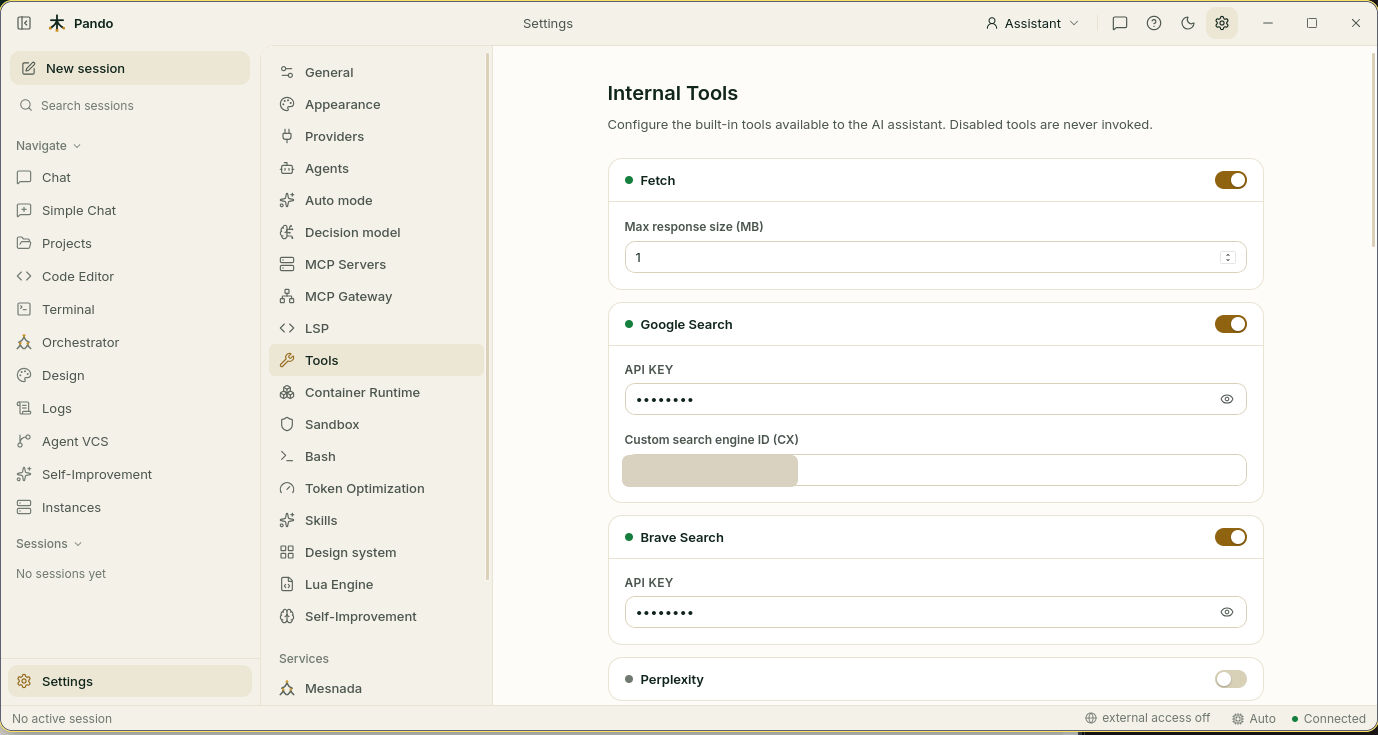
Fetch is the first card and is on from the start. It is how Pando reads a web page when you give it a link. Max response size (MB) is the biggest page it will swallow.
Switch on web search
Reading a page you point at is one thing; finding the page is another. For that, Pando needs a search service, and those work with a key, like a library card.
- Choose a service: Google Search, Brave Search, Perplexity or Exa AI Search. One is enough.
- Get a key from that service’s website.
- Turn the card on and paste the key in API KEY. Google also asks for a Custom search engine ID (CX).
- Scroll to the bottom and press Save.
Two more cards need no key at all: Sourcegraph Code Search looks through public code, and Context7 (Library Docs) fetches the current documentation of a library, so Pando does not answer from memory about a version from two years ago.
Let Pando use a browser
Some pages only make sense in a real browser: they need you to click, to log in, to wait for things to load. Turn on Browser (Chrome DevTools) and Pando can do that.
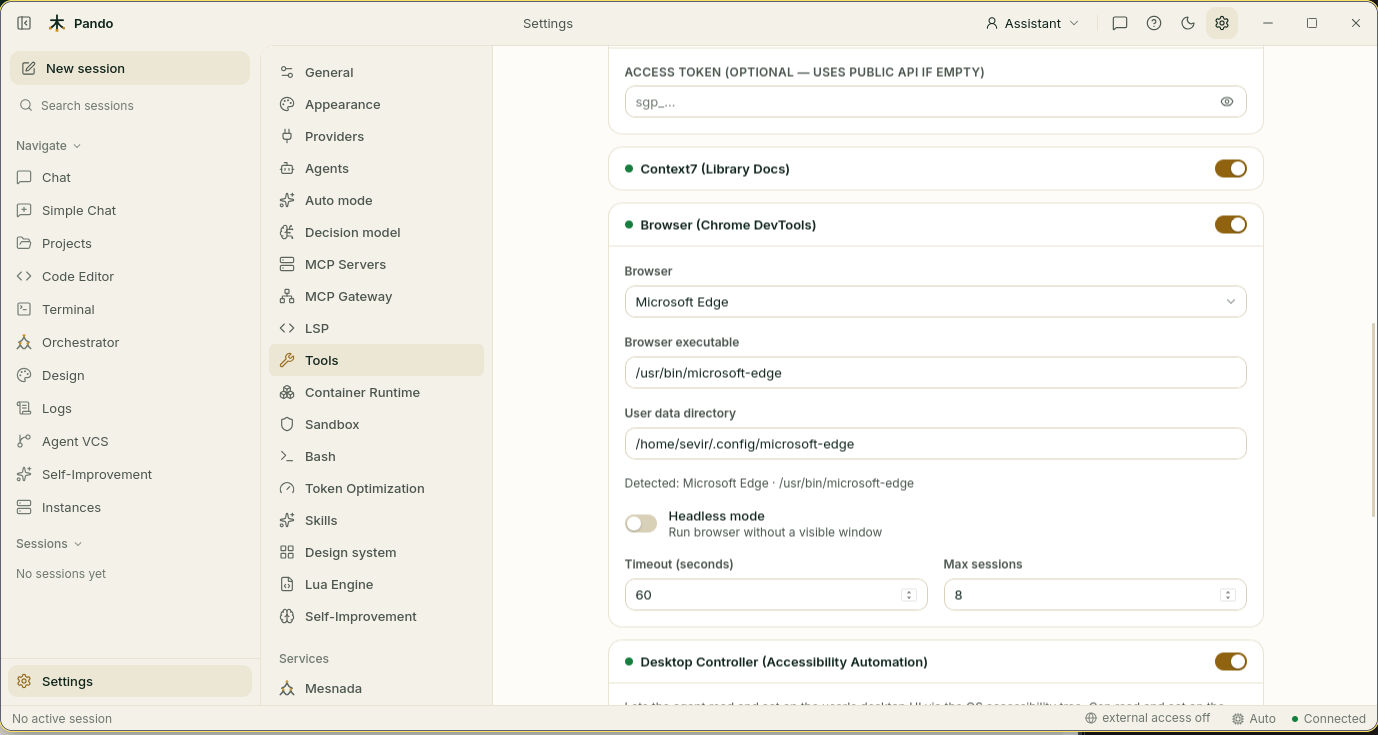
- Browser: pick one you have installed. Pando shows what it detected just below.
- Browser executable and User data directory fill in by themselves. Leave them unless you use an unusual install.
- Headless mode: off means you see the window and can watch Pando work, which is reassuring the first days. On means it works out of sight, which is what you want on a server.
- Timeout (seconds) and Max sessions: how long Pando waits for a page, and how many browser windows it may hold at once. The defaults are fine.
- Save.
Let Pando work with your desktop apps
This one is off from the start, and for a good reason: it lets Pando act on your screen as if it were you. Turn on Desktop Controller (Accessibility Automation) only when you need it.
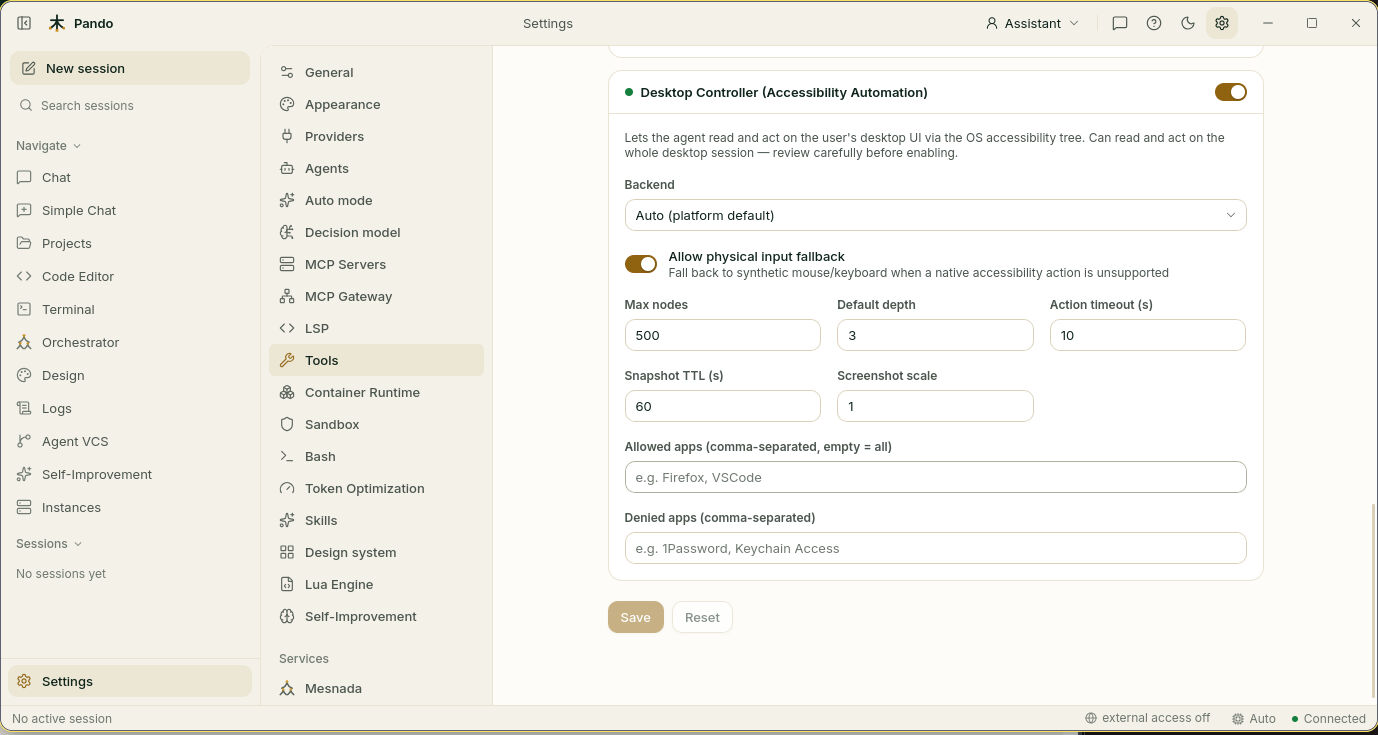
Before you save, put a fence around it:
- Allowed apps: type the app you are working with, for example
Firefox. With this filled in, Pando cannot touch anything else. - Denied apps: type the ones it must never touch, such as your password manager or your mail. This list always wins.
- Leave Backend on Auto and the numbers as they are.
- Allow physical input fallback: on lets Pando make a real click or key press when an app offers no better way. Turn it off if you never want that.
- Save.
On macOS, the system asks you to give Pando Accessibility permission (and Screen Recording for screenshots). On Linux with Wayland, a system dialog asks for your consent the first time.
Hand it your PDFs and Office files
No switch for this one. Pando reads PDF, Word, Excel, PowerPoint and more by turning them into plain text first. Two ways to use it:
- Drop the documents in the folder Pando watches for its knowledge base (see Teach Pando your project) and they become searchable.
- Convert one file by hand, in a terminal:
pando convert report.pdf.
Check it works
Open Chat and try one request per tool:
- “Search the web for the latest release of Hugo and tell me what changed.” A search tool runs.
- “Open example.com in the browser and tell me the page title.” If headless mode is off, a browser window opens.
- “Which apps do I have open?” Pando lists them without asking. Anything that clicks, types or takes a screenshot asks you first.
If something goes wrong
| What you see | What to do |
|---|---|
| Pando says it cannot search the web | No search card is on, or the key is missing. Check the card and Save |
| The browser does not open | Pick another one in Browser, or fill Browser executable with the full path |
| “Profile in use” style messages | Your normal browser is open with that profile. Pando falls back to a temporary one; nothing to do |
| Pando says a desktop permission is missing | It names which one. Grant it in your system settings and try again |
| The desktop tools do not see an app | Check it is not in Denied apps, and that Allowed apps is empty or includes it |
| A PDF comes out empty | It is probably a scan with no text inside |
Prefer the terminal?
The same switches in .pando.toml:
[InternalTools]
BraveSearchEnabled = true
BraveAPIKey        = 'your-key'
BrowserEnabled     = true
BrowserType        = 'chrome'
BrowserHeadless    = false
DesktopEnabled     = true
DesktopAllowedApps = ['Firefox']
DesktopDeniedApps  = ['1Password']
In the terminal interface, the same cards are under Settings > Tools. Every option, the list of browsers and what each platform needs are in the built-in tools reference.