Connect your AI accounts and pick your models
Pando connected to an AI provider, with the right model for each job.
Pando is the workshop; the AI models are the engines you rent to power it. This guide plugs in an engine and decides which one does which job. You need an account with at least one AI provider (GitHub Copilot, Anthropic, OpenAI, Gemini, OpenRouter, Groq, xAI…) or Ollama running on your machine. The desktop app and the Web UI are the same interface, so every step works in both.
Open the setup assistant
The first time you open Pando with nothing configured, the assistant appears by itself. If you closed it, press Setup assistant in the yellow bar at the top of the chat.
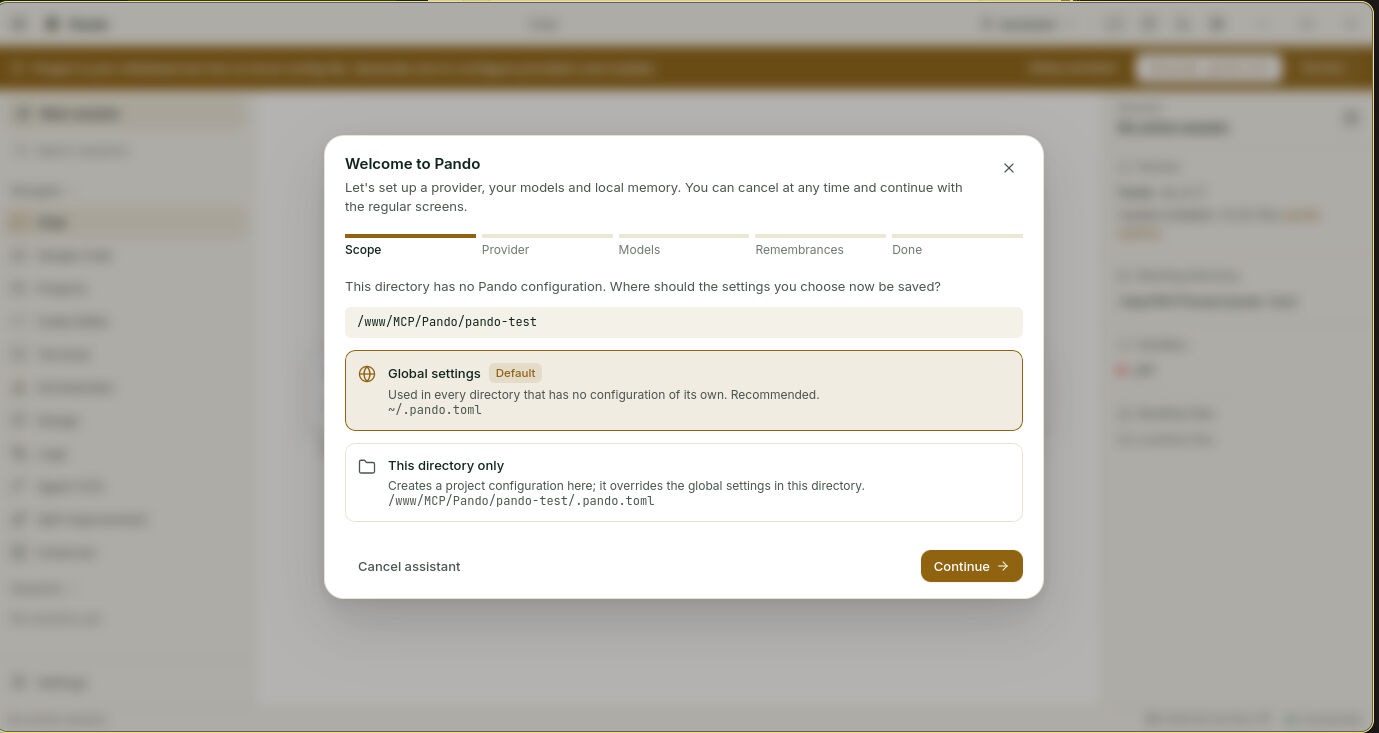
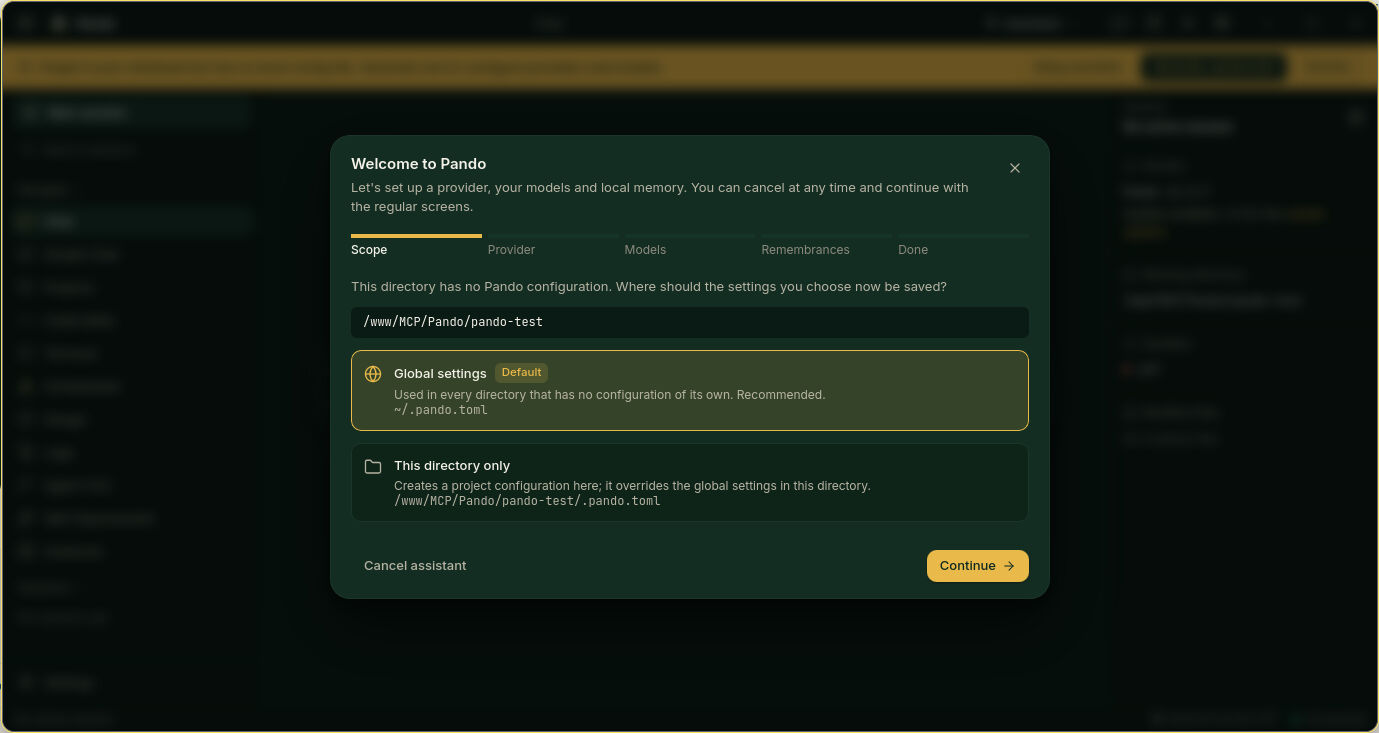
First question: where should your choices be saved?
- Global settings (recommended): one set of settings for every project on this computer.
- This directory only: settings that stay with this project, handy when one project needs different accounts.
Press Continue.
Add a provider
Pick the provider you have an account with. Each one tells you what it needs and links to the page where you get an API key (the password that lets Pando use your account). Paste the key and continue.
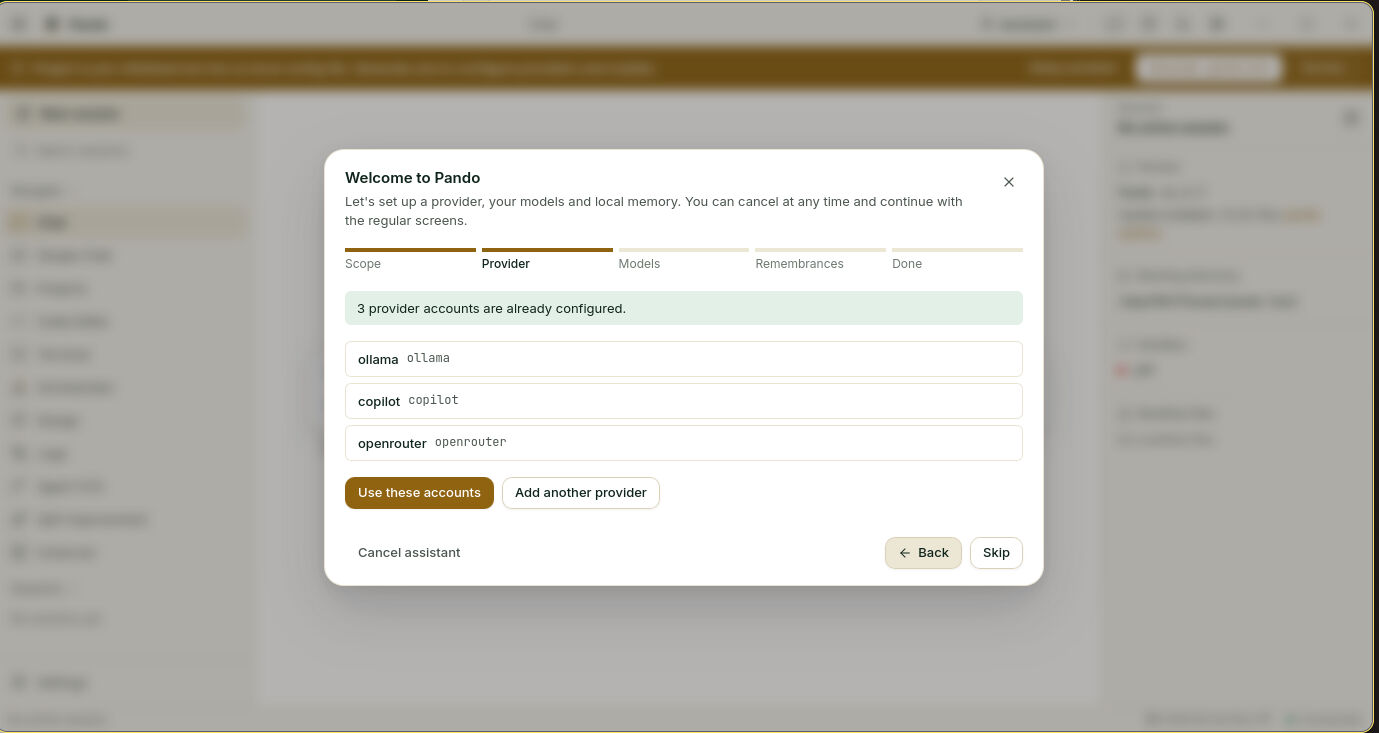
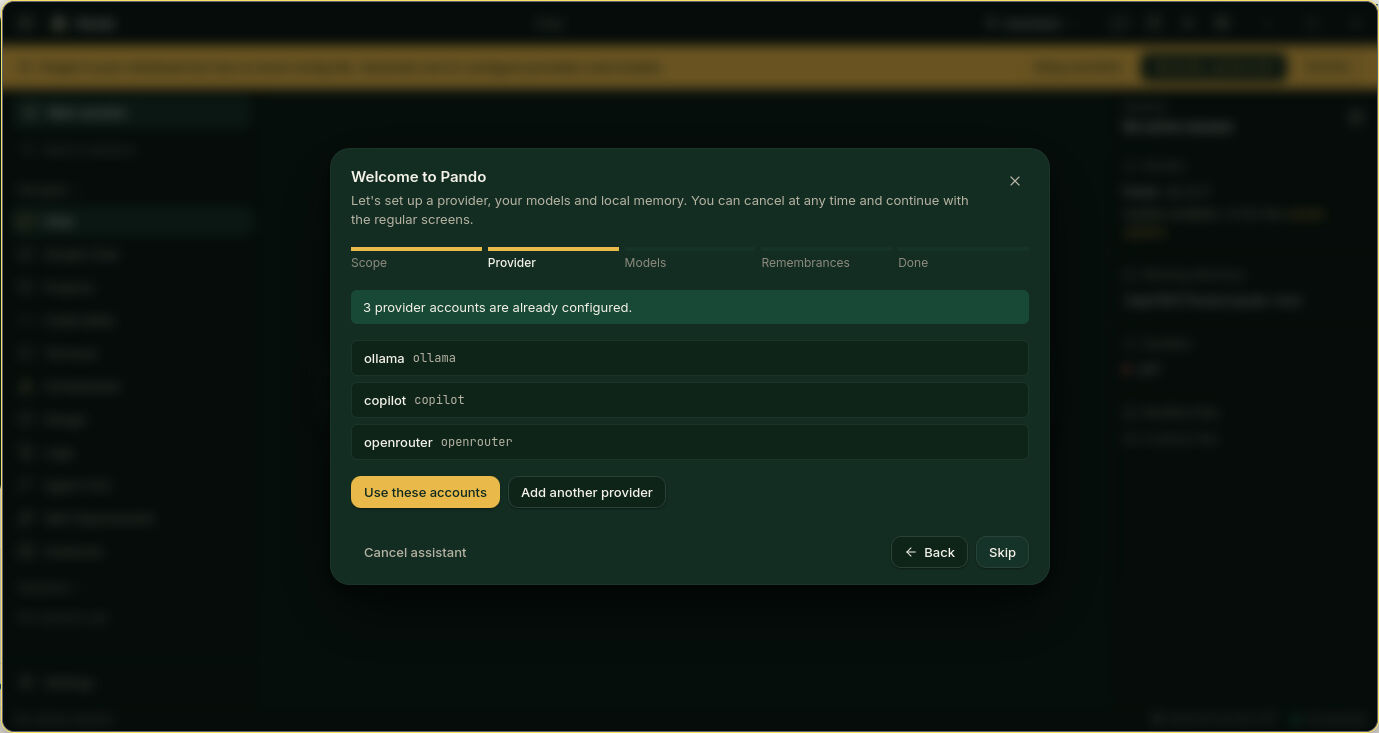
If accounts already exist, the assistant lists them: press Use these accounts, or Add another provider.
GitHub Copilot has no key to paste. The assistant shows a short code, you open GitHub, type the code, and the assistant moves on by itself when GitHub says yes. If your editor is already signed in to Copilot, this step is skipped.
Choose two models
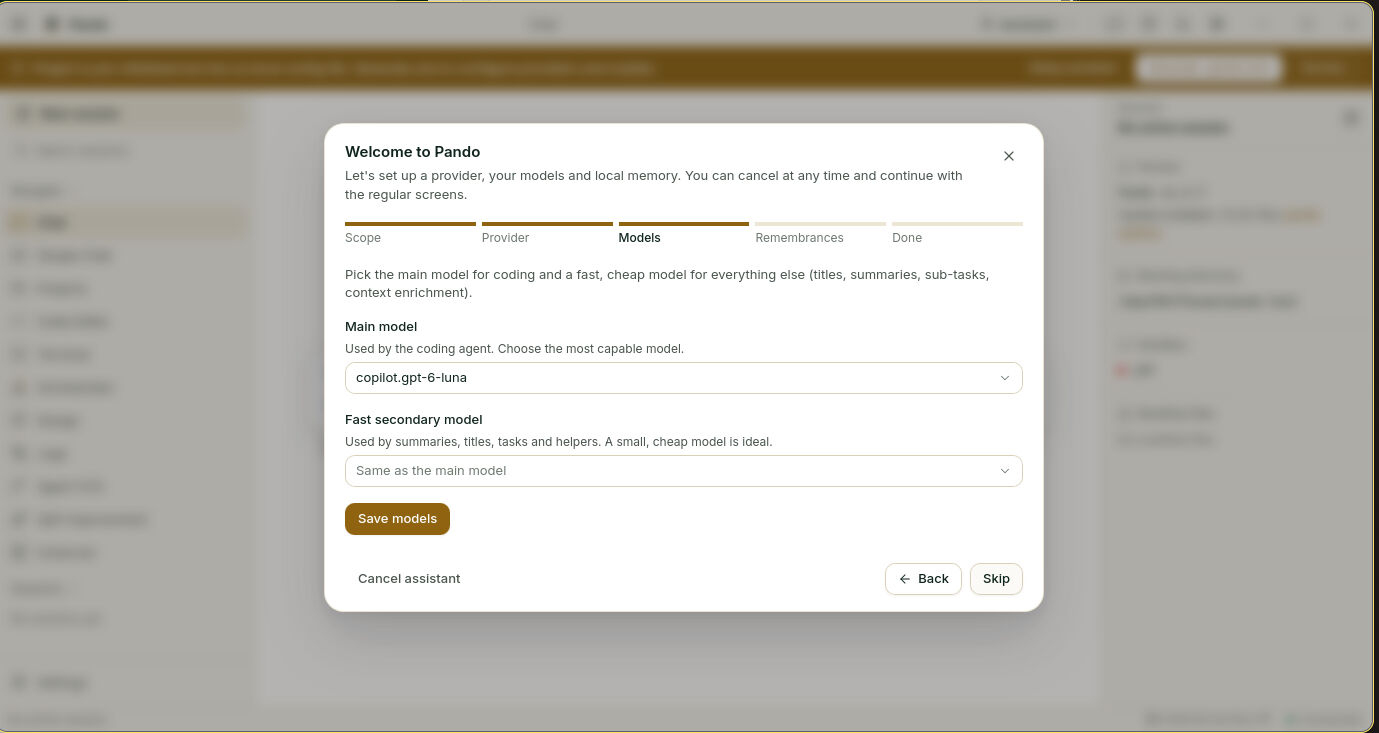
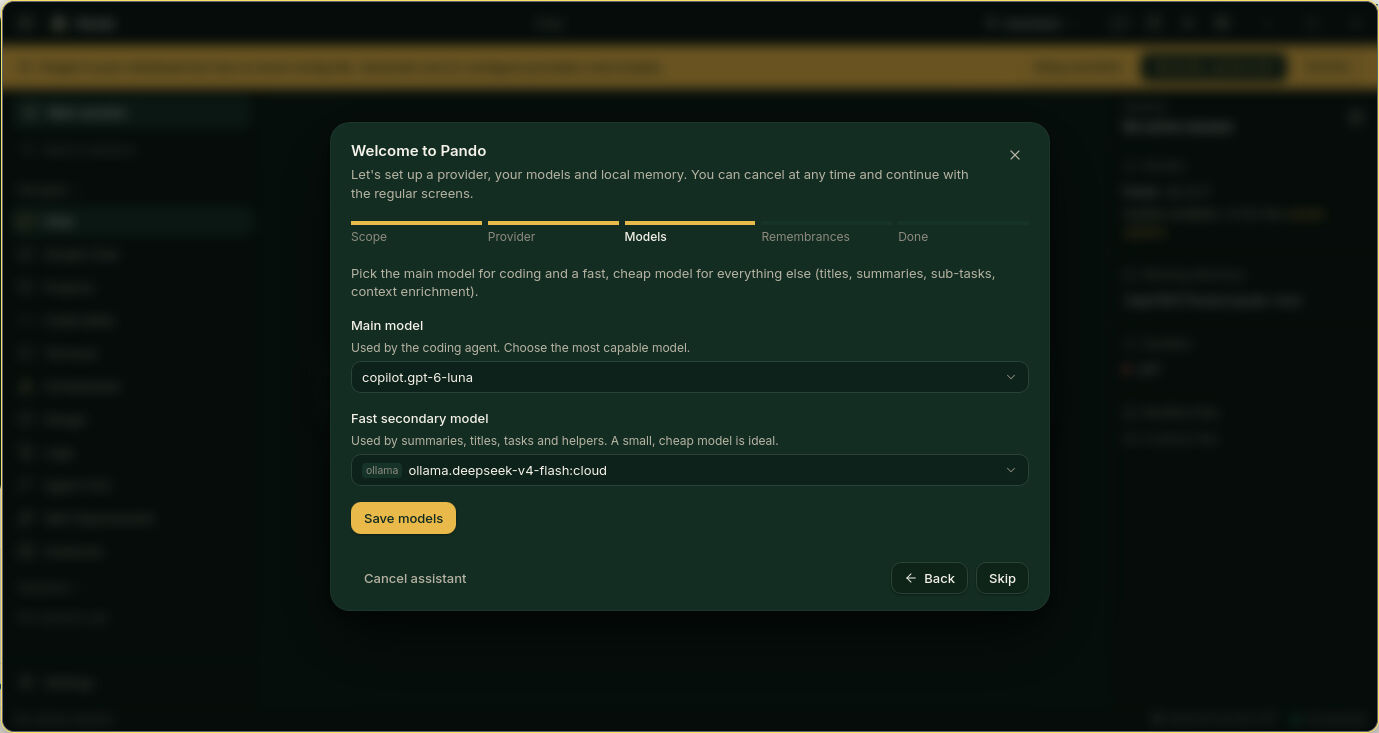
- Main model: the head chef. It reads your code and does the thinking. Pick the most capable one you have.
- Fast secondary model: the kitchen helper. It writes session titles, summaries and other small chores. Pick something quick and cheap.
Press Save models.
Decide about memory
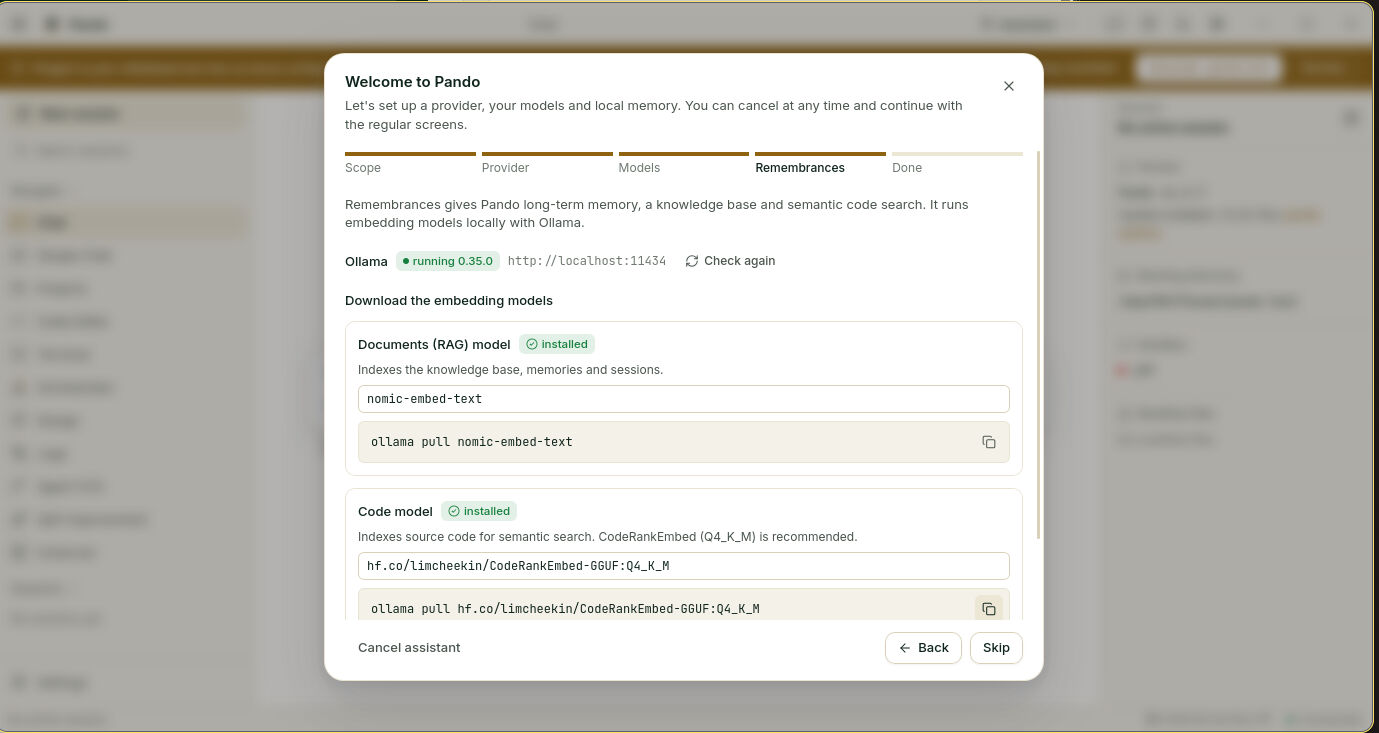
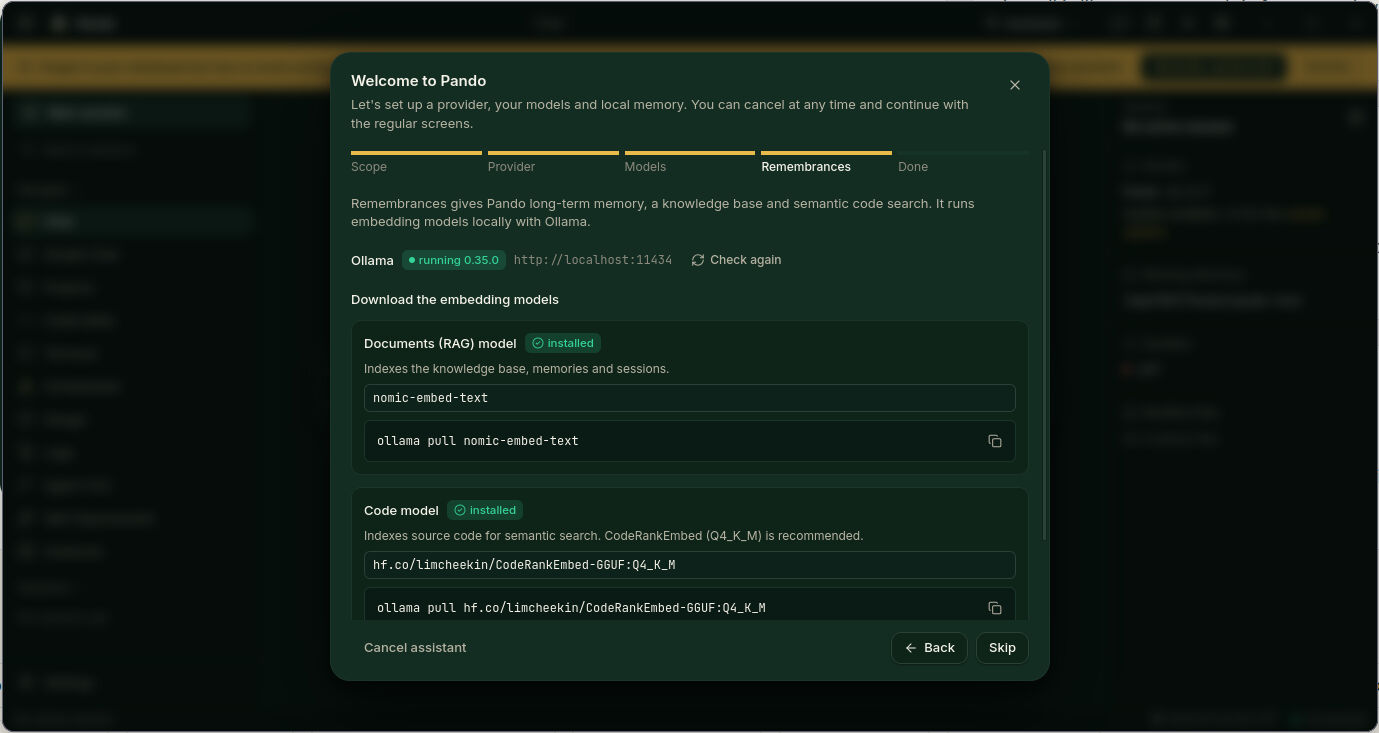
This step is optional. Remembrances is Pando’s notebook: it lets Pando remember across sessions and search your code by meaning. It runs on your own machine with Ollama.
- Ollama missing: the assistant shows how to install it and, where it can, offers to do it for you after you confirm.
- Ollama stopped: press Start Ollama.
- Ollama running: download the two small models with the button and wait for the progress bar.
Not now? Press Skip. You can turn it on later; see Teach Pando your project. The last screen is a summary: press Finish.
Add or fix accounts later
The assistant is the fast lane. The full garage is in Settings > Providers.
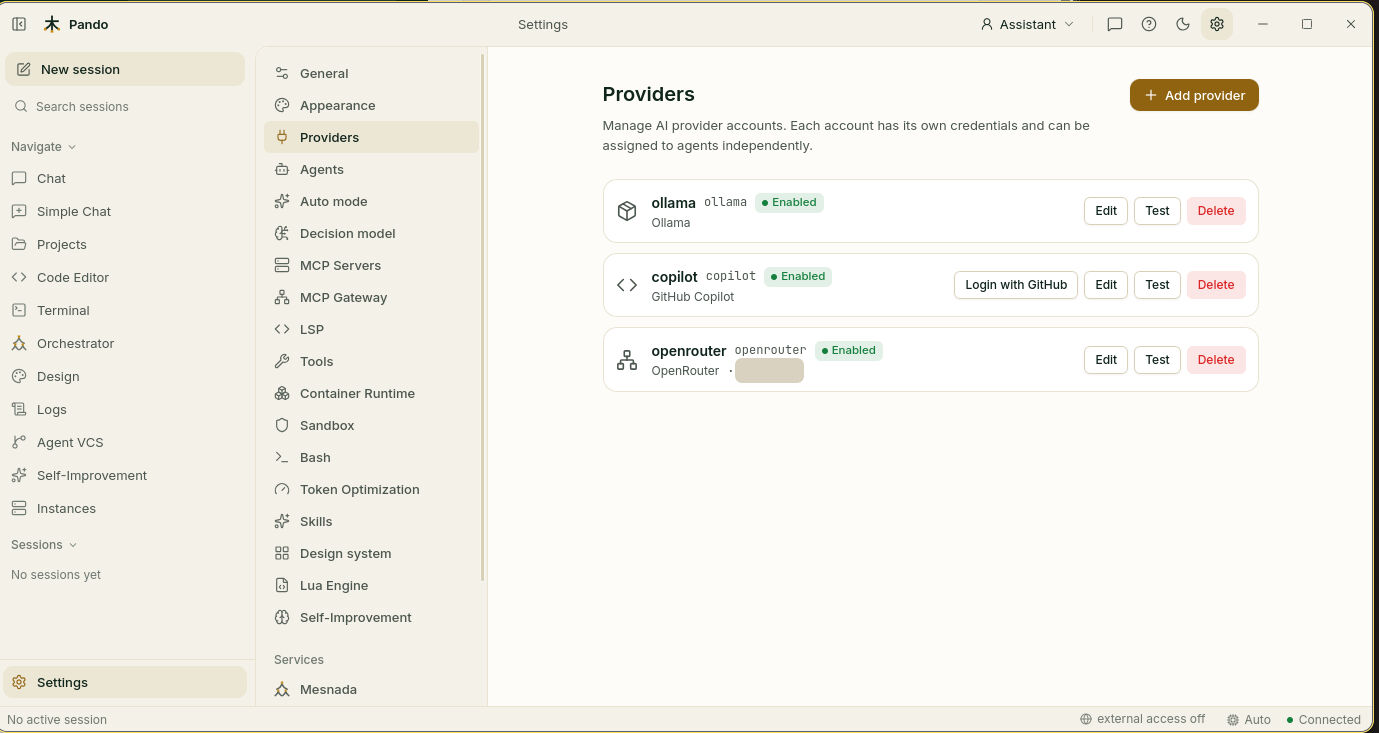
- Add provider opens a form: a short Account ID, a Display Name, the Provider Type, the API Key and, for compatible services, a Base URL.
- Test checks that the account answers.
- Edit and Delete do what they say. For Copilot, Login with GitHub repeats the sign-in.
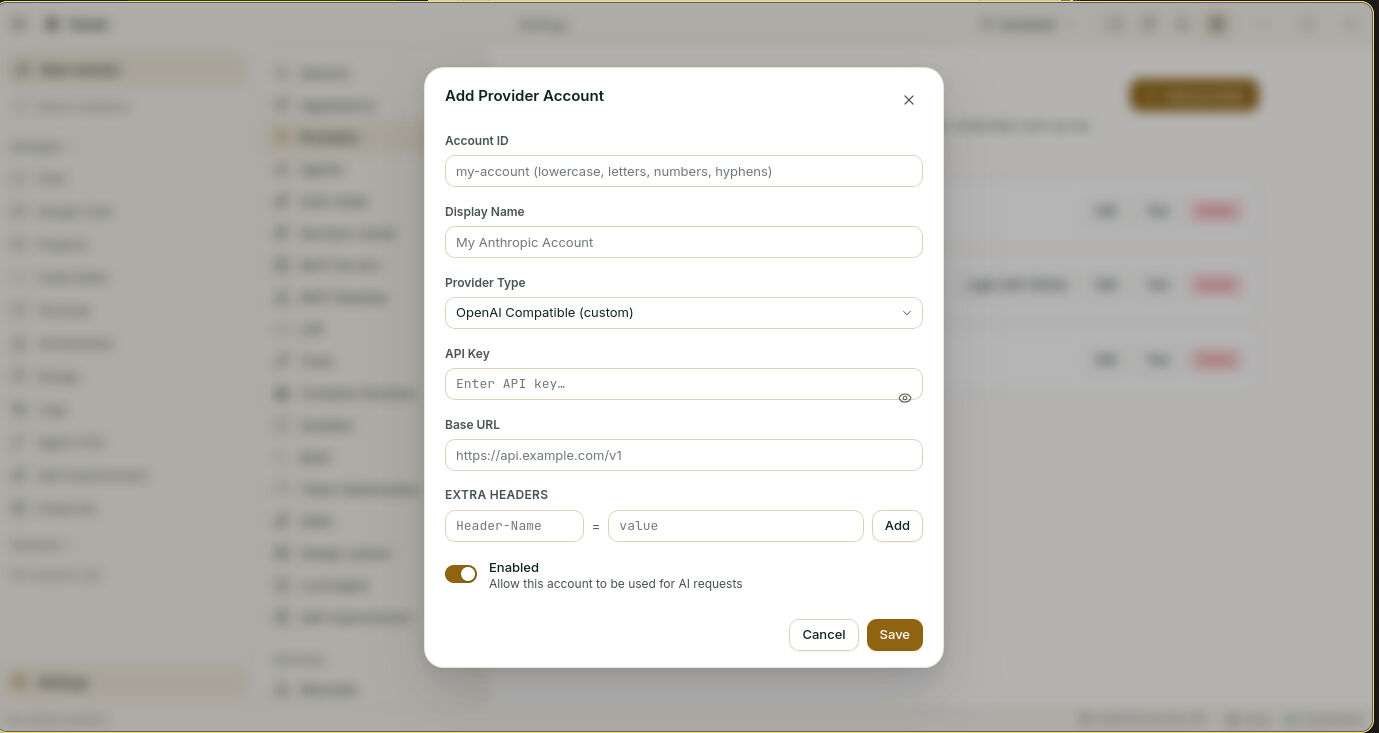
You can have several accounts of the same provider, for example a personal one and one from work.
Give each helper its model
Pando is not one single worker. Small specialists do the side jobs: one names sessions, another summarises, another runs sub-tasks. In Settings > Agents you choose the model for each. Open a row, pick a model, save.
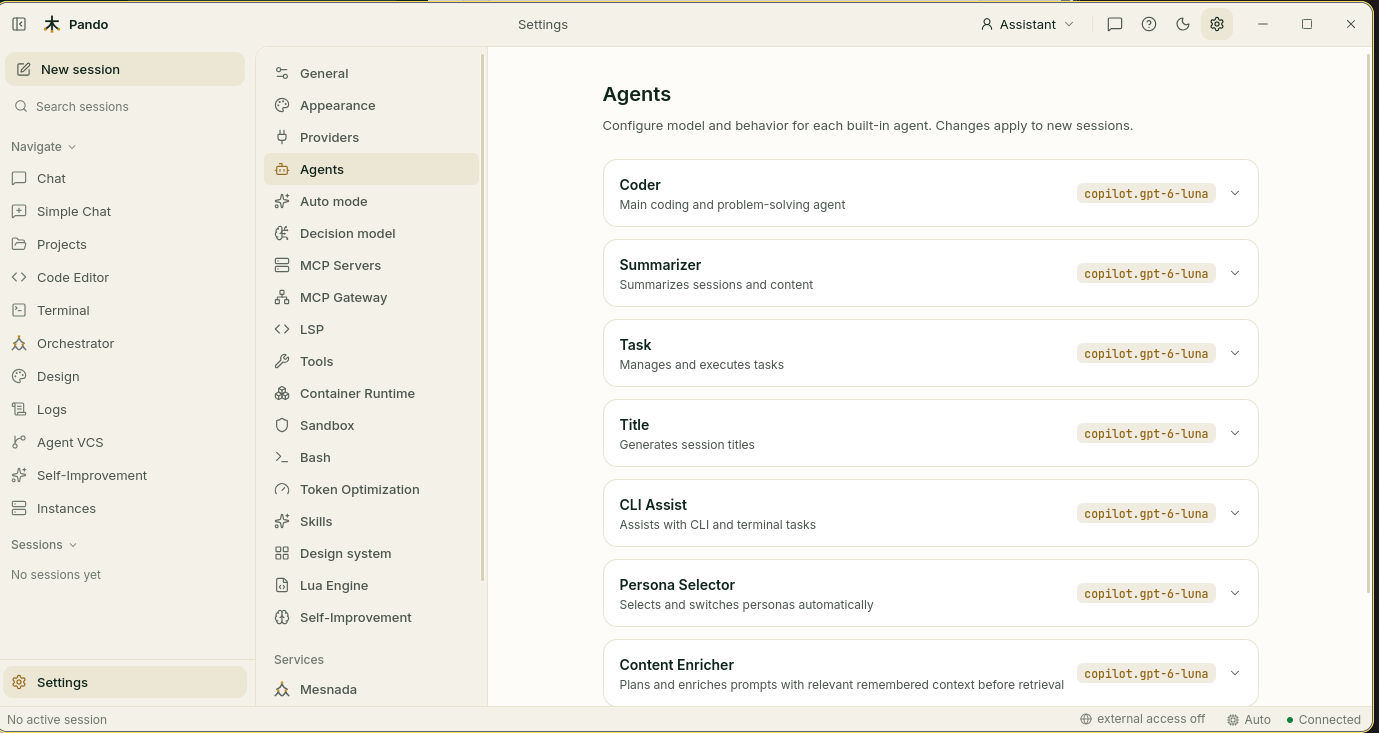
A good rule: the Coder gets your best model, the rest get a fast one.
Switch model while you chat
Next to the send button there is the name of the model in use. Click it, search, choose. The change applies to the session you are in; other sessions keep theirs.
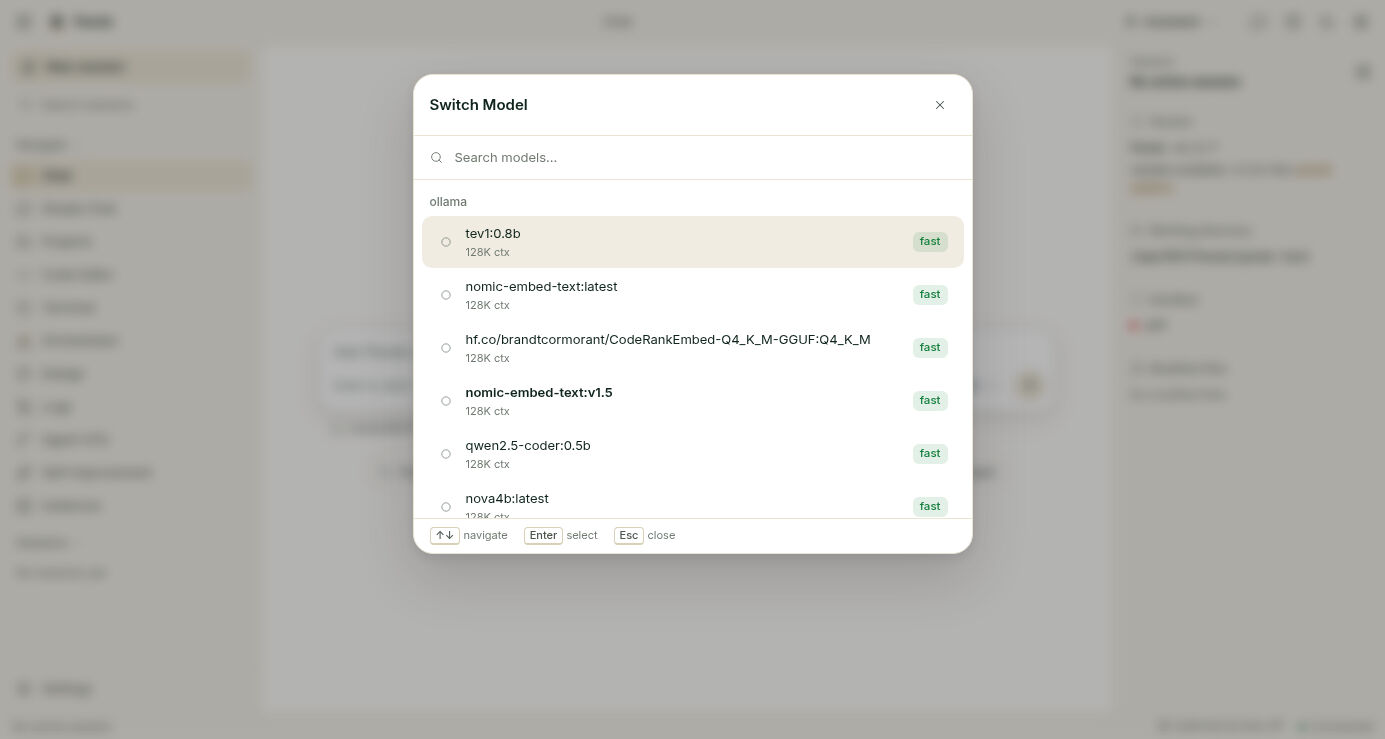
The model used by new sessions is Default Model in Settings > General.
Check it works
Go to Chat and ask something small, like “What is in this folder?”. If an answer arrives, the engine runs. In Settings > Providers, Test on each account should come back green.
If something goes wrong
| What you see | What to do |
|---|---|
| Test fails | Paste the key again; check it has not expired and has credit |
| The model list is empty | The account is disabled or the key is wrong. Open Edit and check Enabled |
| Copilot keeps asking you to sign in | Press Login with GitHub and finish the code step in the browser |
| The memory step says Ollama is not running | Start Ollama, then Check again |
| You chose the wrong place to save | Run the assistant again and pick the other option |
Prefer the terminal?
In the terminal interface, press Ctrl+G to open settings and add providers and models there. To sign in to Copilot from a shell:
pando auth copilot loginKeys can also live in the config file or in environment variables: see Configuration.