Keep the agent inside the playpen: sandbox and permissions
Decide where the agent's commands may write, which commands it may run without asking, and keep your keys out of sight.
Pando’s agent types commands on your computer for you. This guide shows the three dials that keep that safe: the sandbox (a playpen around every command), the command lists (what is always fine and what is never fine) and encrypted keys (so a shared config file gives nothing away). You only need Pando running; the desktop app looks exactly like the Web UI used here.
Look at the sandbox badge
Open a chat. In the info panel on the right, find Sandbox. It tells you at a glance what the playpen is doing: the mode when it is on, off when it is not.
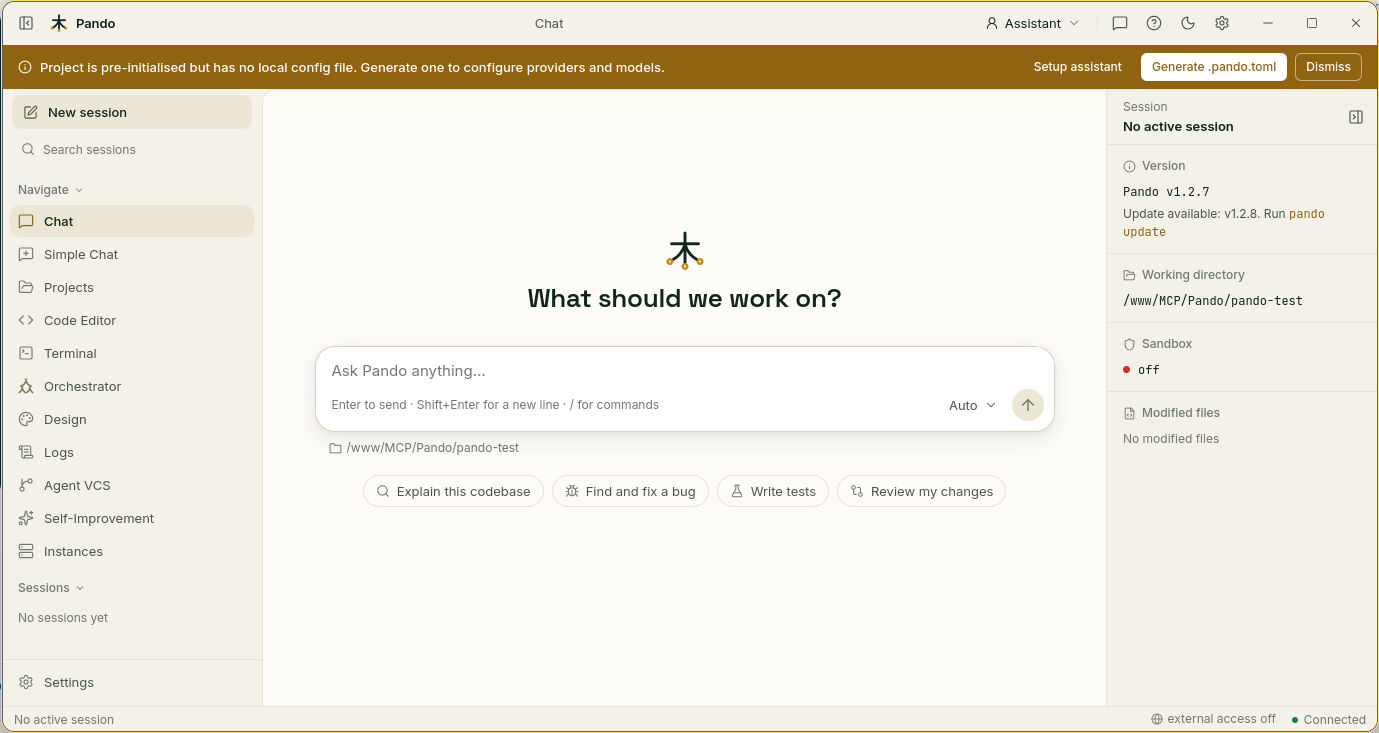
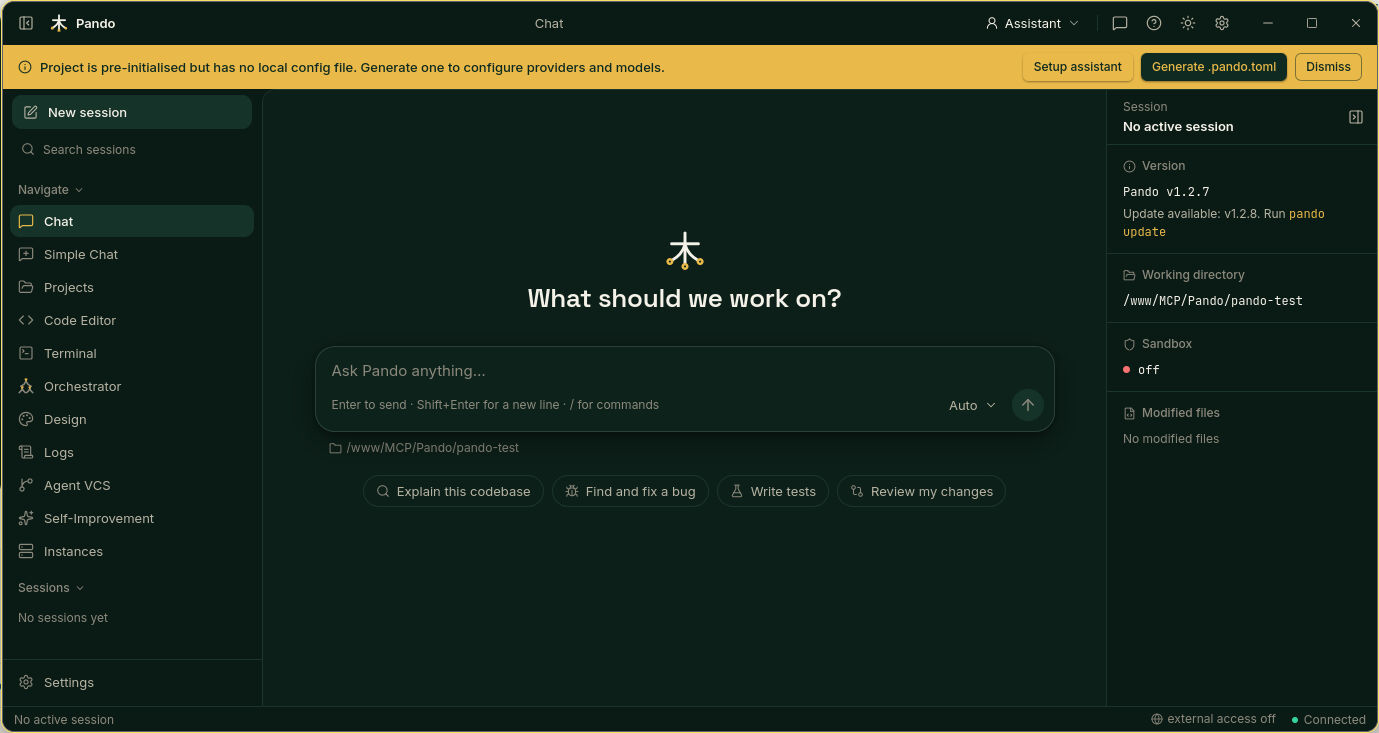
On Linux and macOS it is on from the first day. On Windows the badge says the sandbox is not enforced, and Pando asks you before each command instead.
Open the sandbox settings
Go to Settings > Sandbox. Everything on this page applies to the very next command. There is nothing to restart.
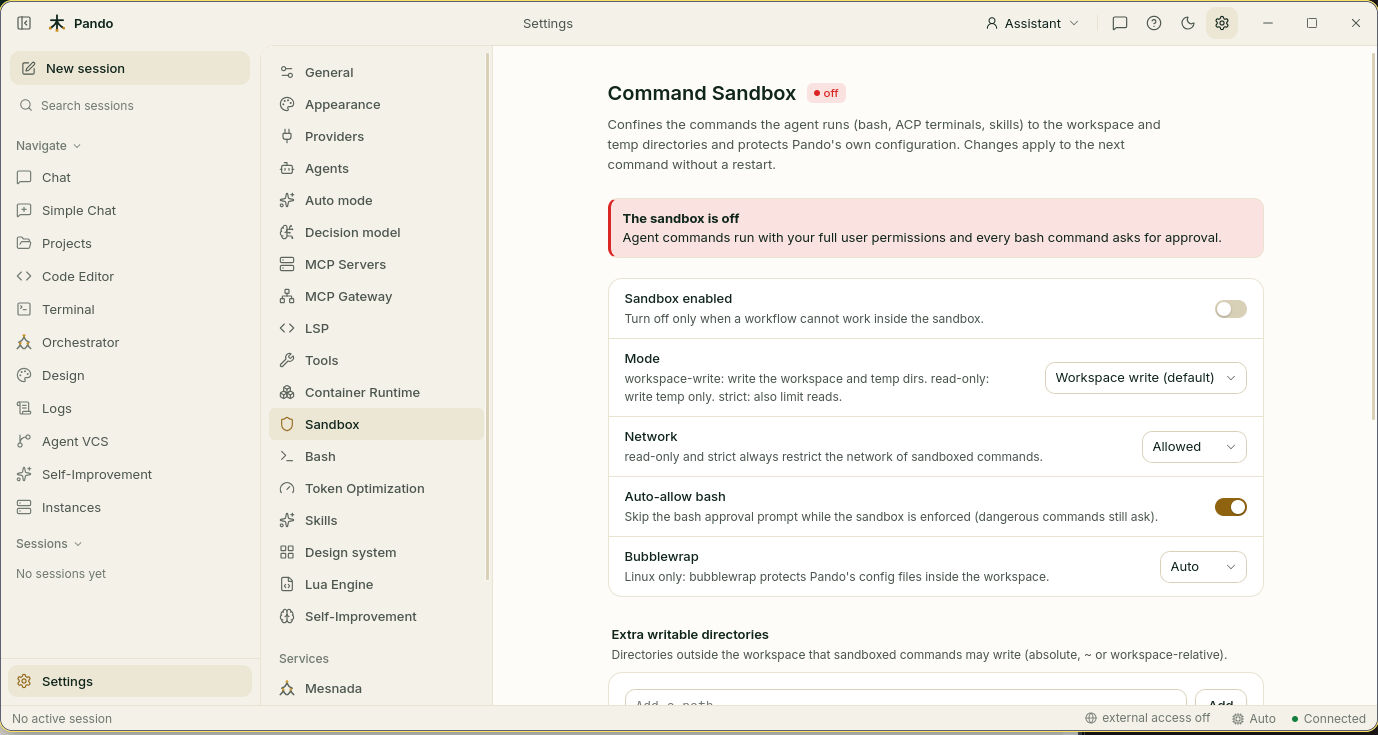
- Sandbox enabled is the main switch. Leave it on unless a task truly cannot work inside the fence.
- A red notice at the top tells you when the sandbox is off, and a yellow one when your system can only protect partially.
Choose how tight the fence is
Under Mode, pick one:
| Mode | The agent can write in | Internet for its commands | Good for |
|---|---|---|---|
| Workspace write (default) | Your project, temporary folders and the download caches of your tools | Yes | Everyday work |
| Read only | Temporary folders only | No | “Look, don’t touch”: reviews and exploring |
| Strict | Your project and temporary folders | No | A repository you do not trust yet. The agent cannot even read your home folder |
| Off | Everywhere | Yes | Switching the fence off |
Network lets you cut the internet for the agent’s commands while keeping the default mode. Pando’s own connections to your AI provider are not affected.
Open or close extra doors
Further down the same page:
- Extra writable directories: folders outside the project where the agent may also write, for example a shared folder.
- Denied paths: places the agent can neither read nor write, such as
~/.ssh. Patterns like*.pemwork. - Also sandbox: tick MCP servers (stdio) or Subagents to put those inside the fence too. They are left out by default because they often keep their own files elsewhere.
- Protected paths is a list you can read but not edit: Pando’s own settings and your git hooks. The agent can never change them, so it cannot open the gate from the inside.
Press Save.
Decide how often Pando asks you
With the sandbox giving its full protection, Auto-allow bash lets ordinary commands run without a question. Risky ones, such as sudo or deleting a system folder, still stop and ask. Turn Auto-allow bash off if you prefer to approve every command yourself.
When a command bumps into the fence, the agent is told why and usually tries again inside the project. If it really needs to go outside, it asks to run that one command without the sandbox. That request always waits for your click. No automatic mode can grant it.
Set the “always” and “never” lists
Go to Settings > Bash.
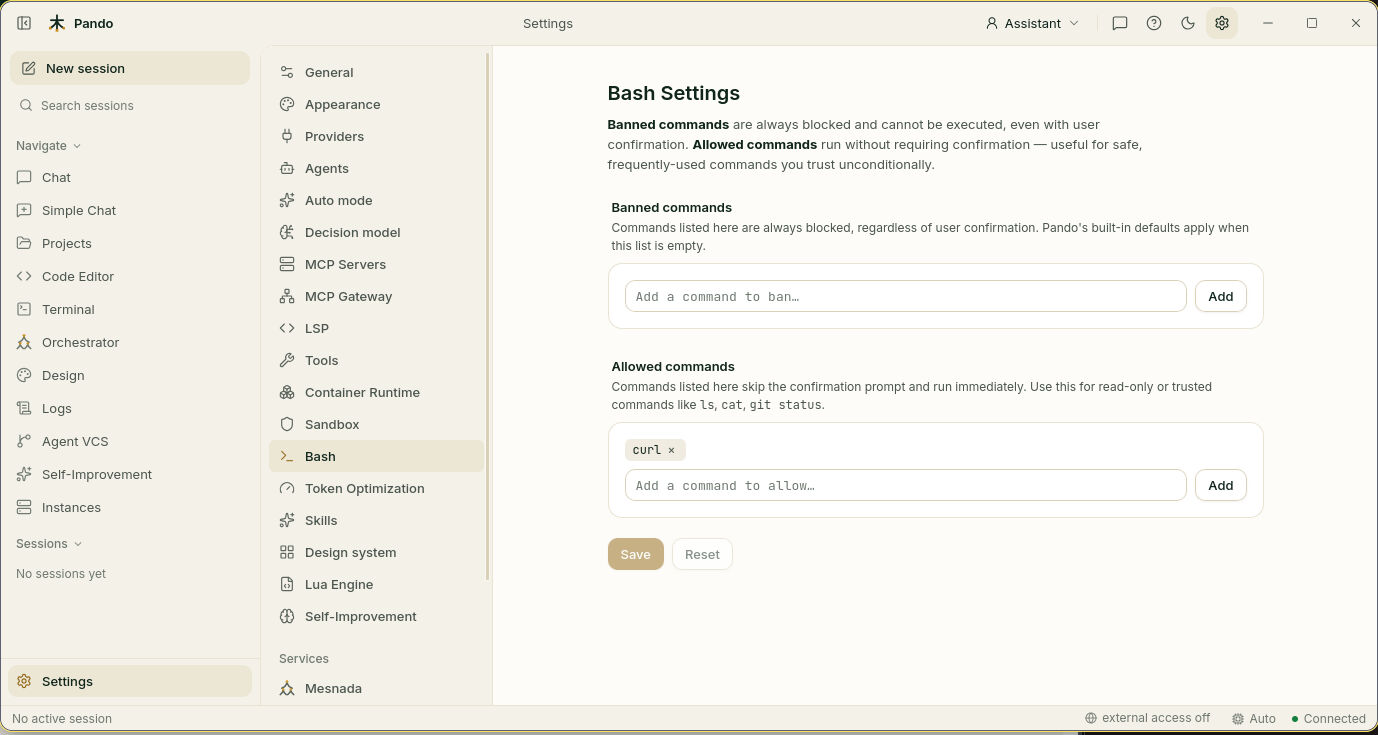
- Banned commands are refused every time, even if you would say yes. While the list is empty, Pando uses its own built-in list (download tools and browsers such as
curlandwget). - Allowed commands skip the question and run straight away. Use it for harmless things you are tired of approving, such as
lsorgit status. A command you add here is also taken off the built-in banned list.
Type a command, press Add, then Save.
Lock the keys in your config file
API keys written in a config file are like a house key under the doormat. Pando can replace each one with a scrambled version that only your computer can read:
pando secret my-api-keyCopy the result (it starts with age1:) and paste it where the key was. Pando unscrambles it in memory each time it starts. Keys you type in Settings > Providers are stored this way for you.
Check it works
Ask Pando’s sandbox to run a command that tries to write in your home folder:
pando sandbox exec -- touch ~/.probeYou should see Permission denied. Then run pando sandbox status: it prints the mode, whether the protection is full or partial, and what is protected.
If something goes wrong
| What you see | What to do |
|---|---|
The badge says partial | On Linux, install bubblewrap (sudo apt install bubblewrap, or dnf, pacman, zypper). On a Linux kernel older than 6.7 some protection cannot be offered; Pando keeps asking before each command |
| “Not enforced on this system” | Expected on Windows and very old Linux. Pando asks before every command instead |
| A tool cannot write its files | Add its folder to Extra writable directories |
| A command needs a key that disappeared | The sandbox hides variables that look like secrets. Let one through with Keep in the config file (see the reference) |
| A cloned project tries to loosen your sandbox | It cannot. A project’s own config can only make the fence tighter |
| A setting is greyed out | Your organisation manages it |
Prefer the terminal?
pando sandbox status                 # what is active right now
PANDO_SANDBOX=strict pando           # one run with a tighter fence
PANDO_SANDBOX=off pando              # one run without it
pando secret 'age1:…'                # show a scrambled value again
In the TUI the same page lives under Settings > Sandbox. Every option, with its exact name, is in the sandbox reference and the key encryption reference.