Use Pando from your phone or another computer
Pando reachable from other devices on your network, behind a username and a password.
By default Pando only listens to the computer it runs on, like a house with the door closed. This guide opens the door to the other devices on your network (your phone on the sofa, a laptop in another room) and puts a lock on it first. You need Pando running as the Web UI (pando app) or the desktop app.
Put the lock on first: add a user
Go to Settings > WebUI Access. Under Users, type a Username and a Password and press Add user.
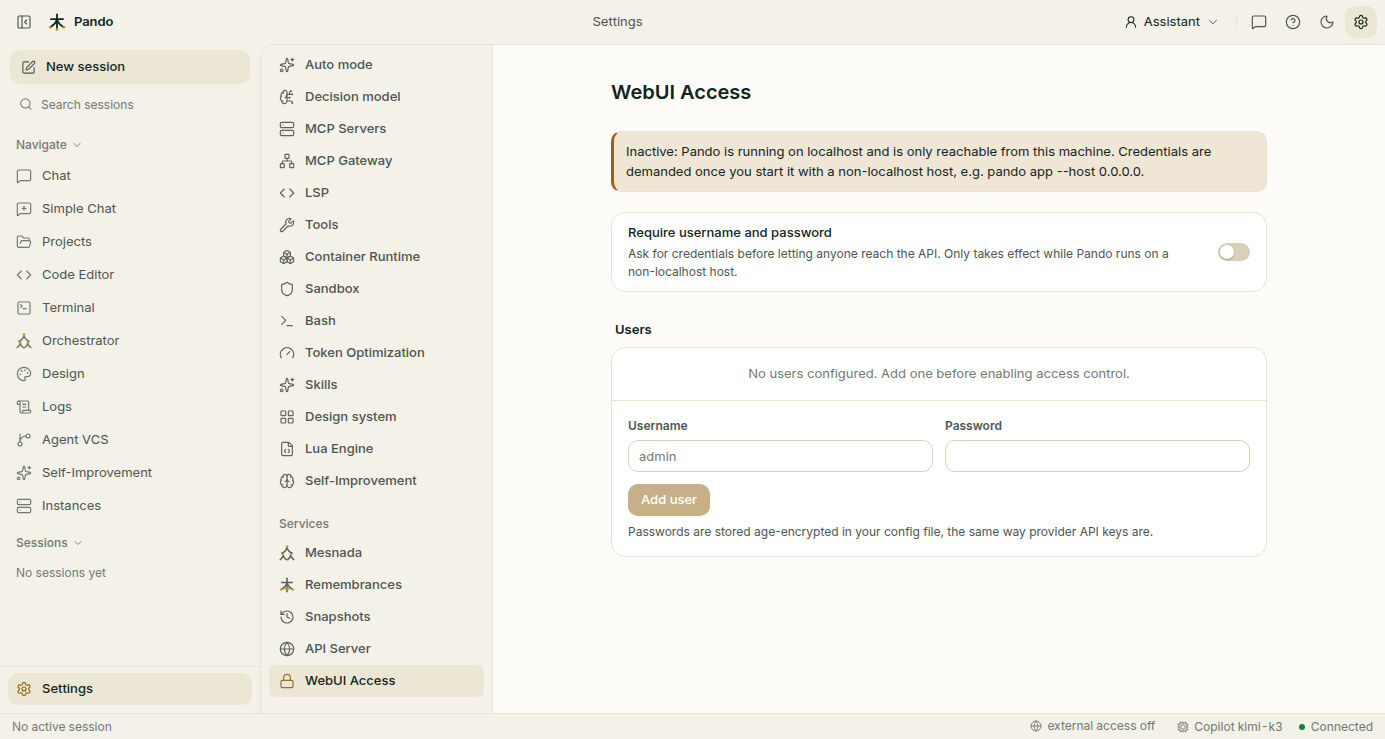
Then switch on Require username and password.
The note at the top says Inactive for now. That is normal: while Pando only listens to your own computer there is nobody to ask. The lock starts working the moment you open the door.
Open the door
Look at the bottom bar of the window and click external access off.
Pando starts listening to the network at once, without restarting, and the same spot now reads external access on. Hover over it to see the addresses other devices should use.
If you skipped the previous step, Pando reminds you to add a user before it opens up.
Connect from the other device
On the phone or the other computer, connected to the same network, open the address Pando showed you. It starts with https://.
- The browser warns that it does not know the certificate. Pando makes its own certificate to encrypt the connection, the way you would cut your own house key. Accept it, or trust it once and for all as explained in Auto HTTPS Certificates.
- Pando shows its own sign-in window. Enter the username and password.
- You are in: same sessions, same projects.
Several devices can be connected at the same time.
Install it like an app
On the phone, open the browser menu and choose Add to Home screen or Install app. On a computer, look for Install in the address bar. Pando gets its own icon and opens without the browser frame.
Manage who gets in
Back in Settings > WebUI Access:
- Add one user per person, so you can remove one without changing everyone’s password.
- Reveal shows a password you forgot. Delete removes a user at once.
- Deleting the last user switches the lock off, so you can never lock yourself out.
Passwords are stored encrypted in your config file, the same way your API keys are.
Close the door
Click external access on in the bottom bar. Pando goes back to listening only to your computer, immediately.
The API server (for other programs)
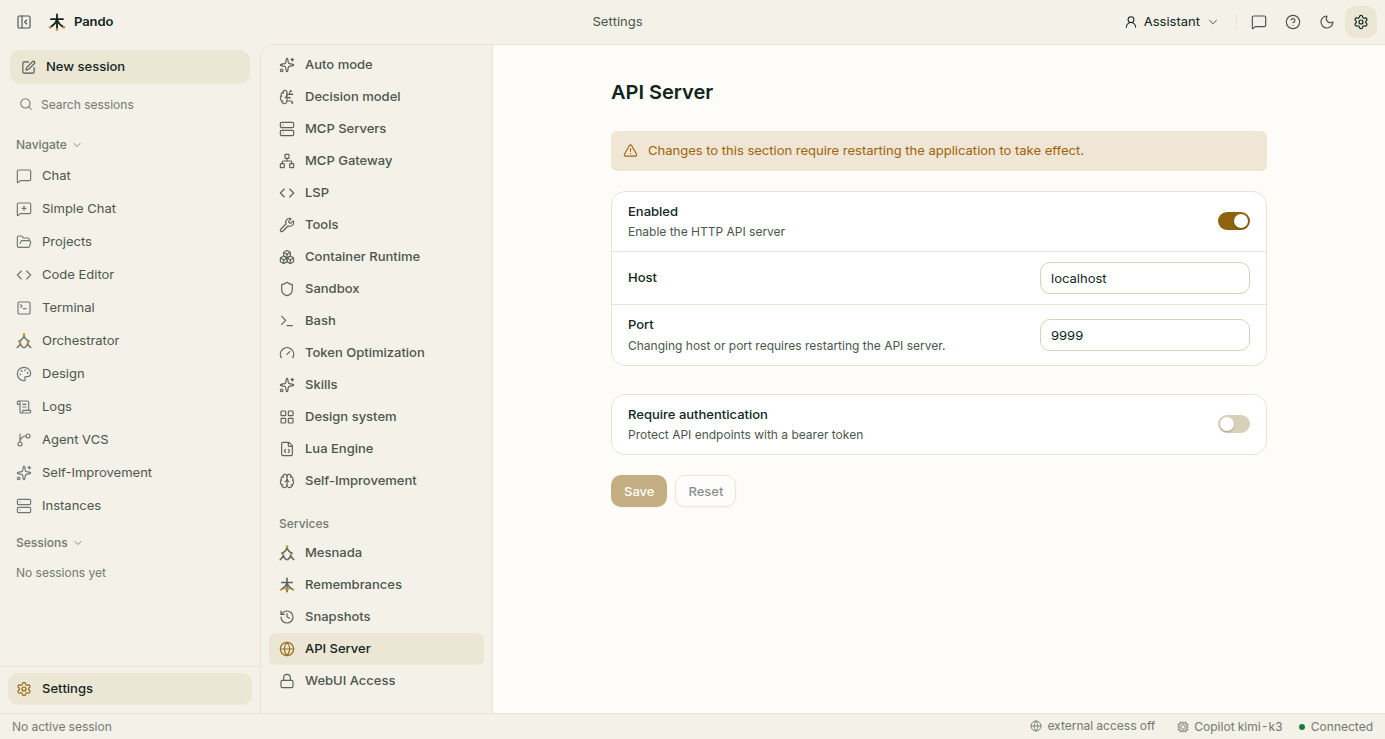
Unrelated to your phone, but it lives next door: Settings > API Server controls the address and port other programs use to talk to Pando, and Require authentication asks them for a token. Changes there need a restart of Pando.
Check it works
From the second device: the sign-in window appears, your password is accepted and you see your sessions. From a device with a wrong password: no entry.
If something goes wrong
| What you see | What to do |
|---|---|
| The switch refuses and asks for a user | Add a user in Settings > WebUI Access first |
| The page does not load on the phone | Check both devices are on the same network, and that a firewall on the computer is not blocking the port |
| “Require username and password” will not switch on | There are no users yet. Add one |
| The settings page says Inactive | Pando is only listening to this computer, so the lock is not needed. It becomes Active when external access is on |
| The browser keeps warning about the certificate | Trust Pando’s certificate once on that device |
Prefer the terminal?
Start Pando already open to the network:
pando app --host 0.0.0.0Or leave it written in the config file:
[Server]
Host = "0.0.0.0"

[Server.BasicAuth]
Enabled = true

[[Server.BasicAuth.Users]]
Username = "admin"
Password = "your-secure-password"
All keys and the user-management API are in the reference.