Teach Pando your project with Remembrances
Give Pando a notebook, a library and a map of your code, so it stops asking the same things twice.
By the end of this guide Pando will know your code, read your notes and remember what you decide from one day to the next. You need Pando running in a project and Ollama installed. If you went through the setup assistant, Ollama and its two small helper models are already there.
Everything below is done in the Web UI. The desktop app is the same interface.
Switch Remembrances on
Open Settings and, under Services, choose Remembrances. Turn on Enabled.
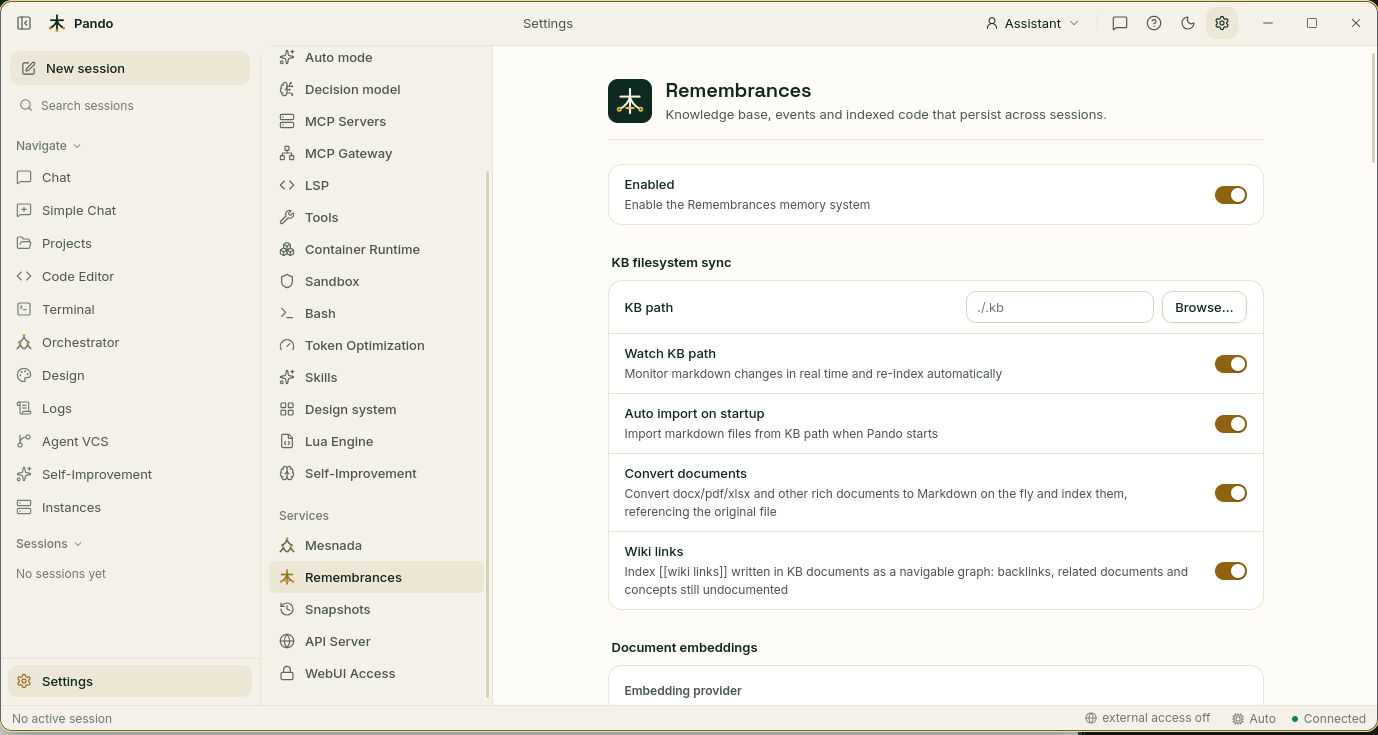
Think of this page as three shelves: a library for your documents, a map of your code and a notebook for small facts. The next steps fill each one.
Give it a way to read
To find things by meaning and not only by exact words, Pando uses a small helper model that runs on your own machine. Nothing is sent anywhere.
Under Document embeddings:
- In Embedding provider choose ollama.
- In Embedding model choose nomic-embed-text. Press Refresh if the list is empty.
- Press Test connection. A green OK means the helper answers.
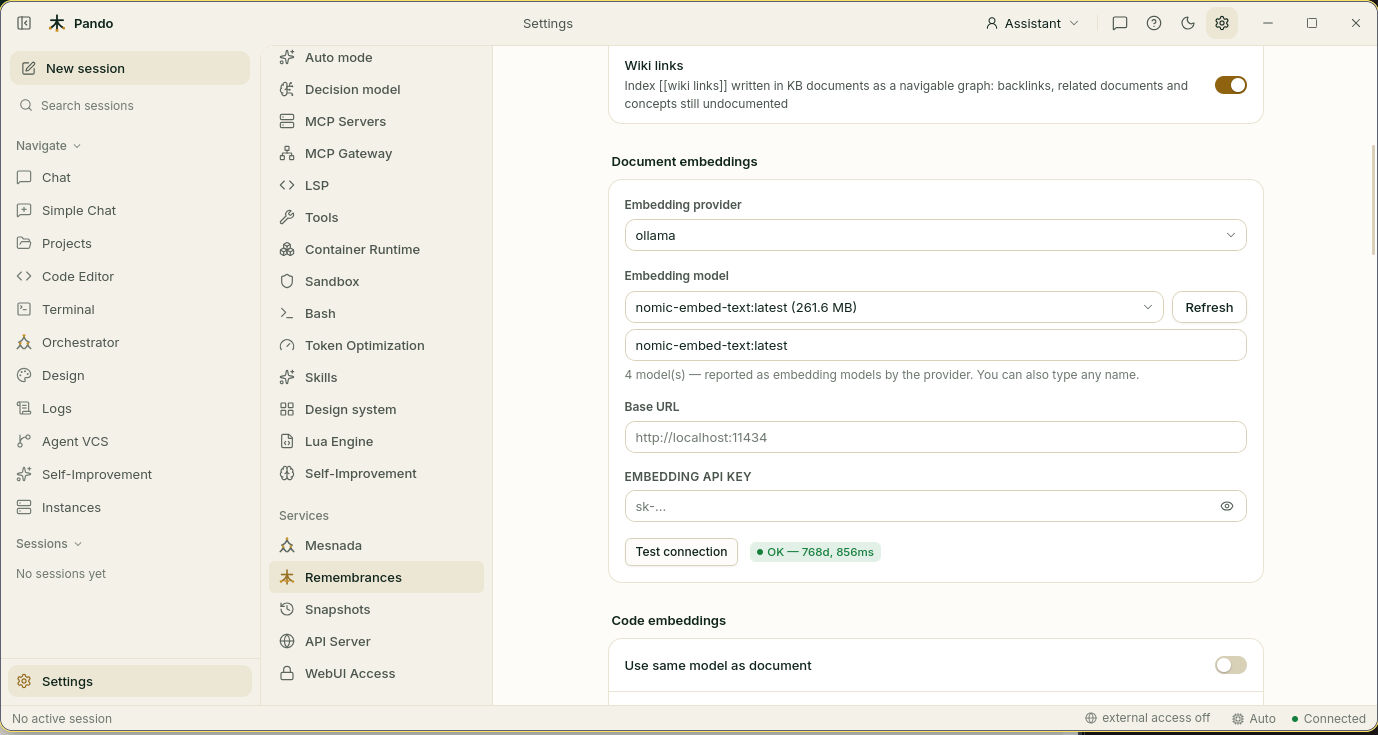
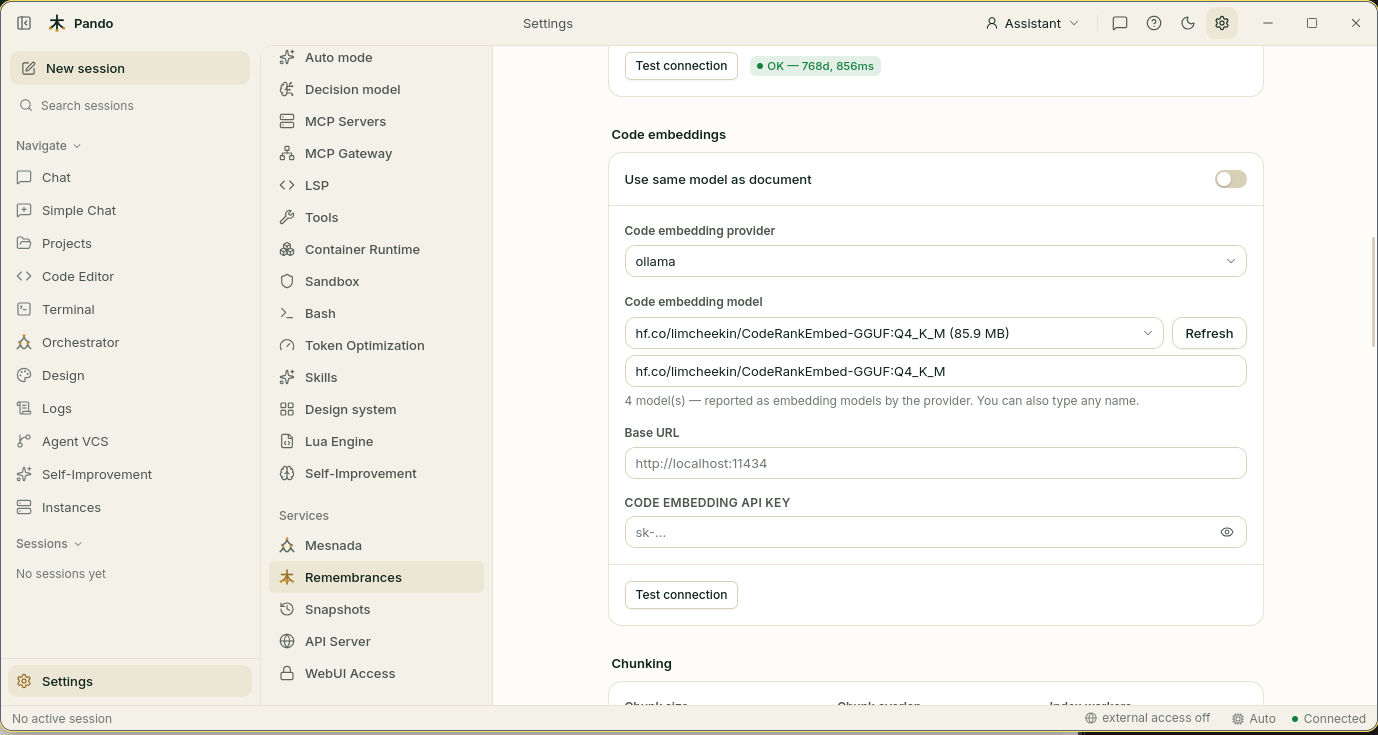
Under Code embeddings you can switch on Use same model as document and be done, or pick a model that reads code better. Code is found better by a model trained on code: the guide Choose a model that reads code helps you pick one and install it.
Draw the map of your code
Scroll to Context enrichment. Next to Code project, press + Index workdir. Pando walks through the folder you opened and builds an index of it, the way a book gets an index at the back.
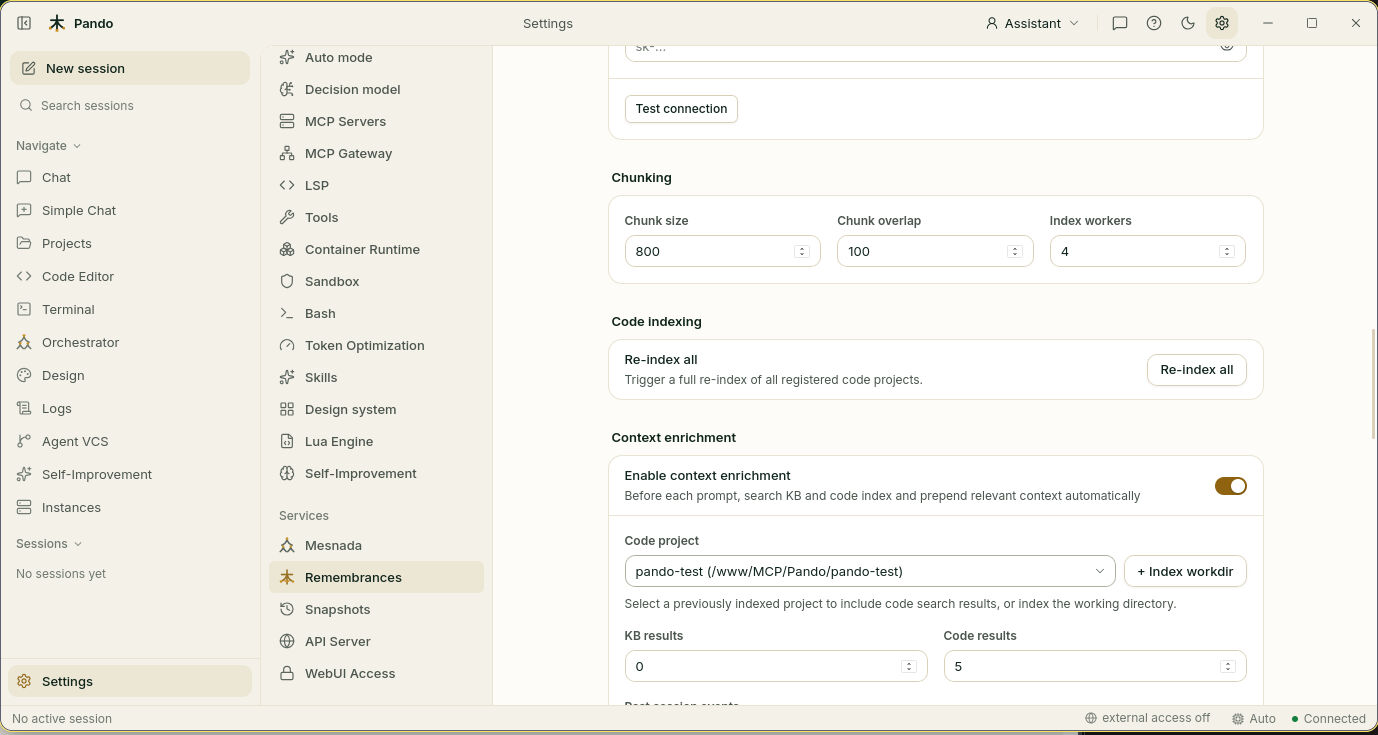
The first pass takes a while on a big project. After that, pick your project in the Code project list. If the map ever looks stale, Re-index all redraws it from scratch.
Fill the library with your notes
Back at the top, under KB filesystem sync:
- In KB path, press Browse… and pick the folder where your Markdown notes live. A
.kbfolder inside the project is a good home. - Leave Watch KB path on, so a note you edit is picked up right away.
- Leave Auto import on startup on, so the library is refreshed every time Pando starts.
- Turn on Convert documents if you also keep Word, PDF or Excel files there. Pando reads them as if they were notes.
- Wiki links lets notes point to each other with
[[double brackets]], like pages of a wiki.
Let Pando look things up by itself
Still in Context enrichment, turn on Enable context enrichment. From now on, before answering, Pando quietly checks the library and the map and brings along what looks useful. It is the difference between a colleague who walks into the meeting cold and one who read the file on the way.
- KB results and Code results say how many finds it may bring each time. Start with the values you see.
- Past session events adds what happened in earlier conversations.
For a more thorough search, switch on Agent loop enrichment: a small helper does several rounds of searching and hands the main agent only the summary.
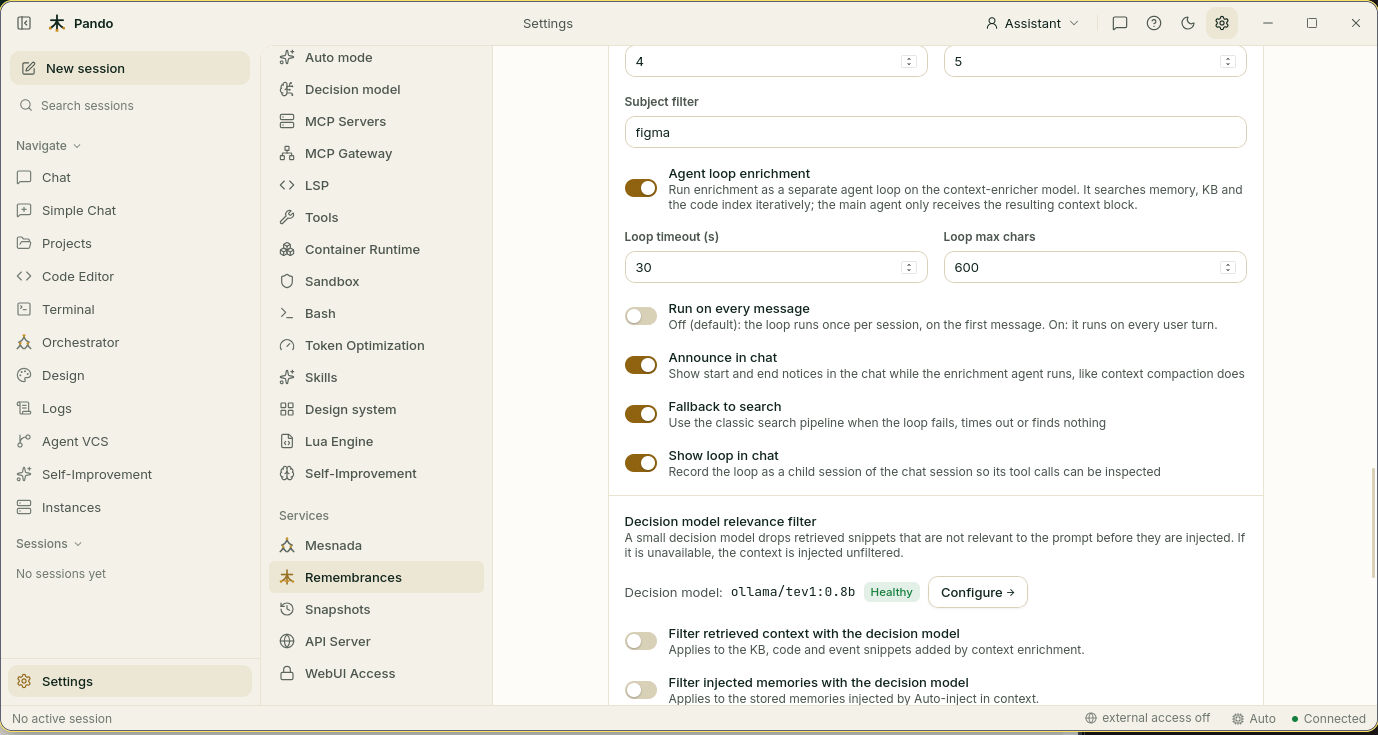
- Run on every message is off by default: the helper runs once, on the first message of a session, which is when Pando knows the least.
- Announce in chat shows a line in the chat while it works.
- Fallback to search keeps the simple search as a safety net.
- Show loop in chat saves the helper’s work as a small side session you can open and read.
Further down, the Decision model relevance filter can throw away finds that do not fit your question. It needs a decision model.
Open the notebook
At the bottom, under Memory system, turn on Memory enabled. This is the notebook: short facts such as “we use pnpm here” or “tests run with make test”.
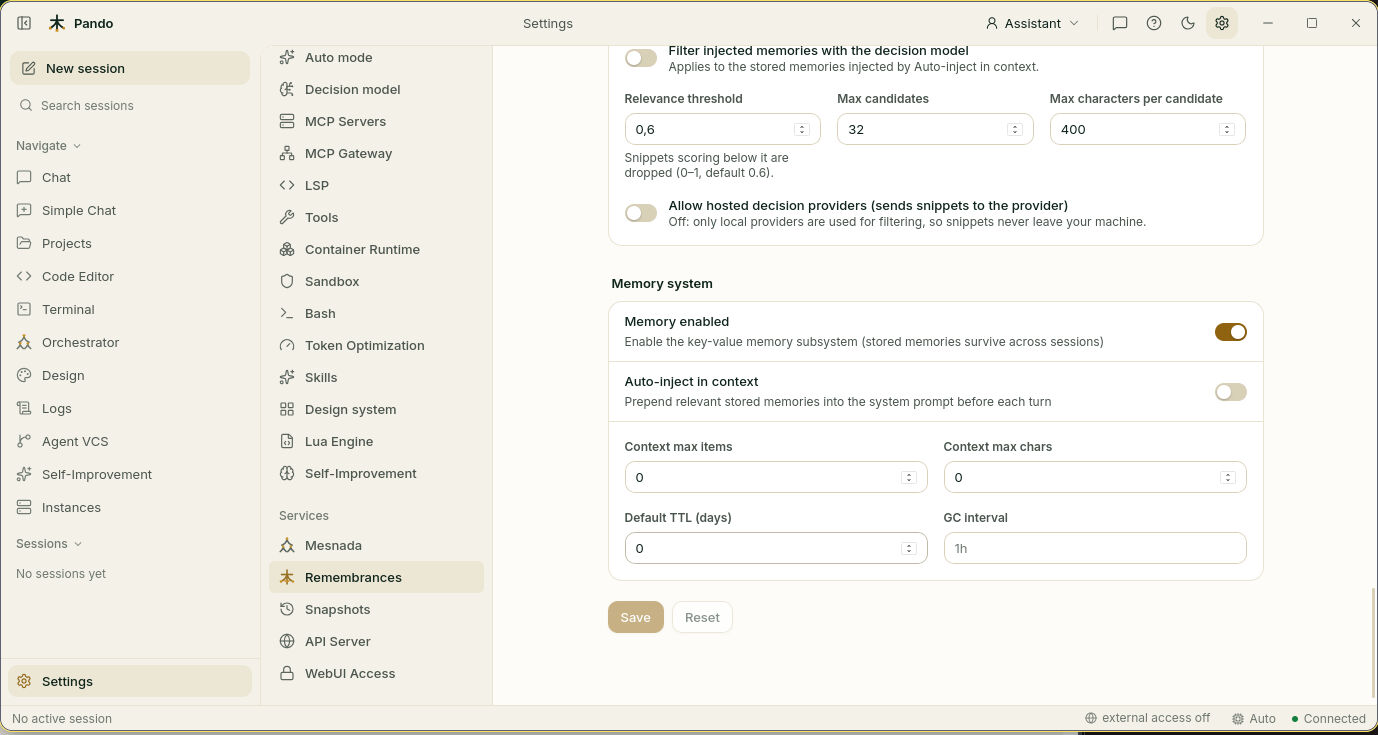
Turn on Auto-inject in context if you want Pando to glance at the notebook before every answer. Context max items says how many notes it may read each time. Default TTL (days) is how long a note lives if nobody looks at it again.
Press Save.
Check it works
Start a new session and try three things:
- Ask about your code without naming a file: “Where do we check that a user is logged in?” Pando should go straight to the right place.
- Tell it something worth keeping: “Remember that we deploy on Fridays.” Then, in another session: “When do we deploy?”
- Ask about something only your notes say.
If something goes wrong
| What you see | What to do |
|---|---|
| Test connection fails | Ollama is not running. Start it and press Refresh |
| The model list is empty | Download the helper: ollama pull nomic-embed-text |
| Pando does not seem to know your code | Check that a project is chosen in Code project, then press Re-index all |
| A note you just wrote is not found | Check KB path points to the right folder and Watch KB path is on |
| Answers got slower | Lower KB results and Code results, or switch off Run on every message |
Prefer the terminal?
Everything on this page is also a line in your config file. The basics:
[Remembrances]
ContextEnrichmentEnabled = true
MemoryEnabled = true
KBPath = '.kb'
The full list of options is in the Remembrances reference. To understand what each shelf is for, read Persistent memory and Context enrichment.