Work on several projects with workspace tabs
Your projects in one list, each one a click away in its own tab.
If Pando is a workshop, a project tab is a second workbench in the same room: its own tools laid out, its own half-finished job, and you walk between benches without packing anything away. You need Pando open (Web UI or desktop app, they are the same) and at least two project folders on your disk.
Open the Projects list
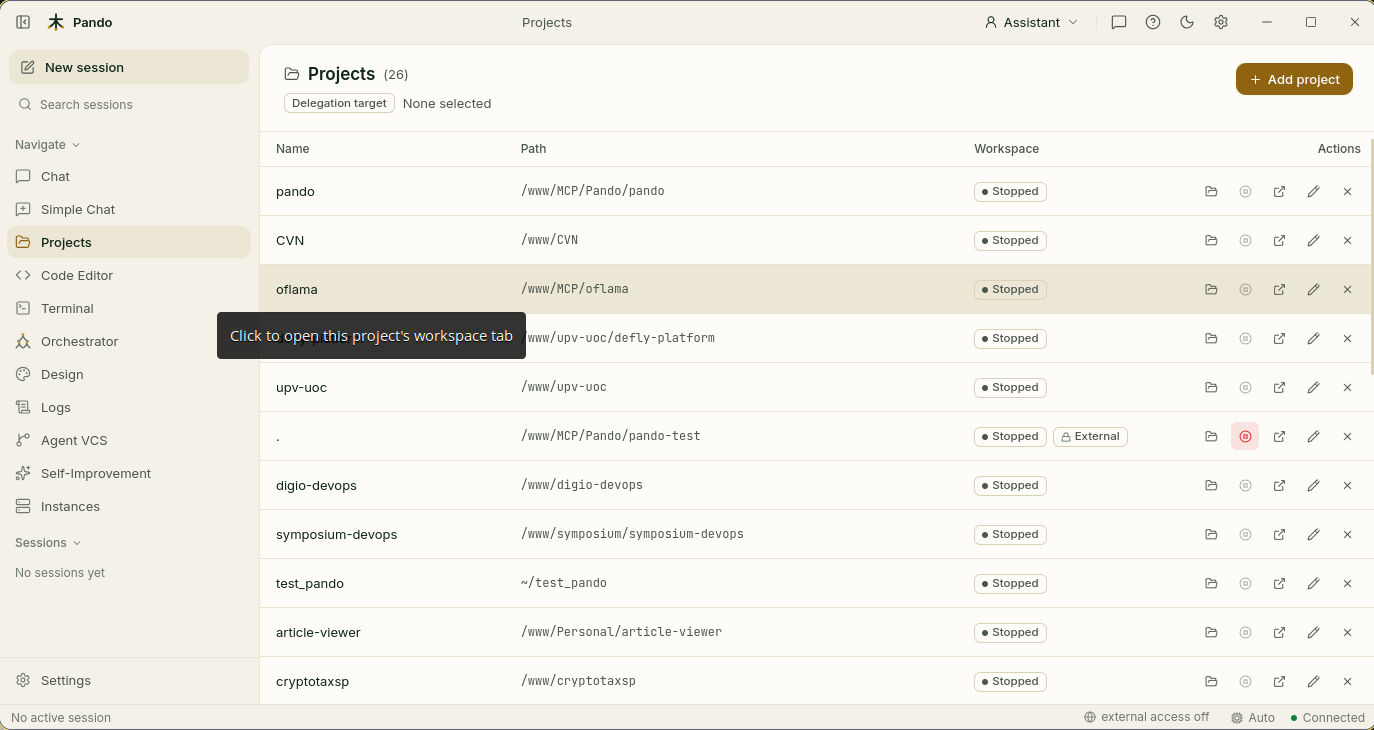
Click Projects in the left menu. Each row is a folder Pando knows about: its name, its path and whether its workspace is running.
Add a project
Press Add project, pick the folder and confirm. It joins the list. Use the pencil icon to give it a friendlier name; the name is only a label, the folder is not touched.
Open it in a tab
Click the row, or use Open tab in the actions column. Pando wakes up a workspace for that project and opens it as a tab at the bottom of the window. The tab is a complete Pando: chat, sessions, files and terminal, all pointed at that project’s folder.
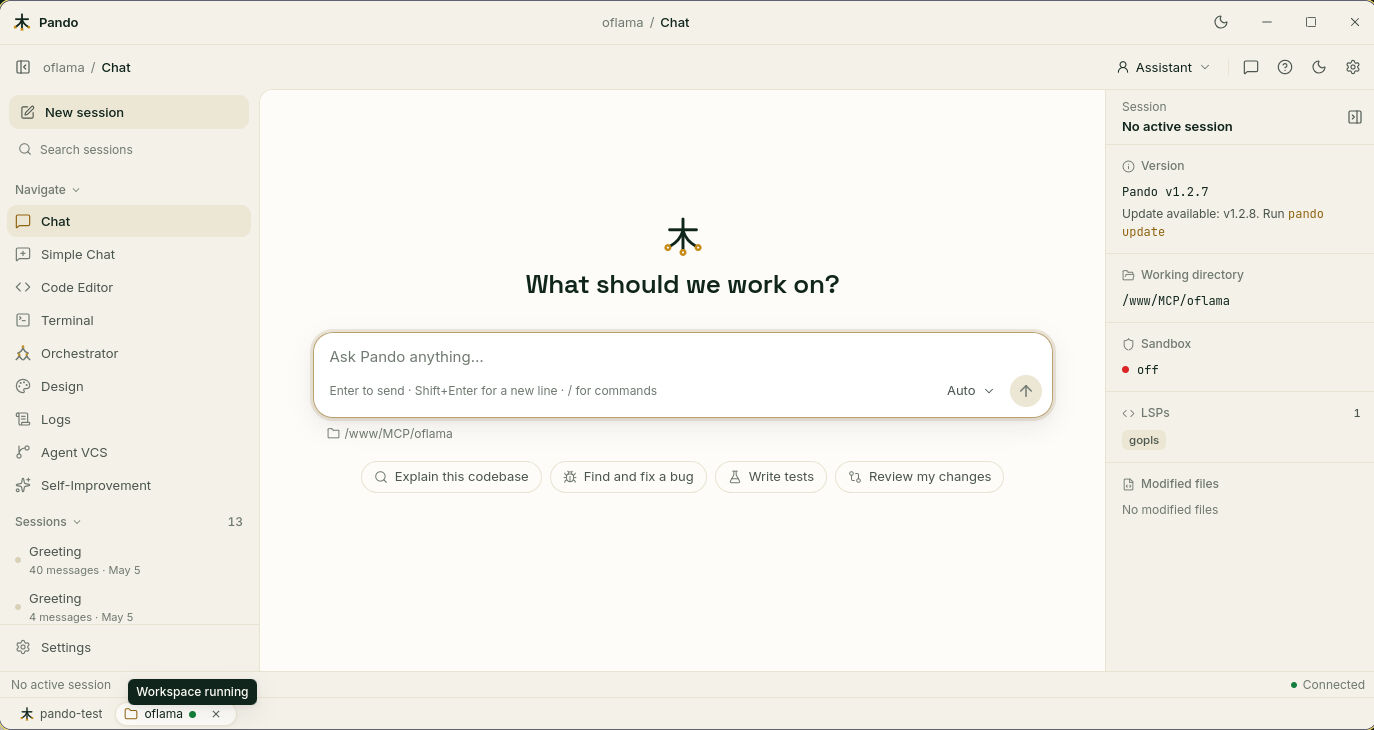
A green dot on the tab means the workspace is running.
Move between tabs
Click the tabs at the bottom, or use the keyboard:
- Ctrl+Alt+1…9 jumps to the main tab or one of the first project tabs.
- Ctrl+Alt+Left / Right goes to the previous or next tab.
Nothing is lost when you switch. The terminal you left open in the other tab is still there, mid-command, like a pot left simmering.
Close a tab, or stop it
Press the × on the tab (or Ctrl+Alt+W). You get two choices:
- Close: hides the tab but leaves the workspace running in the background. Opening it again is instant.
- Close and stop workspace: also switches the workspace off. Choose this when you are done for the day.
You can also stop a workspace from the Projects list with the stop icon on its row.
Open a project in its own window
Prefer two windows side by side? In the desktop app, use Open in new window on the row. That project gets a Pando window of its own.
Decide where delegated work goes
At the top of the list, Delegation target shows the project that receives jobs Pando hands to helper agents. If a project’s workspace is already running, those helpers use it instead of starting another copy. More in Delegate with Mesnada.
Set the limits
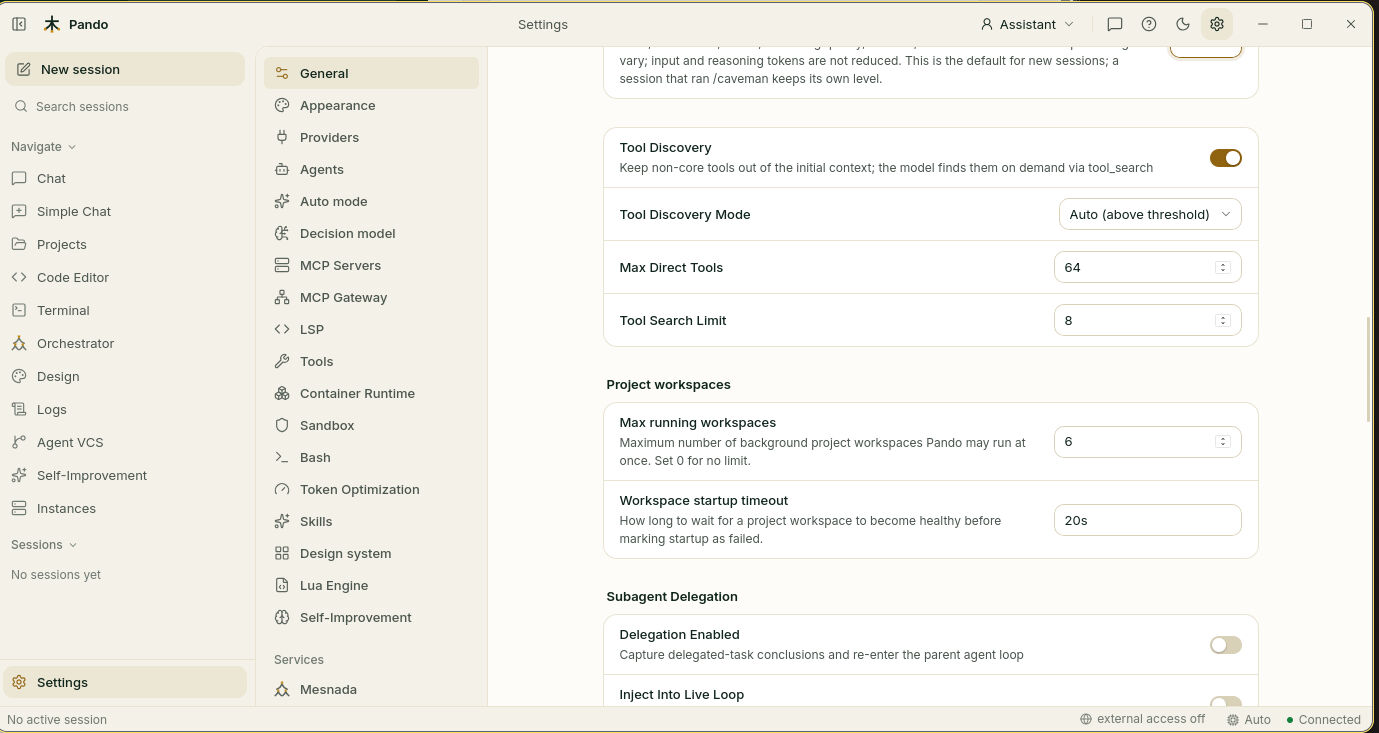
Each running workspace uses memory, like each open app on your phone. In Settings > General, under Project workspaces:
- Max running workspaces: how many may run at once (6 by default, 0 for no limit).
- Workspace startup timeout: how long to wait for one to start before saying it failed (20 seconds by default).
Check it works
Open two projects in tabs. Start a command in the terminal of the first, switch to the second, come back: the command is still running. Reload the page: the tabs come back.
If something goes wrong
| What you see | What to do |
|---|---|
| The workspace shows Error or never leaves Starting | Raise Workspace startup timeout, then open the tab again |
| A new tab refuses to open | You reached Max running workspaces. Stop one you do not need |
| A row is marked External and cannot be stopped | It was started by something else, such as your editor. Close it from there |
| The Design preview does not show inside a project tab | Previews are not available in tabs. Open the project in its own window |
Prefer the config file?
[Projects]
MaxWebInstances   = 6
WebStartupTimeout = "20s"
Every key, the keyboard shortcuts and the API are in the reference. What a workspace tab is and how it is kept private: Project Workspaces.