Delegate to subagents with Mesnada
Hand jobs to a crew of helpers, watch them work in parallel and get their reports back in your chat.
One agent is a single pair of hands. Mesnada gives Pando a crew: helpers that take a job each, work at the same time and come back with a report. In this guide you switch the crew on, hand out a first job, decide how reports come back and schedule a job that repeats by itself.
You need Pando working with at least one model. Everything is done in the Web UI; the desktop app is the same.
Switch the crew on
Open Settings and, under Services, choose Mesnada. Turn on Enabled.
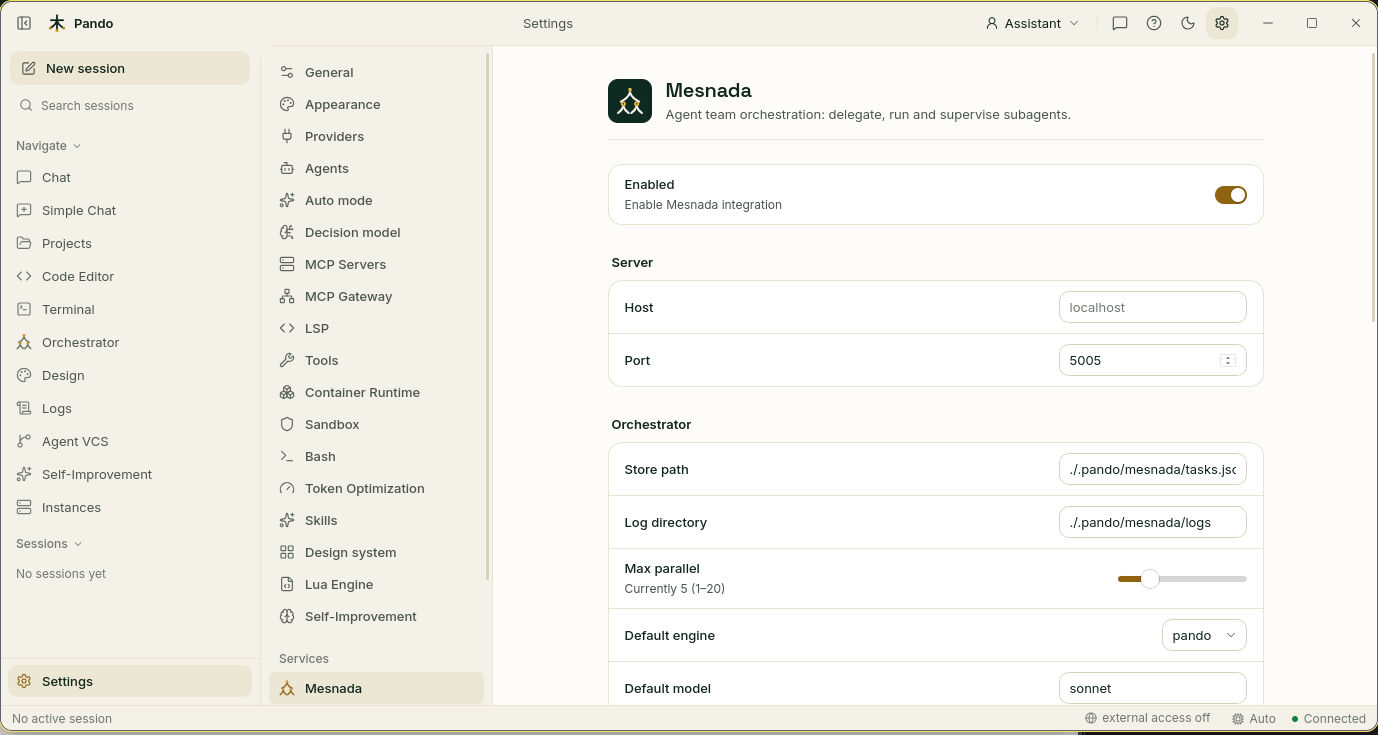
Three settings in Orchestrator matter on day one:
- Max parallel is how many helpers may work at once. Five is a good start. More helpers means more speed, and also more spending.
- Default engine is who the helpers are. pando uses Pando itself. You can also send jobs to other assistants you have installed, such as claude or copilot.
- Default model is the model helpers use when you do not say otherwise.
Press Save.
Ask for it in the chat
The simplest way to delegate is to say so. In a session, write something like:
Review the three services in this repo. Use one subagent per service and give me a single summary at the end.
Pando splits the work, sends the helpers off and carries on. The info panel on the right of the chat shows a Subagents section with the ones still running.
Good jobs to delegate are the ones that do not step on each other: reading different folders, writing tests for different modules, researching separate questions. Two helpers editing the same file is like two people writing on the same sheet of paper.
Hand out a job yourself
Open Orchestrator in the side menu. The Mesnada Tasks tab lists every job, running or finished.
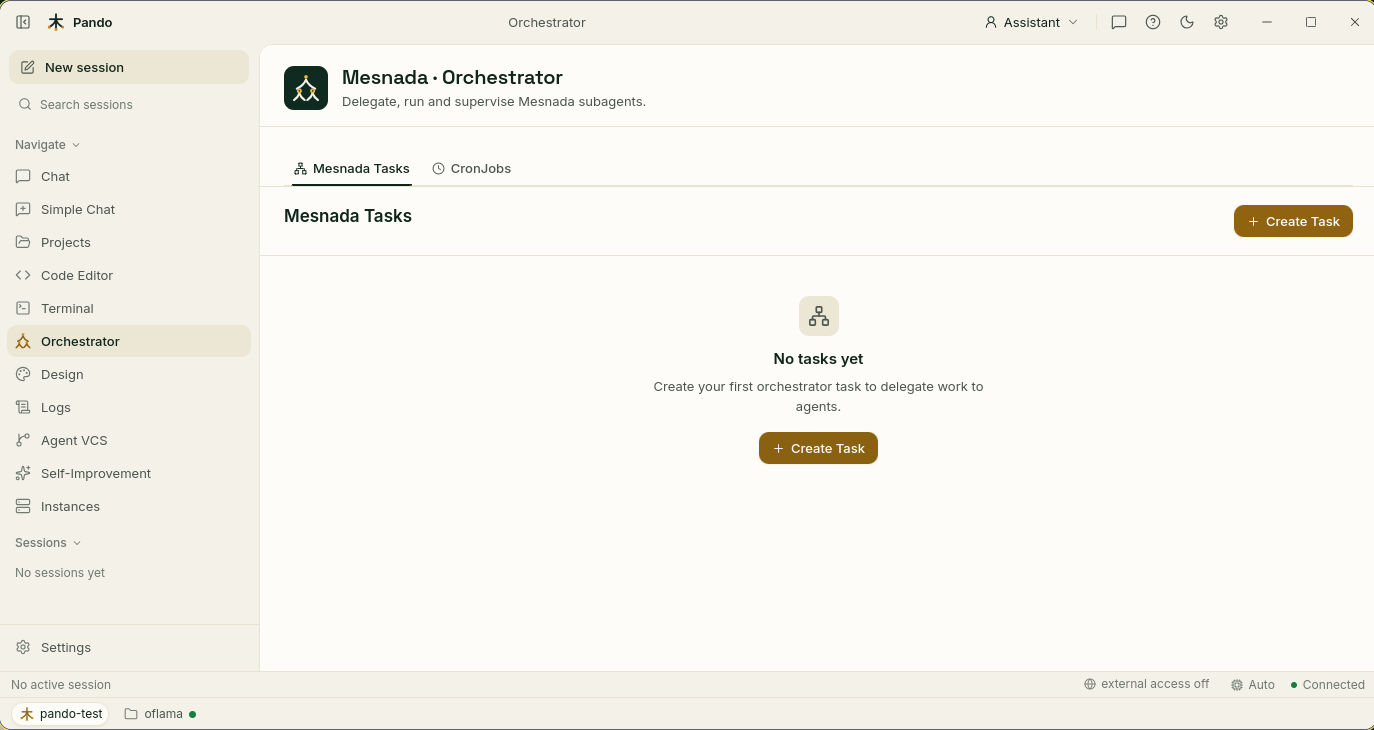
Press Create Task and fill in:
- Task name: a short label you will recognise in the list.
- Description / prompt: what the helper must do. Write it as you would for a new colleague who has not seen your chat: say where to look and what you expect back.
- Model: leave Default model or pick one for this job.
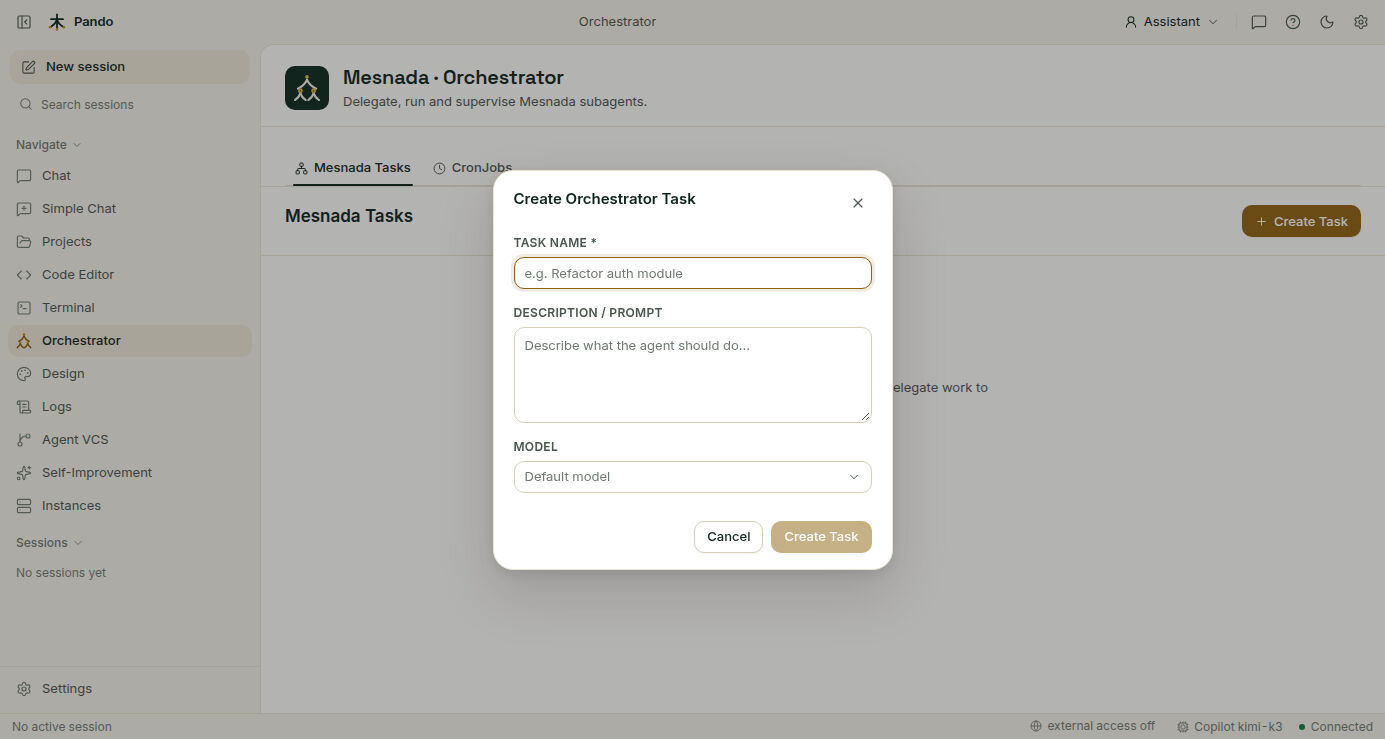
Press Create Task. The job appears in the list and starts as soon as there is a free helper.
Decide how reports come back
By default a helper finishes and its report waits for someone to read it. You can ask Pando to bring the report into your conversation by itself. Open Settings > General and scroll to Subagent Delegation.
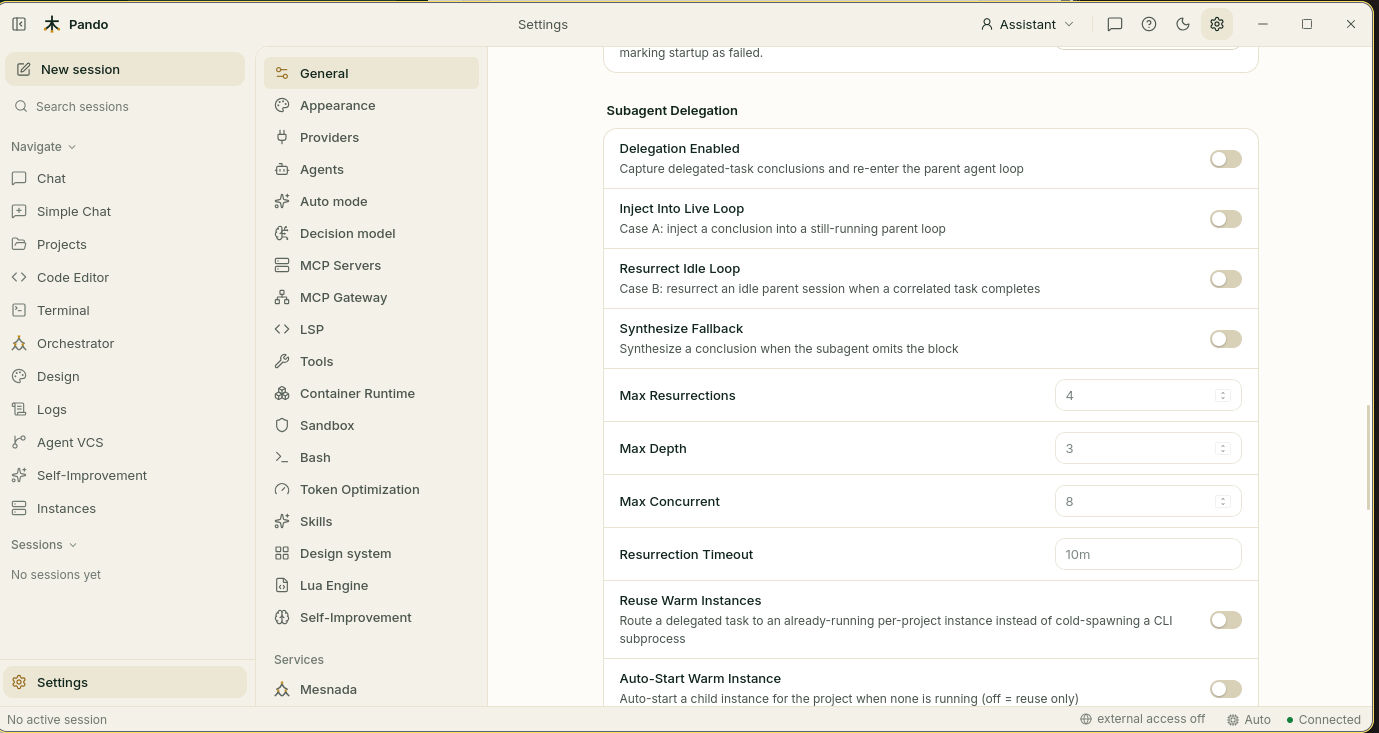
- Delegation Enabled is the main switch.
- Inject Into Live Loop: if Pando is still working when a helper finishes, the report is handed over on the spot.
- Resurrect Idle Loop: if Pando had already stopped, it wakes up, reads the reports and continues.
- Synthesize Fallback: if a helper forgets to write its conclusion, Pando writes a short one from what the helper did.
The numbers below are guard rails. Max Resurrections limits how many times Pando may wake itself up in a row, Max Depth how many levels of helpers-of-helpers are allowed, and Max Concurrent how many reports it waits for at once.
Reuse projects that are already open
If you work with several projects, a helper sent to another project can use the Pando that is already open there, instead of starting a new one each time. Like asking a colleague who is already at their desk.
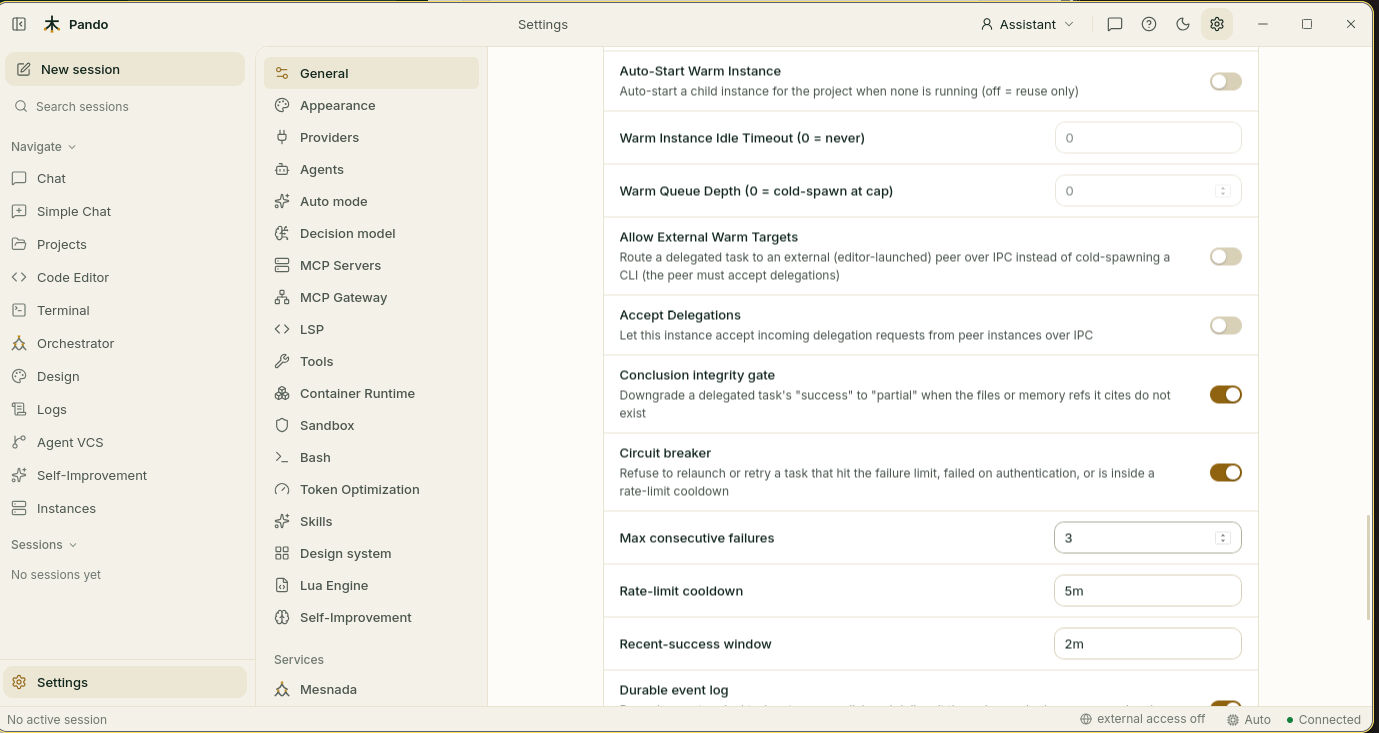
- Reuse Warm Instances turns this on. Auto-Start Warm Instance opens the project for you if it was closed.
- Warm Instance Idle Timeout closes it again after a while with nothing to do.
- Conclusion integrity gate is a fact-checker: when a helper says “done” and mentions files that do not exist, the report is marked as only partly done.
- Circuit breaker stops a job from being relaunched over and over when it keeps failing, when the account is not signed in or when the provider says you hit a limit.
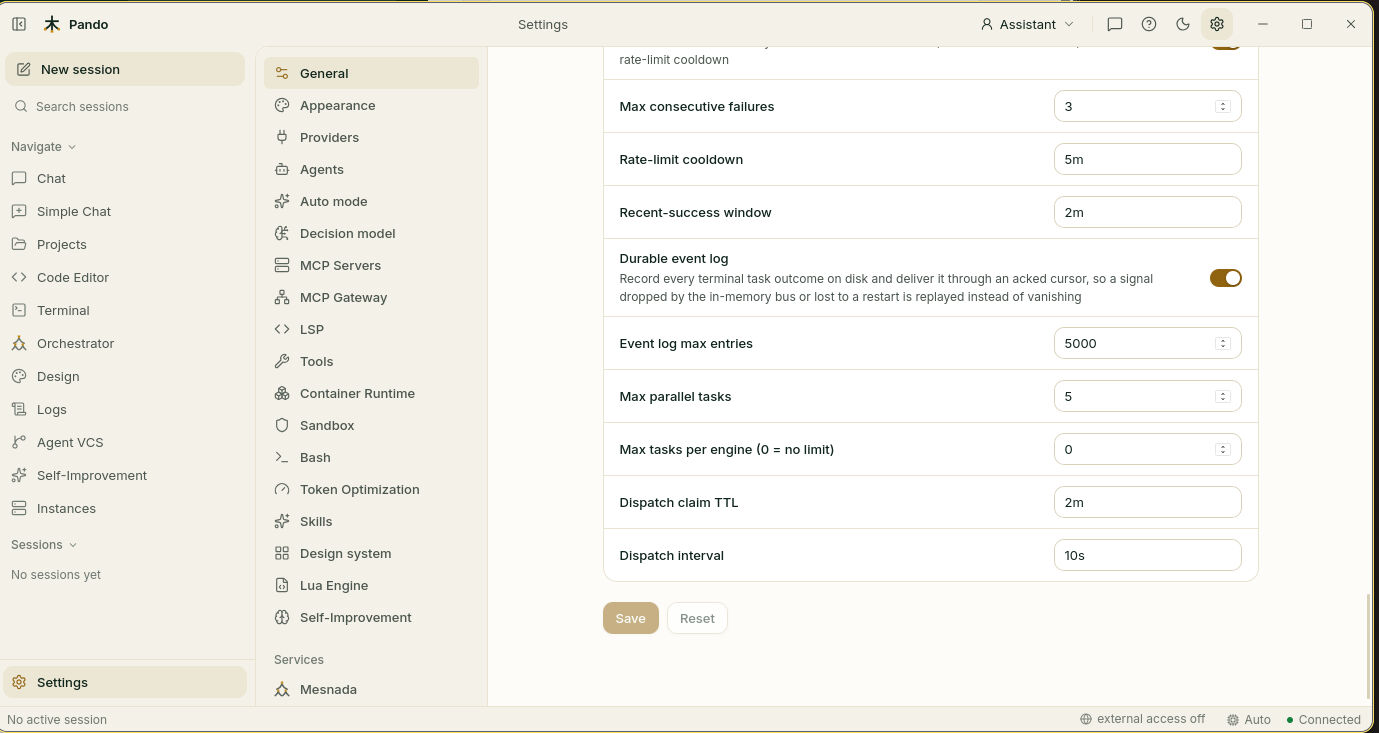
Further down, Durable event log makes sure a report is not lost if Pando restarts halfway, and Max parallel tasks is the same limit you saw in the Mesnada page.
Schedule a job that repeats
Back in Orchestrator, open the CronJobs tab and press New CronJob.
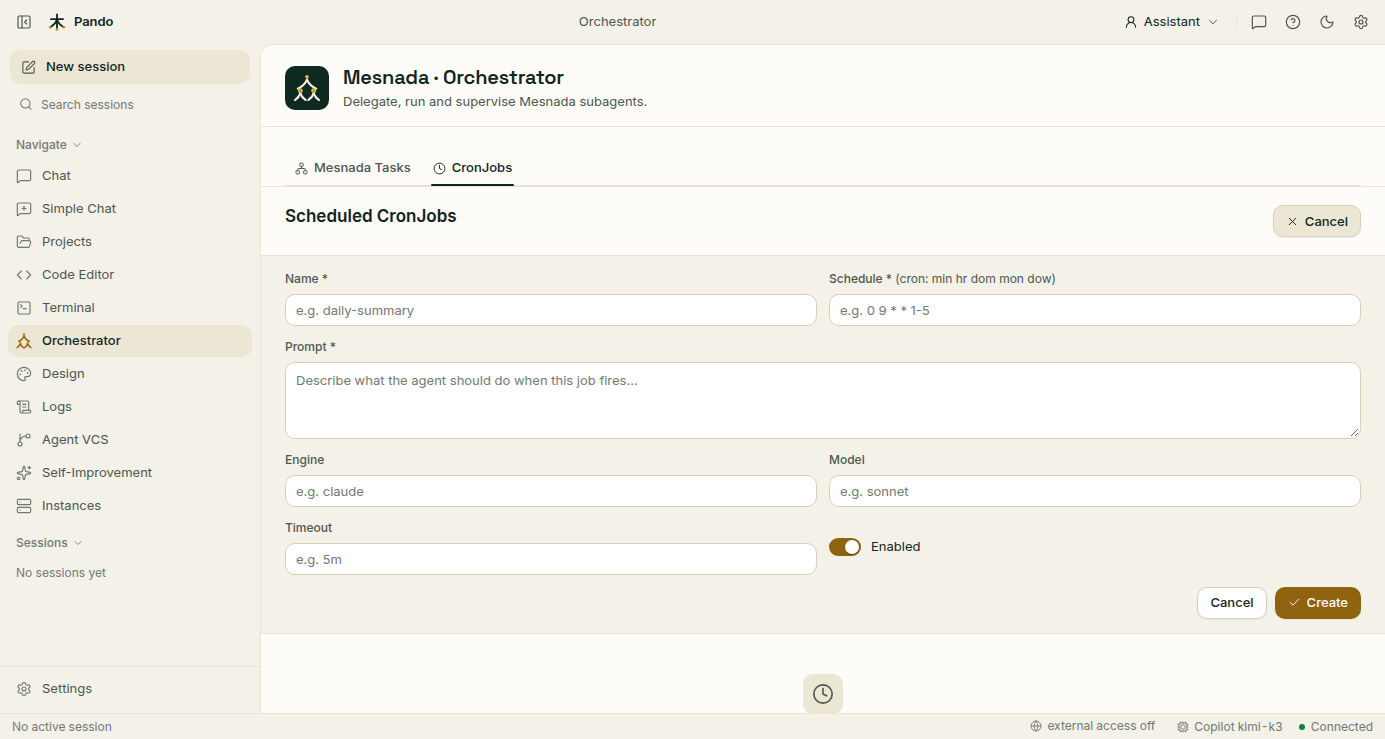
- Name: for example
daily-summary. - Schedule: when it runs, in the classic five-field form “minute hour day month weekday”.
0 9 * * 1-5means 9:00 from Monday to Friday. - Prompt: what the helper must do each time.
- Engine and Model: optional, to use something other than the defaults.
- Timeout: how long it may run, for example
5m. - Leave Enabled on and press Create.
Check it works
Create a small task: name hello, prompt “List the top-level folders of this project and say in one line what each is for.” It should move from waiting to running to finished in the Mesnada Tasks list, and you can open it to read its report.
If something goes wrong
| What you see | What to do |
|---|---|
| A task stays waiting | All helpers are busy. Raise Max parallel or wait for a slot |
| A task fails at once | The engine or model does not exist on this machine. Check Default engine and Default model |
| Reports never reach the chat | Turn on Delegation Enabled and Resurrect Idle Loop |
| A task refuses to relaunch | The Circuit breaker stopped it after repeated failures. Fix the cause, then try again later |
| Helpers undo each other’s work | The jobs overlap. Give each one a different folder or file |
Prefer the terminal?
[Mesnada]
Enabled = true

[Mesnada.Orchestrator]
MaxParallel = 5
DefaultEngine = 'pando'

[Mesnada.Delegation]
Enabled = true
InjectIntoLiveLoop = true
ResurrectIdleLoop = true
Every option, including custom engines, is in the delegation reference. For the idea behind it all, read Agent delegation.