Connect MCP servers
Plug extra tools into Pando, sign in to the ones that ask for it, and see them at work in a chat.
An MCP server is a box of extra tools that someone else built: one talks to your issue tracker, another to your database, another to your design files. Think of Pando as a workbench with a power strip, and of each MCP server as something you plug into it. At the end of this guide you will have one plugged in and working.
You need Pando open in the Web UI (the desktop app is the same interface) and the details of the server you want to add: either the command that starts it or its web address.
Open the MCP servers screen
Go to Settings > MCP Servers. The first time the list is empty.
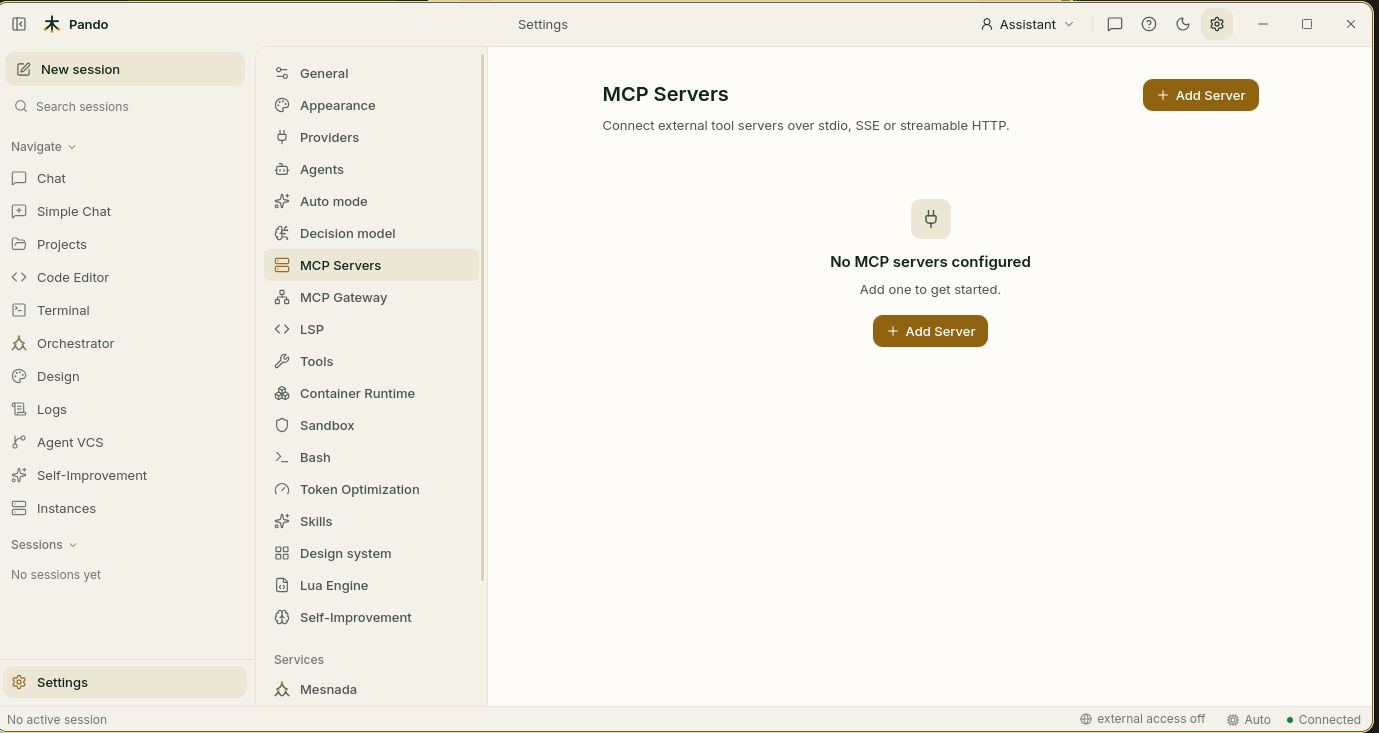
Press Add Server.
Add a server that runs on your machine
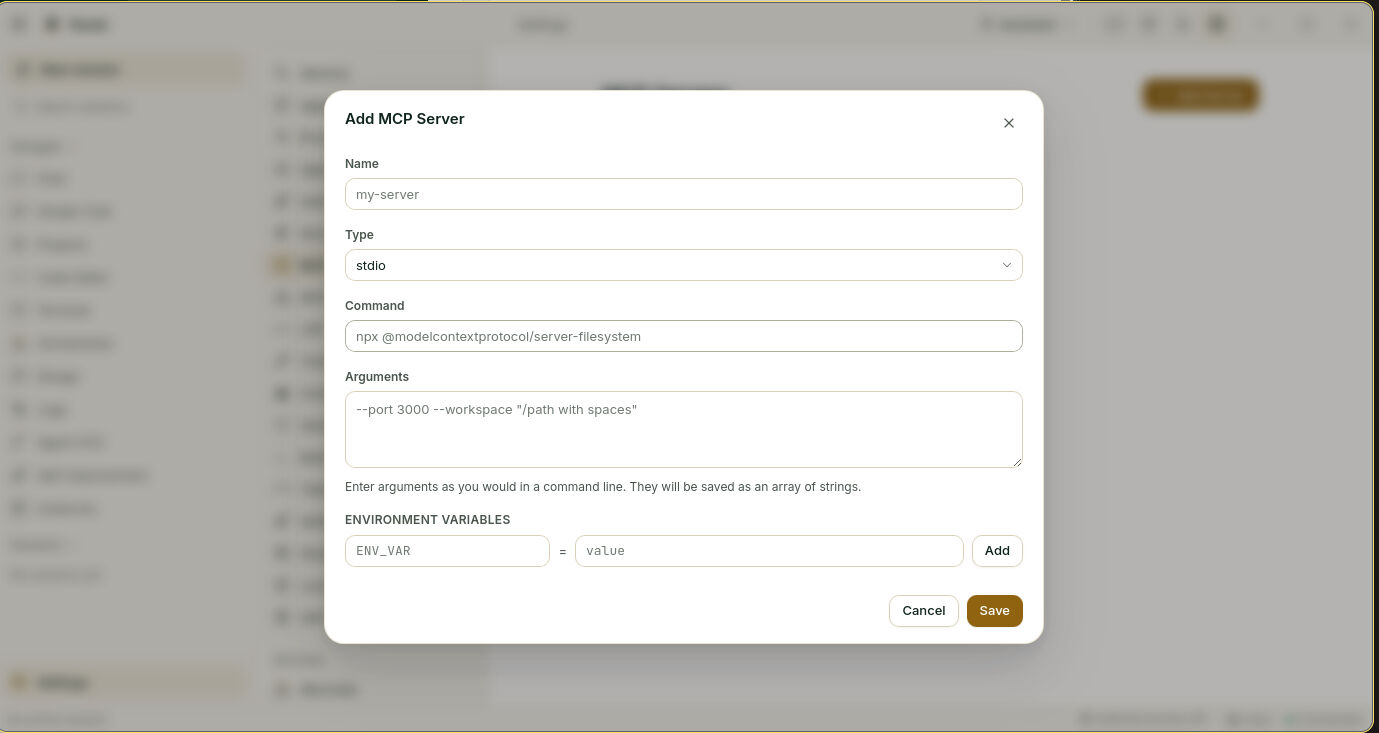
Many servers are small programs that Pando starts for you. For these, leave Type on stdio.
- Name: a short name you will recognise, such as
files. - Command: the program to run, exactly as the server’s instructions say. For example
npx @modelcontextprotocol/server-filesystem. - Arguments: anything that goes after the command, written as you would in a terminal.
- Environment variables: if the server needs a key or a setting, type its name on the left, its value on the right, and press Add.
- Press Save.
Add a server that lives on the internet
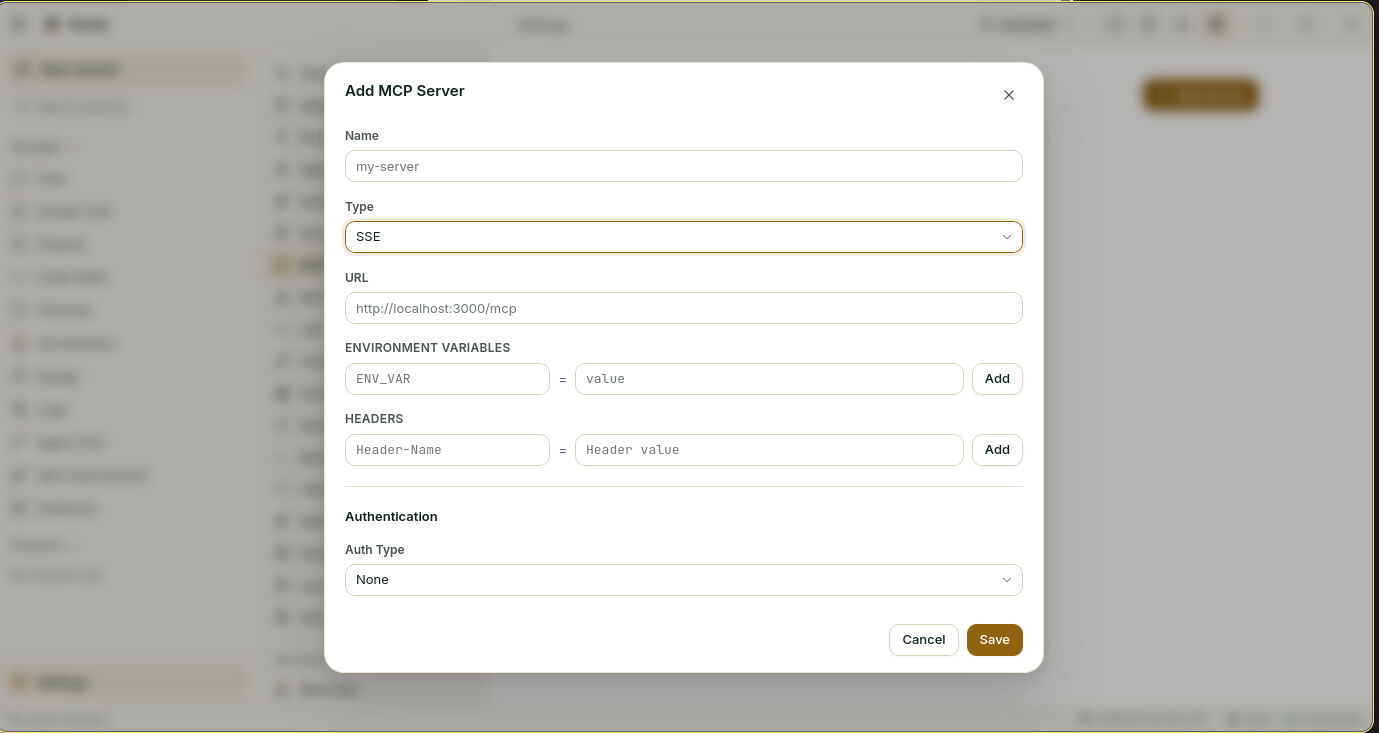
Other servers are already running somewhere and you only need their address. Set Type to SSE or Streamable HTTP; the server’s instructions say which one.
- Name: again, something short.
- URL: the address they gave you.
- Headers: only if the instructions ask for one.
- Leave Auth Type on None for now and press Save.
Sign in, if the server asks for it
A server on the internet usually wants to know who you are, the way a building asks for a badge at the door. Open the server again and pick the kind of badge in Auth Type:
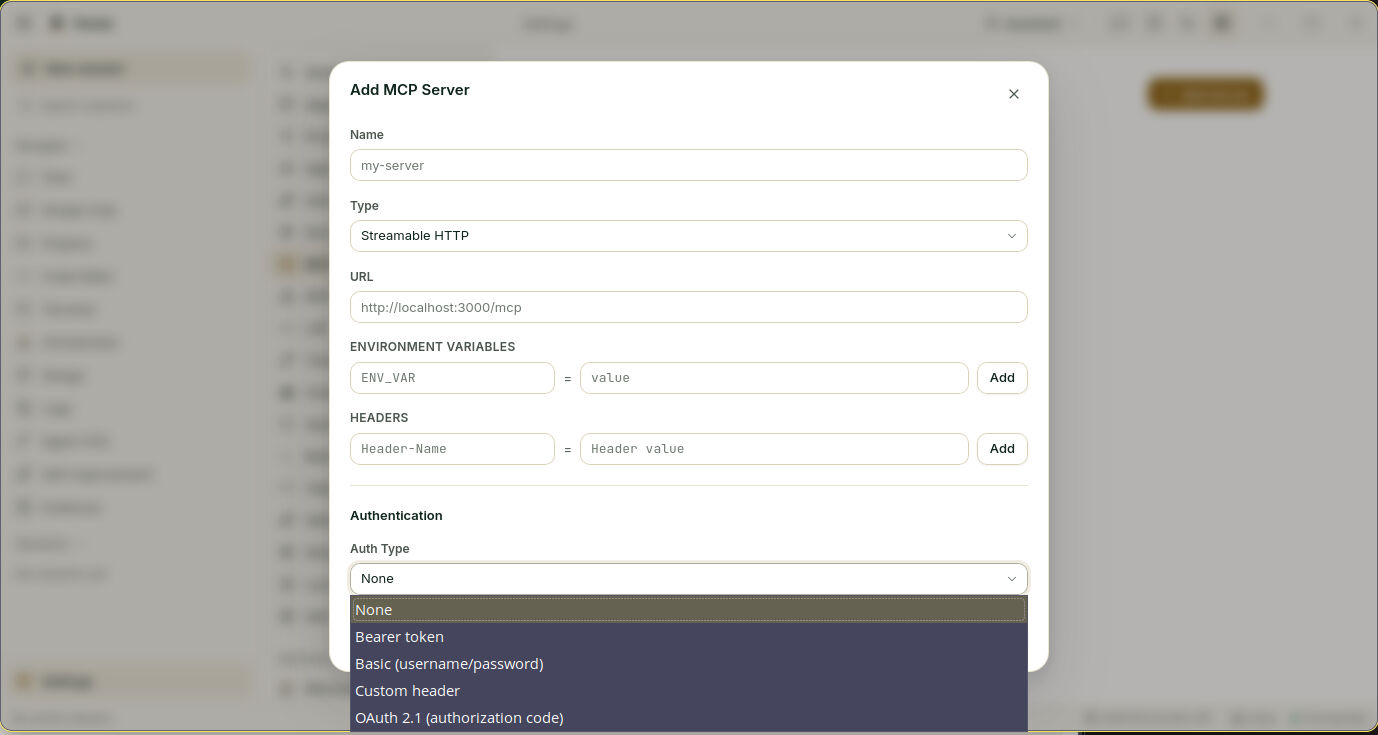
| Pick | When | What you fill in |
|---|---|---|
| Bearer token | They gave you an API key. The most common case | The key |
| Basic (username/password) | They gave you a user and a password | Both |
| Custom header | The key must travel in a header with its own name | The header name and the key |
| OAuth 2.1 (authorization code) | You sign in through the browser, like “Sign in with…” on a website | Usually nothing: leave Client ID empty unless they gave you one |
Save. For the first three, that is all.
For OAuth, there is one more move the first time: open a terminal and run
pando mcp login my-serverYour browser opens, you approve, and Pando keeps the pass for next time. You do this once per server.
Use its tools
Open Chat and ask for something the new server can do, in plain words: “list the open issues assigned to me”, “what tables does the sales database have?”. You do not name the tool. Pando sees what is plugged in and picks it.
The first time a tool wants to do something, Pando asks your permission, as it does for any action.
Keep your favourites close
Go to Settings > MCP Gateway. With Enable MCP Gateway on, Pando notices which tools you really use and keeps those within easy reach, the way you leave your favourite screwdriver on the bench instead of in the drawer.
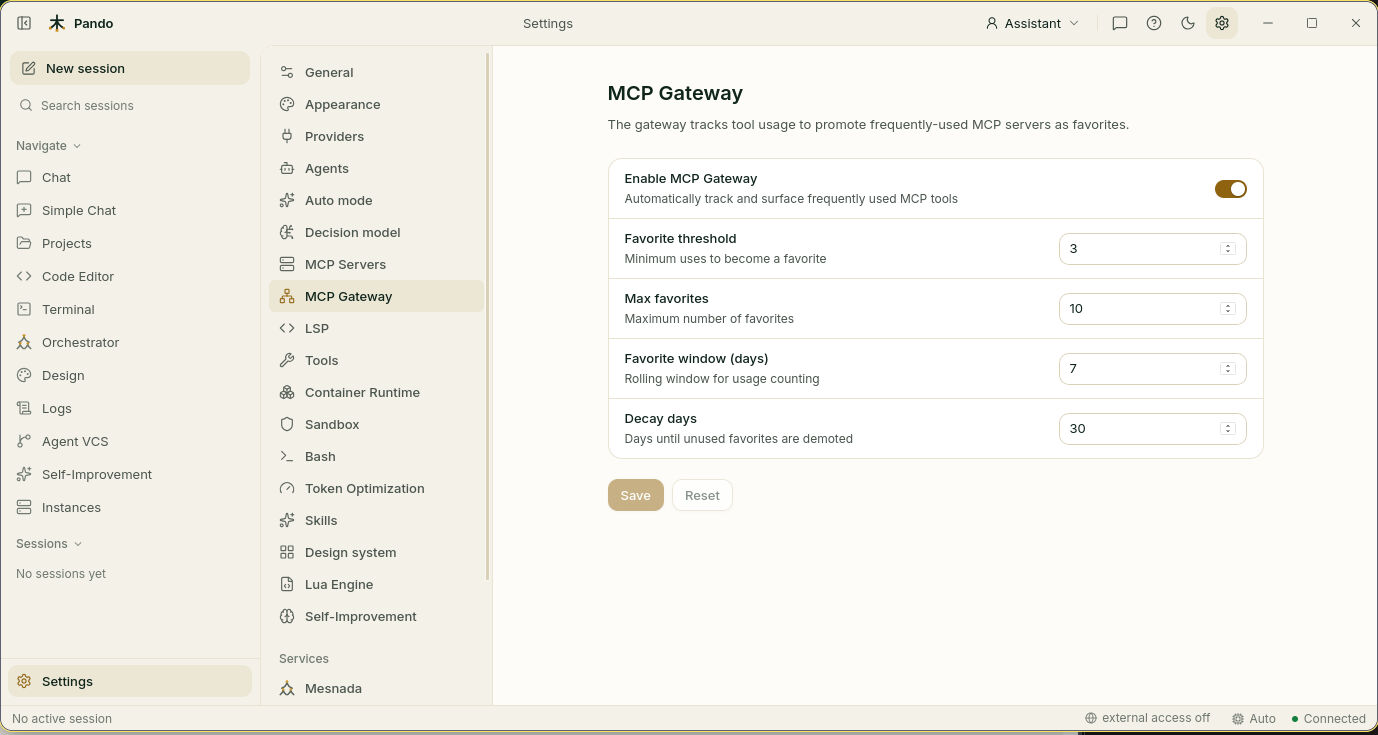
The defaults are sensible: a tool becomes a favourite after 3 uses in 7 days, there are 10 favourites at most, and one you have not touched for 30 days steps down. Change the numbers only if you plug in many servers.
Check it works
- In Settings > MCP Servers the server is in the list.
- In a chat, ask “which tools do you have from
my-server?”. Pando names them. - Ask for something real and watch the tool run in the conversation.
If something goes wrong
| What you see | What to do |
|---|---|
| The server is in the list but Pando never uses it | Check Command by running it yourself in a terminal. If it fails there, it fails for Pando too |
| “MCP server requires authorization” in the chat | Run pando mcp login <name> in a terminal. Pando notices and tries again by itself |
| The browser sign-in never finishes | Something is blocking local port 19876. Try pando mcp login <name> --no-browser and open the link yourself |
| A company server rejects the connection | It probably wants a certificate. See company certificates |
| The key stopped working | Open the server, paste the new key, Save |
Prefer the terminal?
Everything above can be written in .pando.toml:
[MCPServers.files]
Type    = 'stdio'
Command = 'npx'
Args    = ['@modelcontextprotocol/server-filesystem', '.']

[MCPServers.tracker]
Type = 'streamable-http'
URL  = 'https://mcp.example.com/mcp'

[MCPServers.tracker.Auth]
Type  = 'bearer'
Token = 'your-api-key'
And these commands tell you how each server is doing:
pando mcp list
pando mcp status tracker
pando mcp logout tracker
In the terminal interface, the same screen is under Settings (Ctrl+G) > MCP Servers.
The full list of options, including company certificates, is in the MCP reference. To do it the other way round and offer Pando’s own tools to another program, see MCP Server.