Let Pando spot mistakes as it writes
Check that language servers start by themselves, choose when they wake up, and add one for a language Pando does not know.
A language server is a proofreader for one programming language: it underlines the typo, the missing import, the function that does not exist. Pando brings a proofreader for each of the common languages and calls the right one when it touches a file. Most people never need this screen. This guide shows what is on it and what to change when you do.
You need Pando open in the Web UI (the desktop app is the same interface).
Look at what is already working
Go to Settings > LSP. The page is called Language Servers (LSP).
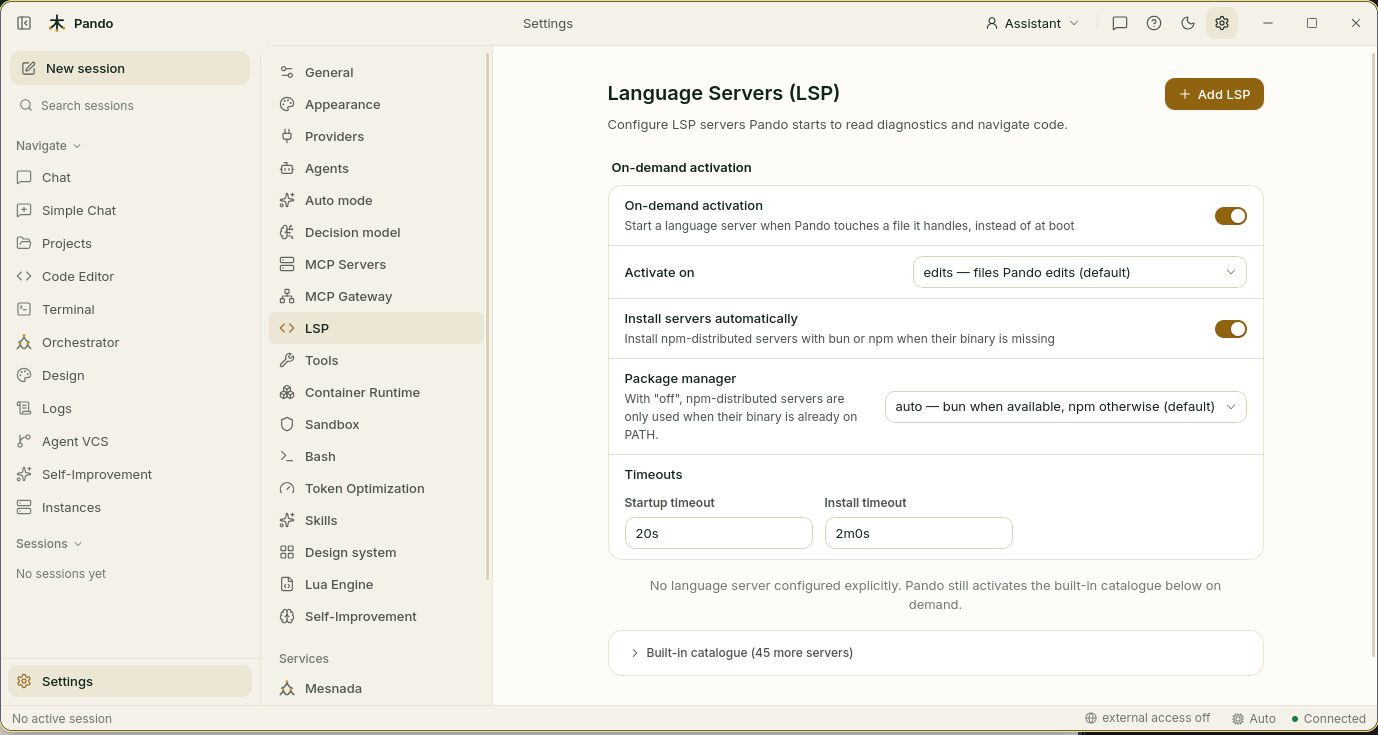
At the bottom, open Built-in catalogue. It lists the proofreaders Pando knows, more than forty, and tells you for each one whether it is installed on your machine.
If you see the note “No language server configured explicitly”, that is good news: it means you have not had to set anything up, and Pando uses its catalogue.
Choose when a proofreader wakes up
On-demand activation is on from the start: a proofreader starts only when it is needed, so the ones for languages you never use stay asleep.
Activate on decides what counts as “needed”:
| Choice | A proofreader starts when… | Good for |
|---|---|---|
| edits (default) | Pando edits a file | Everyday use. Light on your machine |
| reads | Pando also only reads a file, or you open one in the viewer | When you want problems shown while exploring |
| workspace | Any file changes, even outside Pando | When you edit in another program at the same time |
| off | Never by itself | When you want full manual control |
Let Pando install the missing ones
With Install servers automatically on, Pando downloads a proofreader the first time it needs it, for the many that are distributed as small packages (Python, TypeScript, YAML, JSON, HTML, CSS, Bash, PHP…).
Package manager says who does the download: auto uses bun if you have it and npm otherwise.
Some proofreaders travel with their language’s own toolkit (Go, Rust, C/C++…). Pando does not install those; it tells you the exact command to run.
Timeouts are how patient Pando is: 20 seconds for a proofreader to get ready, 2 minutes if it is being installed first.
Add a proofreader for another language
Press Add LSP.
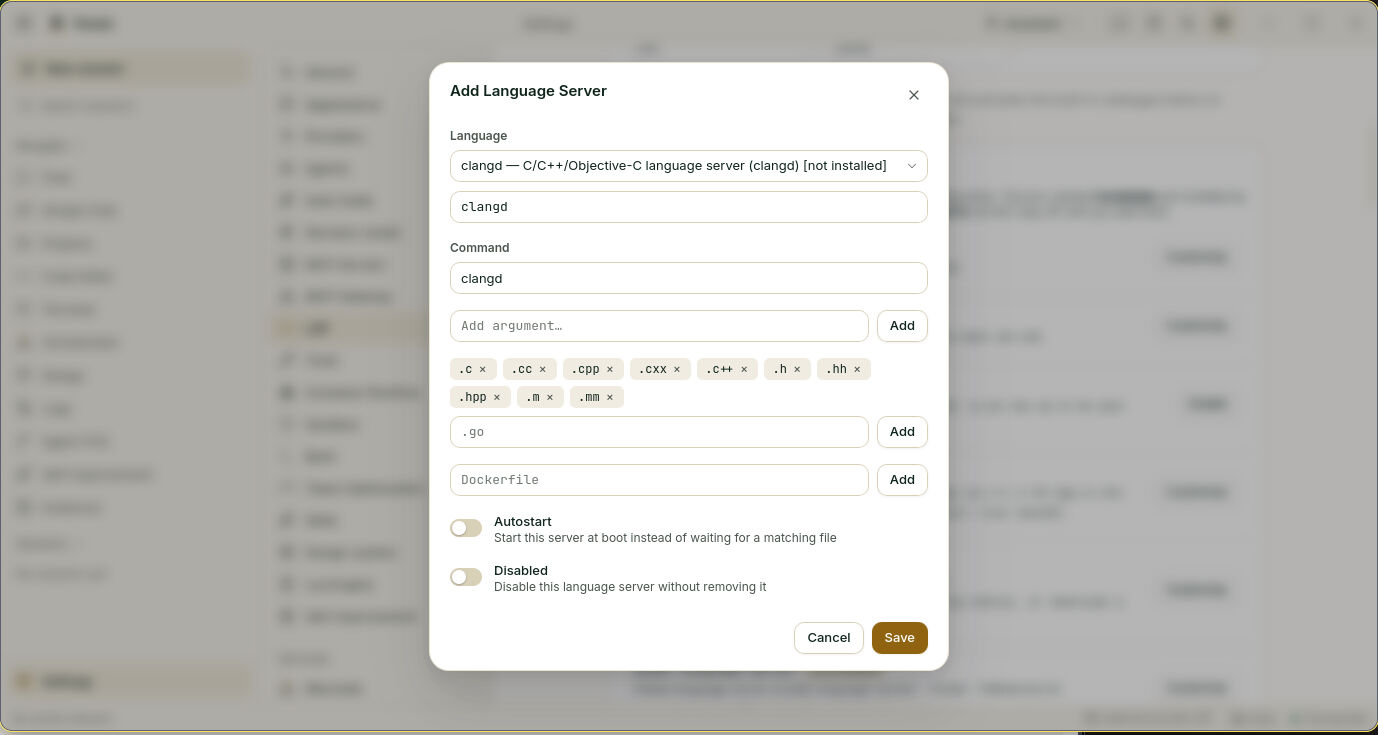
- Language: pick one from the catalogue and the rest fills in by itself. For something of your own, type a name.
- Command: the program to run. Add arguments one by one with Add.
- The first box of tags is the list of file extensions this proofreader looks after (
.c,.h…). Add or remove as needed. - The second box is for exact file names, for files whose name says more than their extension, such as
Dockerfile. - Autostart: on makes it start with Pando instead of waiting for the first file. Useful for a slow starter you use every day.
- Disabled: on puts it to sleep without deleting it.
- Save.
The same dialog is how you change a built-in one: pick it in Language, change what you need, save. Your version wins.
Check it works
- Open Chat and ask Pando to make a small change in a source file.
- Then ask: “are there any errors in that file?”. Pando answers with what the proofreader found, or tells you it is clean.
- Back in Settings > LSP, the proofreader for that language shows as installed.
If something goes wrong
| What you see | What to do |
|---|---|
| A language shows “not installed” | Install its server. For the toolkit ones, Pando shows the command |
| Installed, but nothing is reported | Check the file’s extension is in the proofreader’s list. Some also need a project file to work, such as go.mod for Go |
| It started and then stopped | Pando does not restart a crashed proofreader in the same session. Restart Pando |
| The first check is slow | The proofreader is being installed or is warming up. Later checks are fast |
| You do not want a proofreader at all | Turn its Disabled switch on |
Prefer the terminal?
To see whether a program is installed: which gopls (or the name in the catalogue). To set things in .pando.toml:
LSPActivateOn  = "reads"
LSPAutoInstall = true

[LSP.pyright]
Autostart = true

[LSP.my-custom-lsp]
Command   = 'my-lsp'
Args      = ['--stdio']
Languages = ['.mylang']
In the terminal interface, the same screen is under Settings > LSP. Every option is in the language servers reference.