Write your first skill
Teach Pando a procedure once, in a text file, and have it follow it every time the situation comes up.
A skill is a recipe card. You write down how a job is done in your team (“how we write release notes”, “how we name database migrations”) and Pando pulls the card out when the job comes up. No programming: a skill is a folder with one text file. The desktop app is identical to the Web UI shown here.
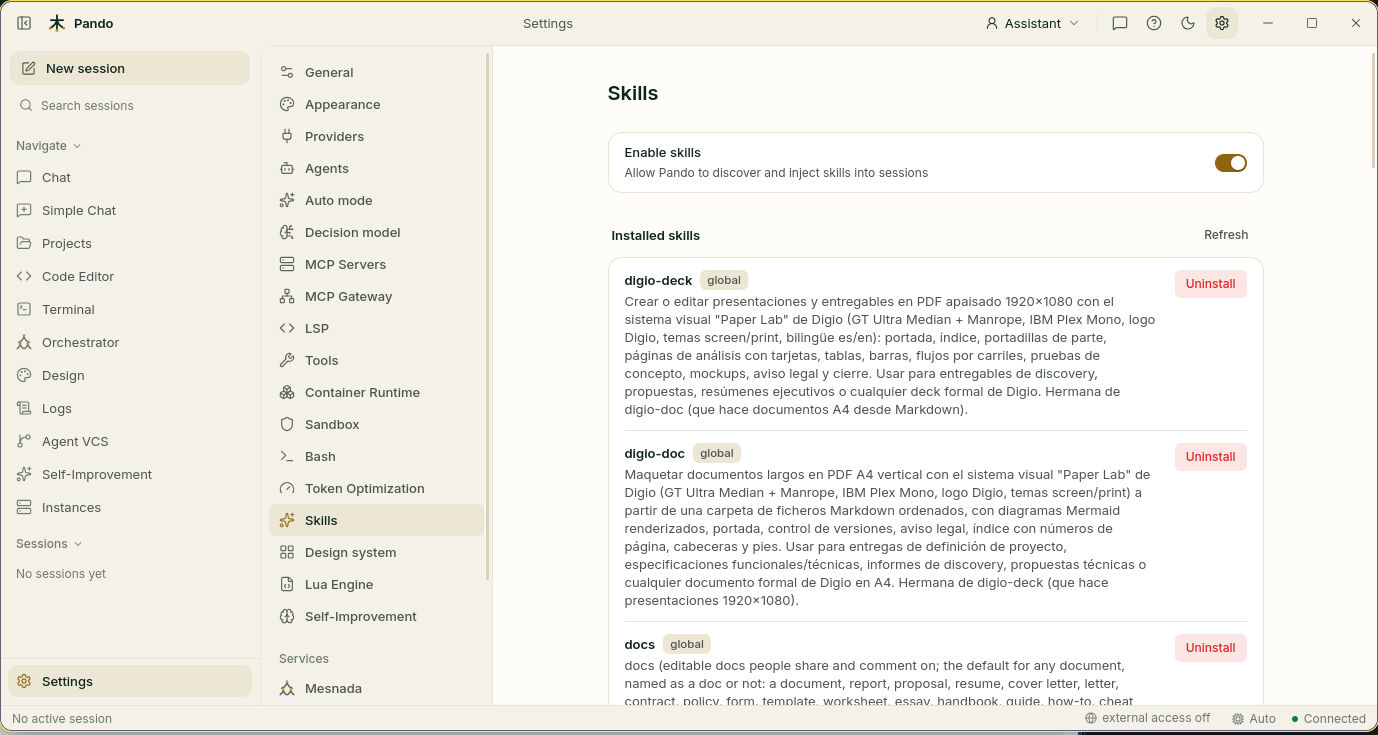
Check that skills are on
Go to Settings > Skills and make sure Enable skills is on. Below it, Installed skills lists every card Pando already knows, with a label saying whether it is yours everywhere (global) or belongs to this project.
Create the skill
Make a folder for the skill inside your project and put a file called SKILL.md in it:
.pando/skills/release-notes/SKILL.mdYou can create it from the Code Editor screen. The folder name is the skill’s name.
Describe when it applies
Open SKILL.md and write two parts: a short header that says what the skill is for, and the instructions in plain language.
---
name: release-notes
description: Write release notes for this project. Use when the user asks for a changelog, release notes or a summary of what changed between versions.
---

# Release notes

1. Read the commits since the last tag.
2. Group them under "New", "Improved" and "Fixed".
3. Write one line per change, in plain language, no ticket numbers.
4. Put breaking changes first, under "Before you update".
The description is the label on the card. Pando reads only the labels at first and opens the card when a request matches, so write it the way you would explain to a colleague when to use it.
Try it
Back in Settings > Skills, press Refresh. Your skill appears in the list. Start a new chat and ask for the job in your own words, for example “write the release notes for this version”.
Borrow skills from the catalog
Scroll down in Settings > Skills.
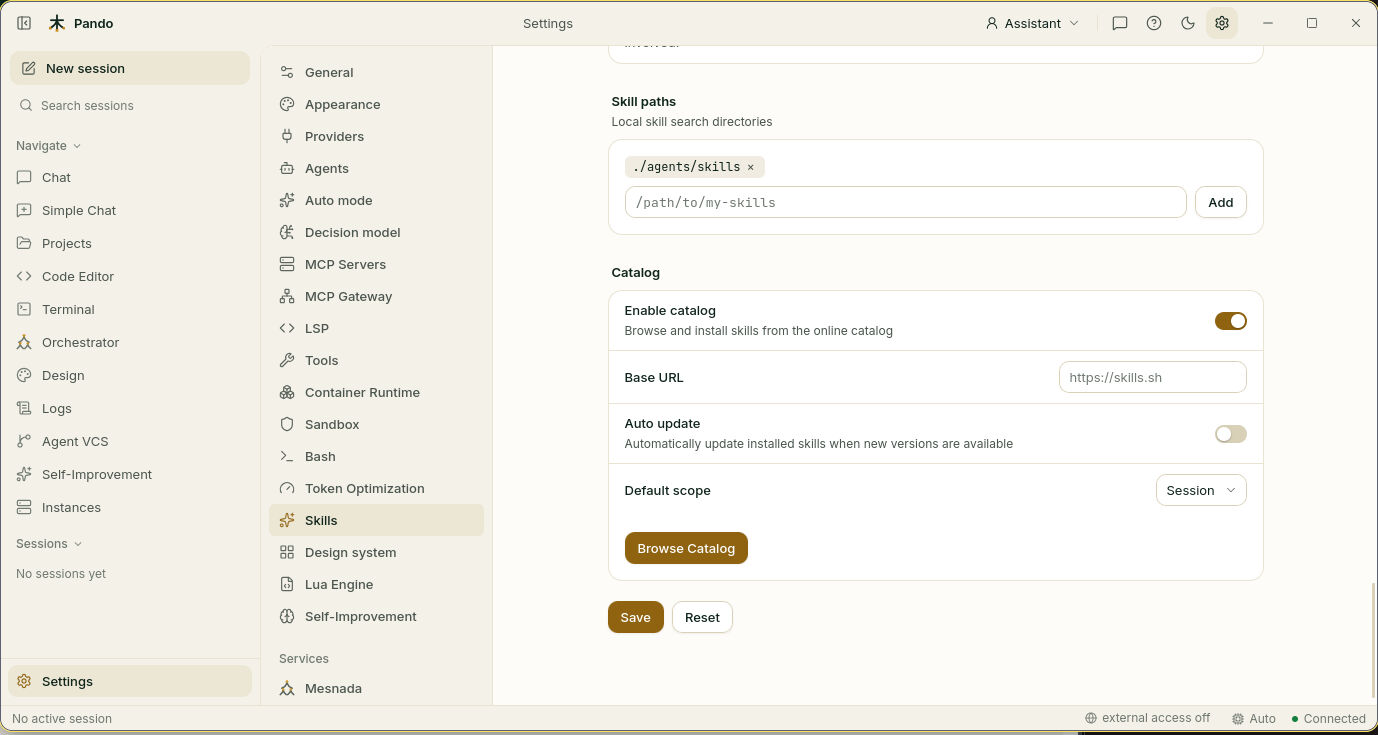
With Enable catalog on, press Browse Catalog, type what you are looking for and install a skill someone else already wrote. Default scope decides where an installed skill lands, and Auto update keeps installed skills up to date. Uninstall in the list removes one.
Share it with your team
Skills in .pando/skills/ inside the project travel with the repository: commit the folder and everyone who opens the project gets the same cards.
Skills you want everywhere, in every project, go in ~/.pando/skills/.
To keep skills in another folder, add it under Skill paths and press Save.
When a skill is not enough
A skill changes what Pando knows how to do. For other needs there are other tools:
| You want to… | Use |
|---|---|
| Give the model a new tool (a database, a ticket system) | An MCP server. See Connect MCP servers |
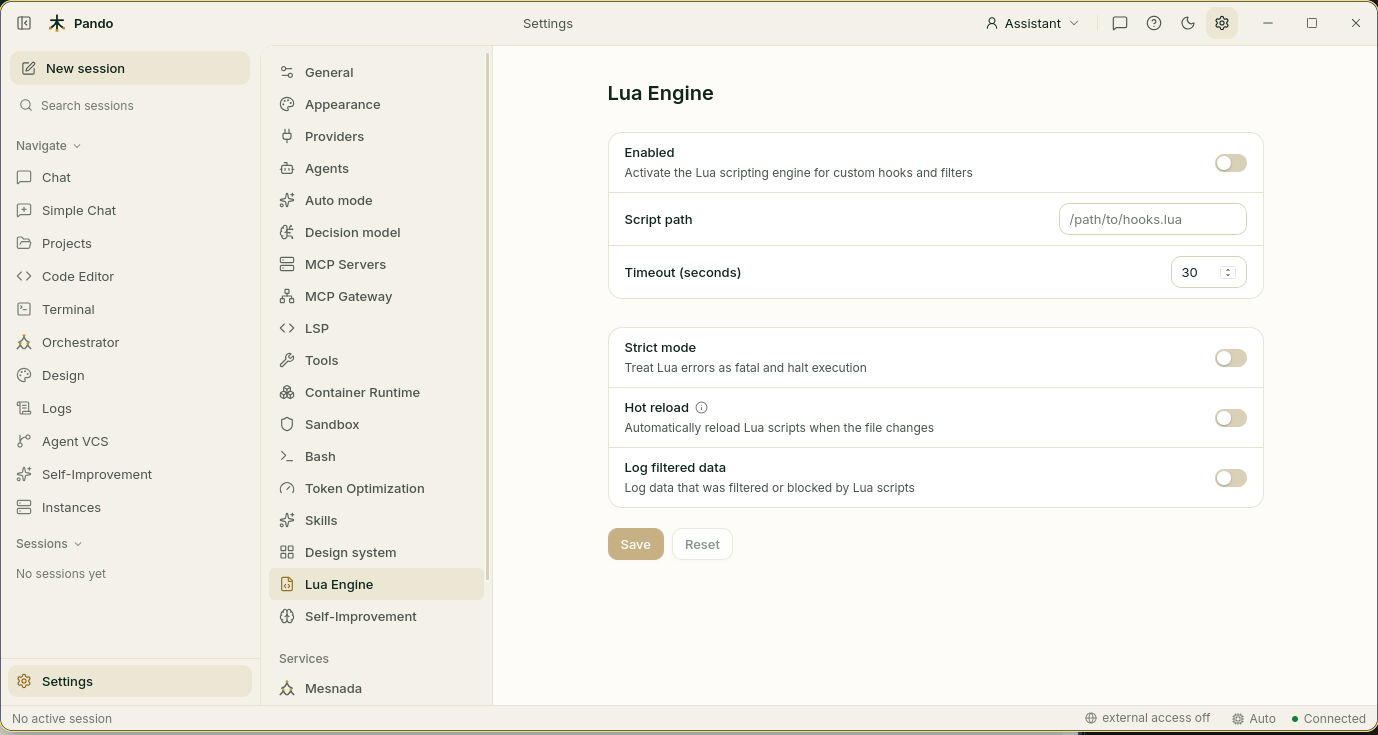
| Run a small script at a precise moment, for example to adjust a prompt | A Lua script: Settings > Lua Engine, switch Enabled on and set Script path |
| Ship company features inside the Pando program itself | An extension |
Check it works
The skill shows in Installed skills, and in a new chat Pando follows your steps without you pasting them.
If something goes wrong
| What you see | What to do |
|---|---|
| The skill is not in the list | The file must be named SKILL.md and sit in its own folder. Press Refresh |
| Pando does not use it | Start a new chat, and make the description say clearly when it applies |
| “No skills installed” | Check Enable skills, and that the folder is .pando/skills/ in the project or ~/.pando/skills/ |
| The catalog finds nothing | Check Enable catalog and your internet connection |
Prefer the terminal?
Create the folder and file with any editor. Skills that Pando proposes by itself from your sessions are managed with pando skills list, approve and reject; see Self-Improvement. All options are in the skills and extensions reference.