Your first session with Pando
Open Pando in a project, ask for something real and see what moved under the ground.
↓ Prefer reading? Every step is written below.
Ten minutes, one real request. You need Pando installed and at least one AI account connected; if the setup assistant greets you, this guide walks you through it.
Open Pando in a project
Pando works on a folder, the way a gardener works on one plot. Choose the folder of your project:
- Desktop app: open Pando, go to Projects, press Add project, pick the folder and then click the project in the list. It opens in its own tab at the bottom.
- From a terminal: go to the folder and start the Web UI.
cd my-project
pando app
The terminal prints an address. Open it in your browser.
Meet the screen
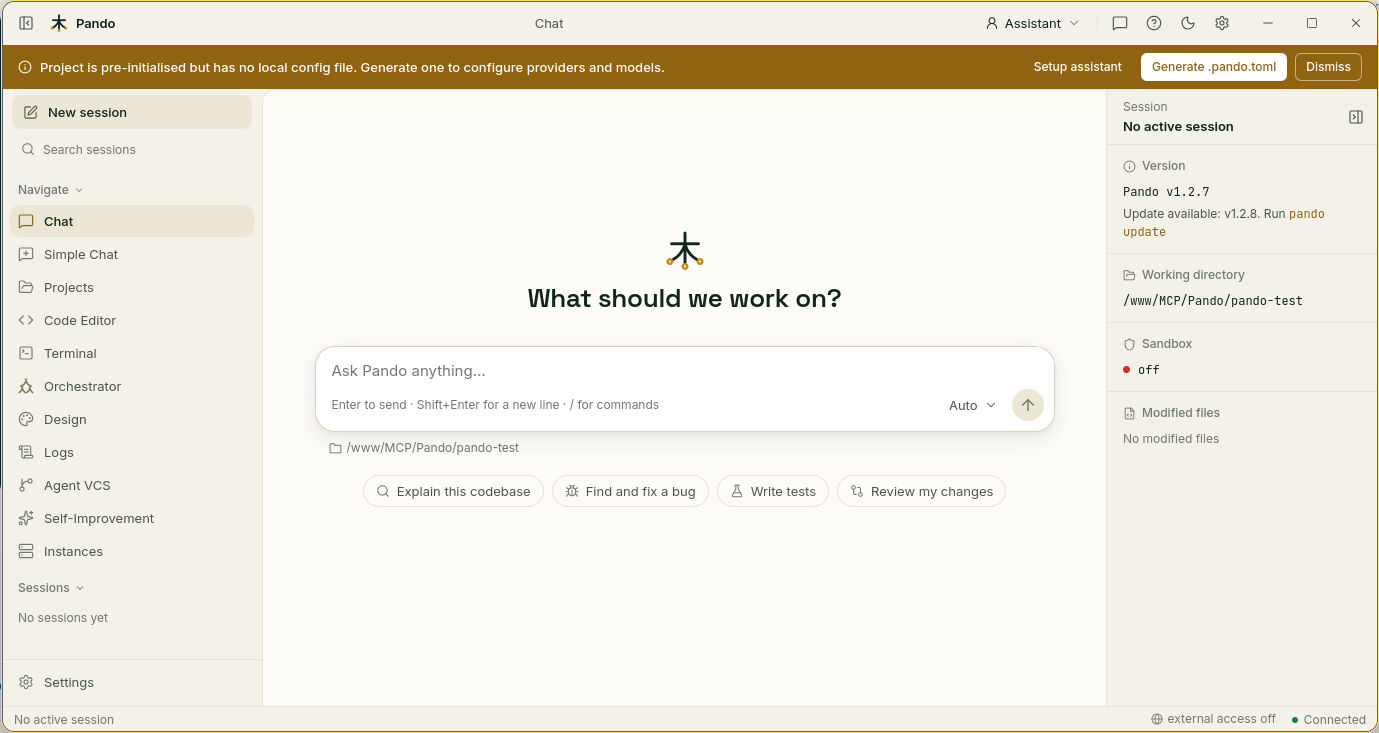
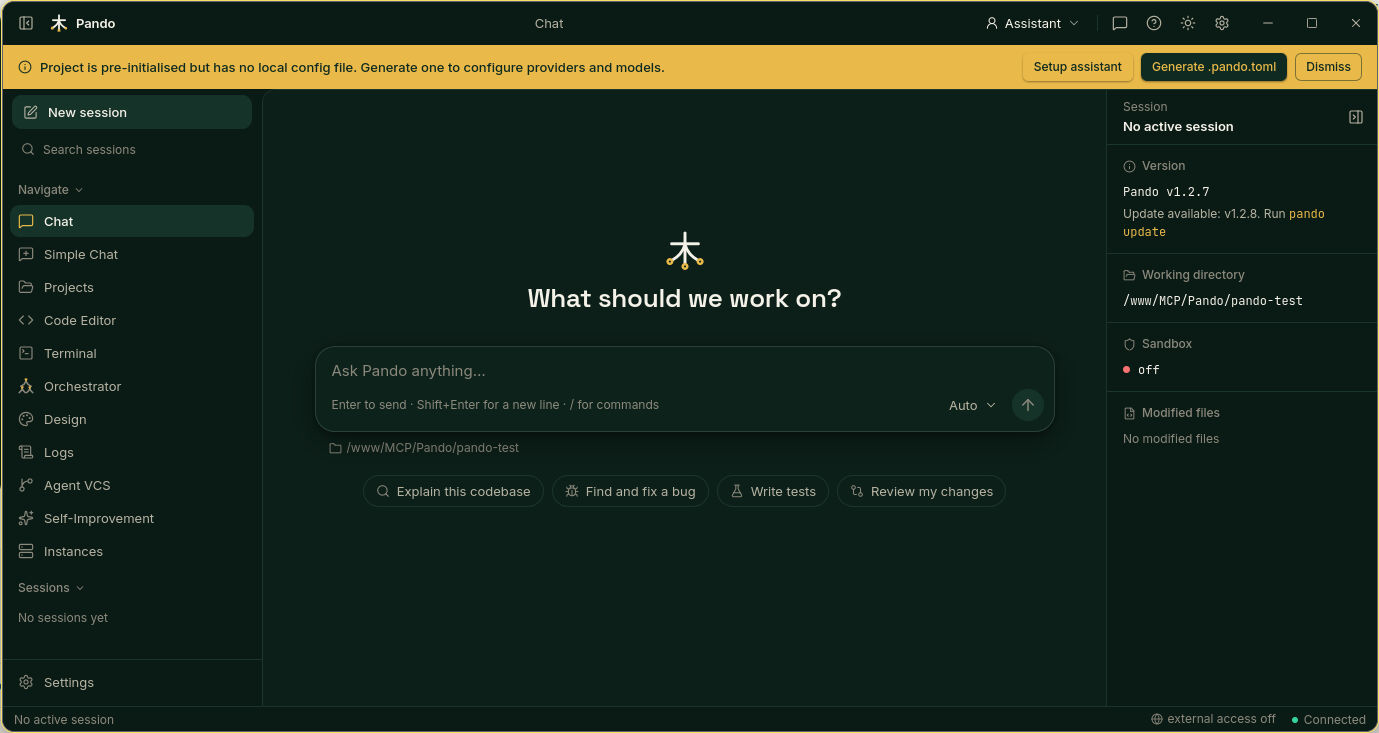
Three columns, like a workbench:
- Left: your sessions (past conversations) and the menu to every other screen.
- Middle: the conversation. The box at the bottom is where you write.
- Right: the fact sheet of the session: which folder Pando is working on, whether the sandbox is on, and which files it has changed.
Ask for something real
Skip “hello”. Ask for something you actually need, or press one of the starter buttons under the box: Explain this codebase, Find and fix a bug, Write tests, Review my changes.
Explain how login works in this project and point me to the files involved.Press Enter. Pando starts reading files and tells you what it is doing as it goes.
Say yes or no
When Pando wants to do something that changes your project, such as editing a file or running a command, it asks first. Read the request and allow or deny it. You are the one holding the keys.
If it heads in the wrong direction, you do not need to stop it: write a new message while it works (“only the login part, please”) and it corrects course at the next safe moment. That is called steering.
What happened below
You typed one message. Under the ground, several parts moved together.
Come back later
Close the window. Your conversation stays in the list on the left, with a title Pando wrote for it. Click it tomorrow and continue where you left off, from the desktop app, the browser or the terminal: it is the same session everywhere.
Check it works
- The answer mentions real files of your project.
- The session appears in the left column with a title.
- If Pando edited something, the file shows up under Modified files on the right.
If something goes wrong
| What you see | What to do |
|---|---|
| A setup assistant instead of the chat | No AI account yet. Follow Connect your AI accounts |
| A yellow bar saying the project has no local config file | Harmless. Press Dismiss, or Setup assistant if you want settings just for this project |
| The answer never starts | Check the model name next to the send button and try another one |
| Pando talks about the wrong folder | Look at Working directory on the right. Open the right project from Projects |
Where to go next: take the tour of the Web UI.