Use Pando from your editor and other apps
Sign in with GitHub Copilot, put Pando inside your code editor, lend your models to other tools and put a Pando agent behind your own web page.
Pando does not have to live in its own window. It can sit inside the editor you already use, lend its models to other tools, and work behind a chat box on a page you built. Each step below is independent: do only the ones you need.
You need Pando installed and at least one model account set up (see Connect your AI accounts). Most of this guide happens in a terminal and in the settings of the other program, because that is where those doors are.
Sign in with GitHub Copilot
If you pay for GitHub Copilot, its models can be Pando’s models. No key to copy.
- In the Web UI go to Settings > Providers.
- If there is no copilot row yet, press Add provider, choose GitHub Copilot as Provider Type and Save.
- On the copilot row press Login with GitHub.
- A GitHub page opens and Pando shows you a short code. Type the code on that page and approve.
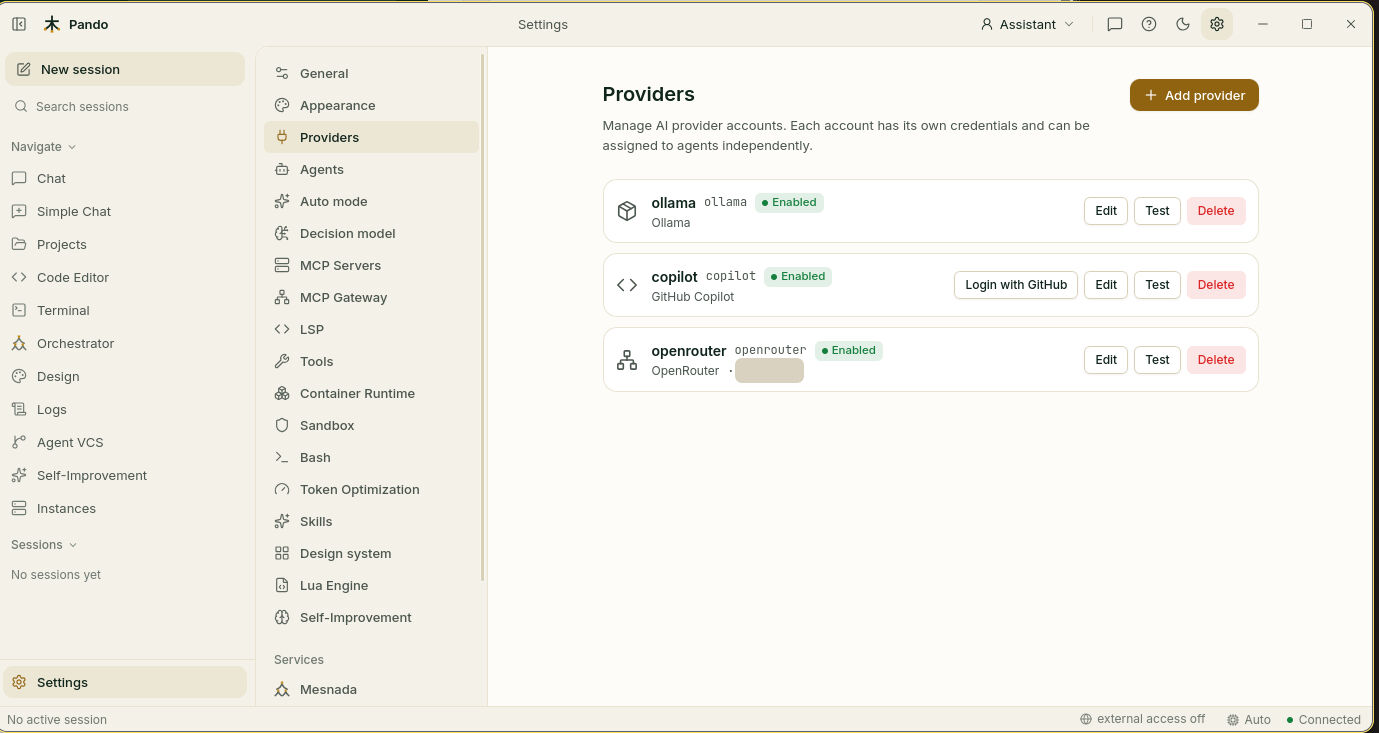
Press Test on the row to confirm. The Copilot models now appear in the model picker of the chat, with names that start with copilot.
If your company added its own models to Copilot, they show up too, the same way they do in VS Code. Nothing extra to do.
Put Pando inside your code editor
Editors such as Zed, VS Code, the JetBrains family and Xcode can host an outside assistant in their own chat panel. They talk to it in a shared language called ACP. Your part is to tell the editor how to start Pando.
In Zed, open ~/.config/zed/settings.json and add:
{
  "agent_servers": {
    "Pando": {
      "command": "pando",
      "args": ["acp"]
    }
  }
}
VS Code takes the same block in its settings.json, and JetBrains editors in their acp.json (use the full path to pando there). The exact snippets are in ACP Protocol.
Restart the editor, open its assistant panel and choose Pando. You get the same Pando, with your models, memory and tools, and with a live checklist of what it plans to do shown in the editor. Slash commands such as /goal and /compact work there too.
Lend your models to other tools
You set up your keys once in Pando. Other tools that expect “an OpenAI-style address” can borrow them through Pando, like sharing one streaming subscription with the whole house instead of buying one per room.
Start the proxy in a terminal and leave it running:
pando llm-proxyThen, in the other tool’s settings:
| It asks for | You type |
|---|---|
| API base URL | http://localhost:11434/v1 |
| API key | Anything. Pando uses the real keys it already has |
| Model | A name from Pando’s list, such as copilot.gpt-4.1 |
If that port is taken on your machine (Ollama uses the same one), pick another: pando llm-proxy --port 8080.
Put a Pando agent behind your own web page
If you build web apps, the chat box in your product can be answered by a Pando agent. The shared language here is called AG-UI, and it is what toolkits such as CopilotKit speak.
It is off from the start, because it puts an agent that can run code within reach of a browser. Start it on purpose, and say which web address may connect:
pando agui-serve --port 8090 --allow-origin http://localhost:3000Pando prints an access token the first time. In your page, point the client at http://localhost:8090/api/v1/agui/coder and send the token as Authorization: Bearer <token>. The token stays the same between restarts; pando agui-serve --print-token shows it again.
A complete example to copy from is in the Pando repository under examples/copilotkit.
Offer Pando’s tools to another assistant
The reverse of plugging tools into Pando: another assistant (Claude Desktop, Cursor…) plugs into Pando and uses its web search, browser, memory and file tools. Add this to that program’s MCP settings:
{
  "mcpServers": {
    "pando": {
      "command": "pando",
      "args": ["mcp-server", "--no-http"]
    }
  }
}
Details and options are in MCP Server.
Check it works
- Copilot:
copilot.models are listed in the chat’s model picker. - Editor: Pando answers in the editor’s assistant panel and can read the open project.
- Proxy: the other tool lists Pando’s models, or answers a test question.
- AG-UI: your page’s chat box gets an answer, and the agent’s activity shows as it works.
If something goes wrong
| What you see | What to do |
|---|---|
| Your company’s Copilot models are missing | Run pando auth copilot status to see if your seat and organisation are detected, then log out and in again |
| The editor does not list Pando | It cannot find the program. Write the full path to pando in command and restart the editor |
| The other tool says “connection refused” | The proxy is not running, or it is on another port. Look at the address it printed when it started |
| The proxy does not start | The port is in use. Add --port with a free one |
Your web page gets 401 | The token is missing or wrong. Read it again with pando agui-serve --print-token |
| Your web page is refused before sending anything | Its address is not in --allow-origin |
Prefer the terminal?
Copilot sign-in without the Web UI:
pando auth copilot login
pando auth copilot login --enterprise-url https://github.mycompany.com   # GitHub Enterprise
pando auth copilot login --no-browser
pando auth copilot status
pando auth copilot logout
Every flag and config key for Copilot, the proxy and AG-UI is in the providers reference; editor options are in ACP advanced configuration.