Desktop, Web, terminal or one line: choose your surface
Know which door into Pando suits each moment, and how to open it.
Pando is one house with four doors. Whichever you walk through, you find the same rooms: your sessions, your memory, your settings. This guide opens each door once so you can decide which you like for what.
The desktop app: the front door
Best for long working days. Open Pando from your applications menu, Dock or Start menu, or type:
pando desktopYou get a window of its own, notifications when a long job finishes or needs you, and (on Linux and Windows) an icon in the system tray to bring the window back.
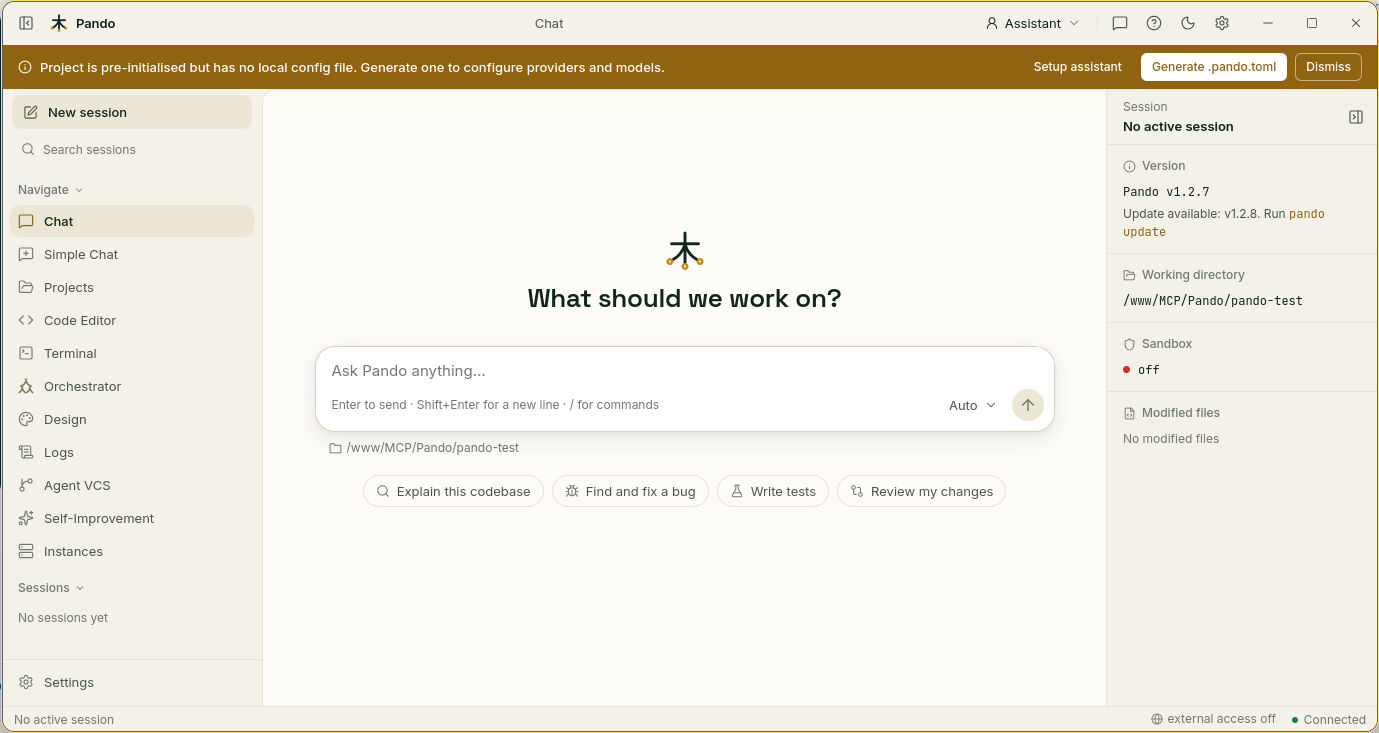
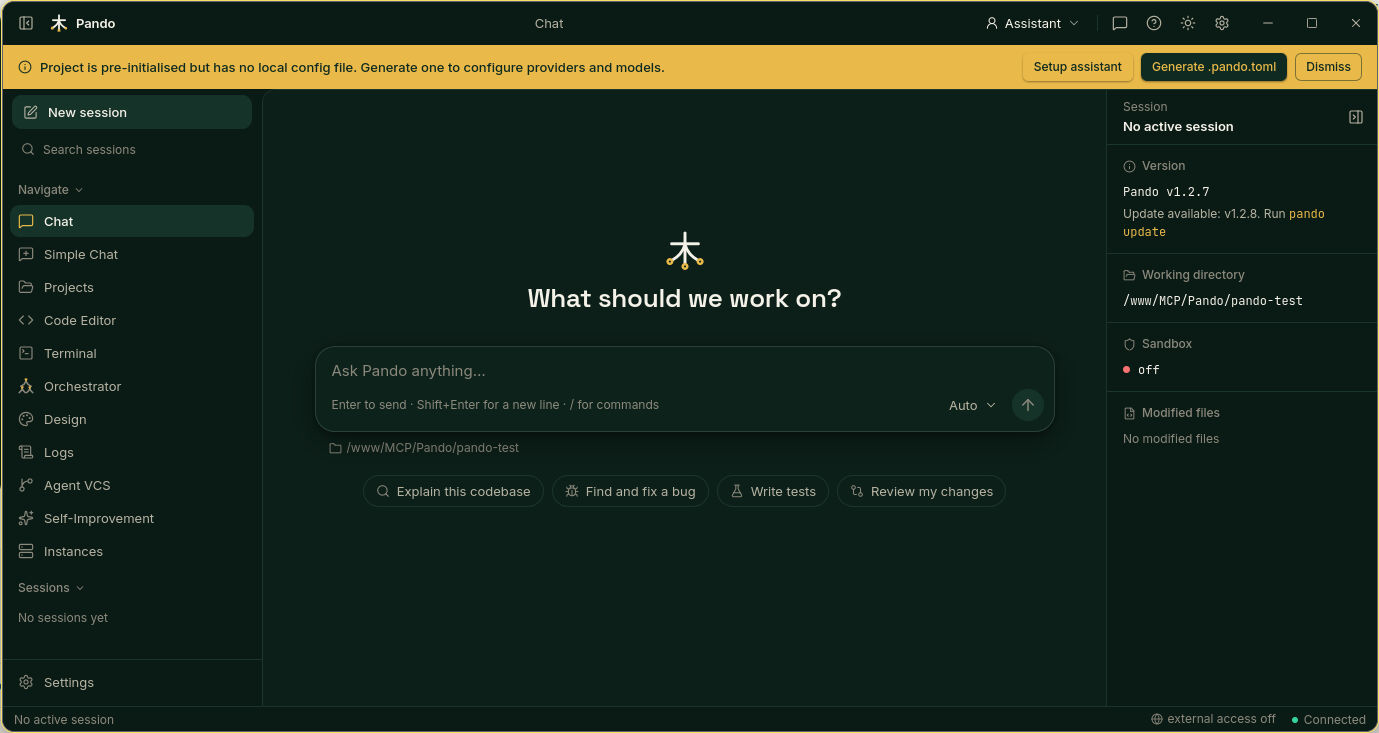
Opened from the icon, Pando starts in your home folder. Go to Projects to open the project you want.
The Web UI: the door you can open from anywhere
It is exactly the same interface, inside a browser. Start it from the project folder:
cd my-project
pando app
Open the address the terminal prints (by default https://localhost:8765). Your browser can also install it as an app, with its own icon: look for Install in the address bar or the browser menu. To use it from your phone or another computer, see Remote access.
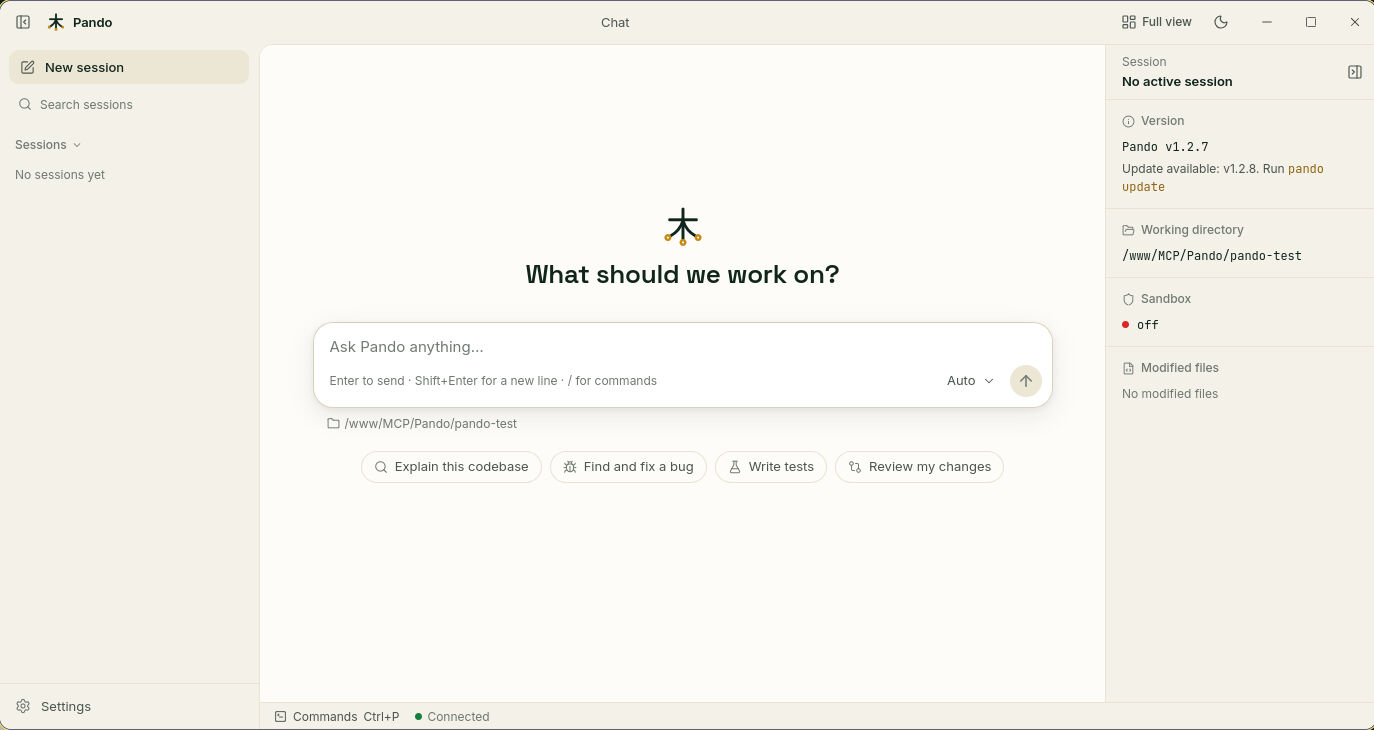
Want fewer buttons? Choose Simple Chat in the left menu: only the conversation and your sessions.
The terminal interface: the workshop door
For people who live in a terminal, or work on a server over SSH. Type:
pandoEverything is driven from the keyboard. Four keys take you far: Ctrl+N new session, Ctrl+S past sessions, Ctrl+G settings, Ctrl+P every command. Ctrl+H shows the shortcuts of whatever is on screen.
One line: the letterbox
Sometimes you do not want to come in, only to drop a note. Ask one thing and get the answer back in the same terminal:
pando -p "Explain the use of context in Go"Useful inside scripts too: add -f json for an answer other programs can read, and --yolo to let Pando use its tools without asking (only where that is safe).
And when you cannot remember a command, ask for it in plain language:
pando cli-assist "How can I list files in the current directory?"Inside your editor: the side door
If you work in Zed, VS Code, JetBrains or Xcode, Pando can live in the editor’s own assistant panel. That door has its own guide: Editors and other apps.
Which one, when
| You want to… | Use |
|---|---|
| Work for hours with files, terminal and chat side by side | Desktop app |
| Reach Pando from a tablet, phone or another computer | Web UI |
| Stay in the terminal or work over SSH | Terminal interface |
| Ask one quick thing or automate a task | One line (pando -p) |
| Get a shell command you forgot | pando cli-assist |
Check it works
Start a conversation in one surface, close it, and open another surface in the same folder. The session is in the list, ready to continue.
If something goes wrong
| What you see | What to do |
|---|---|
| The browser warns about the certificate | Pando creates its own certificate for the secure connection. See Auto HTTPS Certificates to trust it once |
pando desktop says there is no display | You are on a machine without a screen. Use pando app and a browser |
| The session list is empty in another surface | You started Pando in a different folder. Sessions belong to the project folder |
| Icons look like boxes in the terminal | Your terminal font has no icons. Start with PANDO_NERD_FONTS=0 pando |
All start-up options are listed in the reference.