Setup Assistant
The setup assistant is the host who meets you at the door the first time you open Pando. Instead of leaving you in front of a wall of settings, it asks a handful of questions in order and has you working in a couple of minutes.
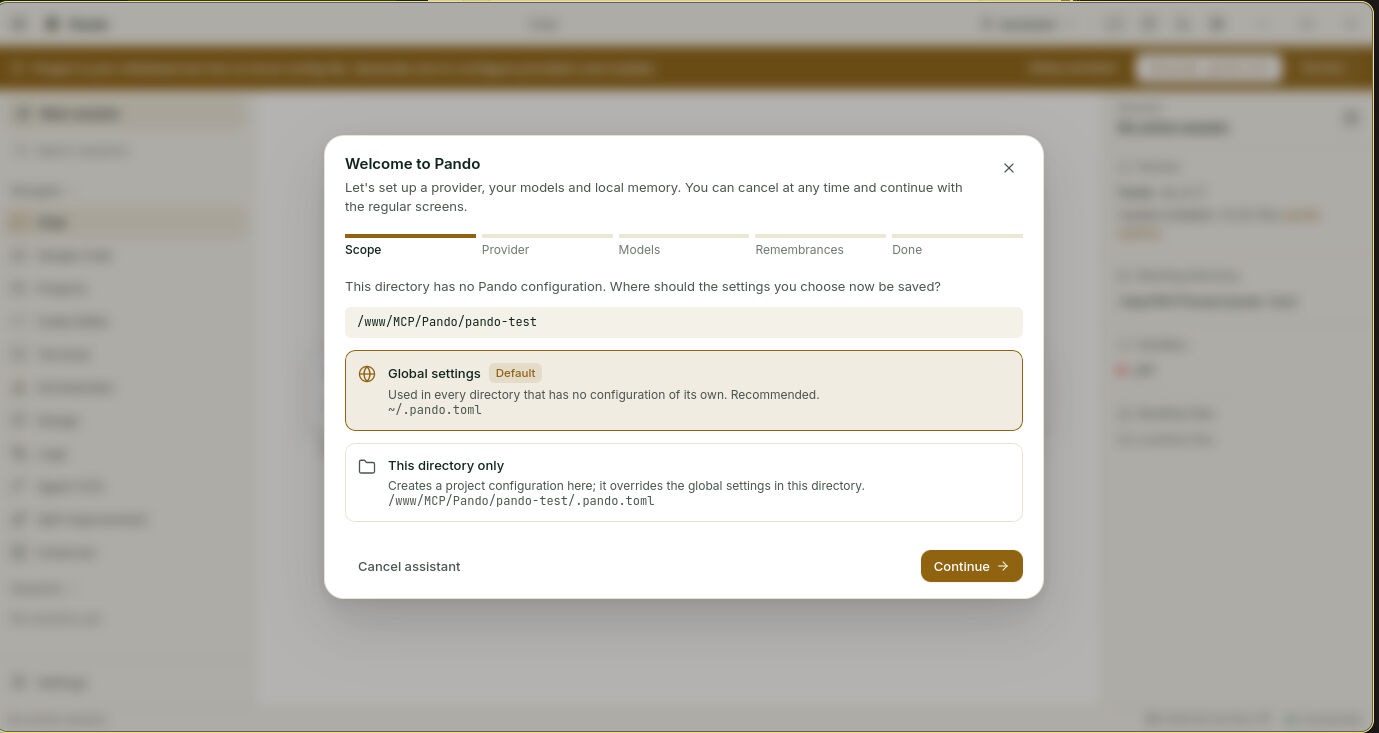
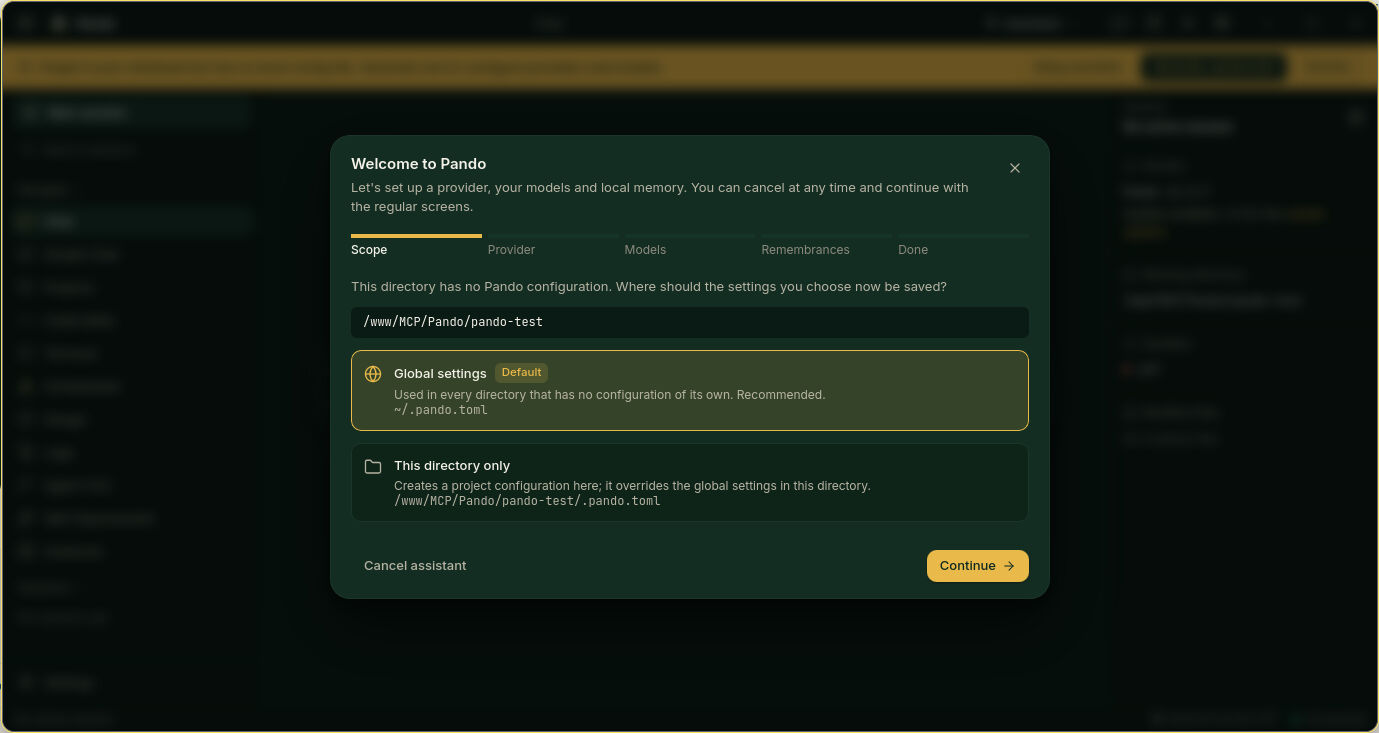
What it does for you
It covers the minimum you need, and nothing else:
- Where your settings live: for every project on this computer, or only for this one.
- Which AI provider you use: GitHub Copilot, Anthropic, OpenAI, Gemini, OpenRouter, Groq, xAI, Ollama or any compatible service. Each one says what it needs and where to get it.
- Which models do the work: a capable one for the real thinking and a fast, cheap one for small chores like naming your sessions.
- Whether you want memory: Remembrances, Pando’s long-term notebook and code search, which runs on your own machine.
- A summary of what was set up.
How it feels in practice
It opens by itself when nothing is configured. Five short screens, a progress bar on top, Back and Skip on every one. If accounts already exist it offers to keep using them instead of making you type again.
Signing in to GitHub Copilot needs no key: you get a short code, confirm it on GitHub and the assistant carries on by itself. For memory, it checks whether Ollama is installed and running, offers to start it and downloads what is missing with a progress bar.
You can leave at any moment with Cancel assistant, the close button or Esc. Nothing is lost, and the regular settings screens are always there.
When to use it
- The first time you open Pando.
- When you start a project that needs its own accounts or models.
- Any time you want to redo the basics without hunting through settings: the yellow bar at the top of the chat has a Setup assistant button.
Good to know
- The assistant is part of the Web UI and the desktop app. In the terminal interface you set up providers and models from the settings screen.
- The memory step is optional and can be done later.
- Pando never installs anything on your machine without asking first.
Next steps
- Guide: Connect your AI accounts and pick your models, every step with screenshots.
- Reference: Configuration.
- Related: Persistent Memory, GitHub Copilot Auth.