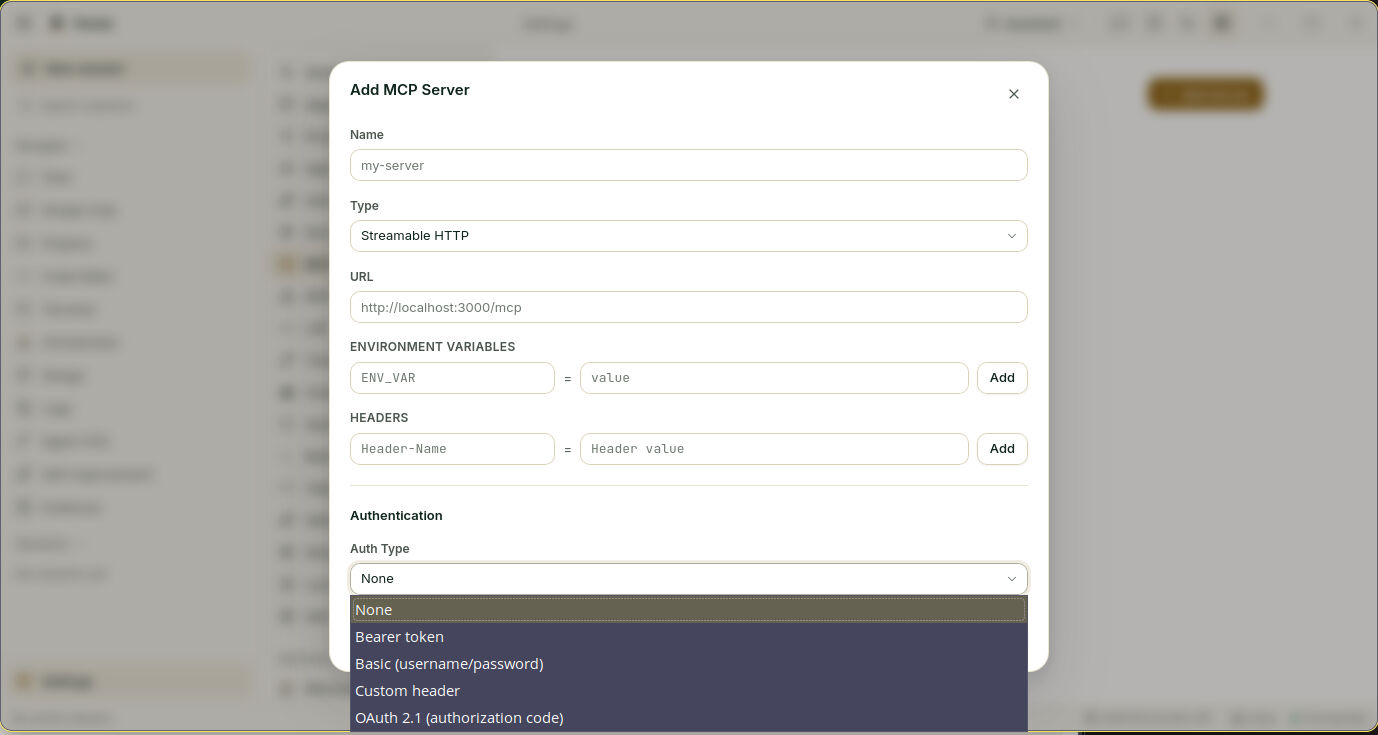
MCP Server Authentication
Pando supports authenticating with MCP (Model Context Protocol) servers that require authentication. This includes static API keys, OAuth 2.1 flows, client certificate (mTLS) authentication, and enterprise CA trust — all configurable from the TUI, WebUI, or configuration file.
Authentication Types
| Type | Description | Use Case |
|---|---|---|
| none | No authentication | Local or trusted servers |
| bearer | Static bearer token (API key) | Most API-based MCP servers |
| basic | Username + password | Servers using HTTP Basic Auth |
| header | Custom header with static value | Non-standard auth headers |
| oauth | OAuth 2.1 with browser-based login | Servers requiring user authorization |
| oauth_client_credentials | OAuth 2.1 client credentials grant | Server-to-server, no user interaction |
Configuration
Via Web UI
- Open Settings > MCP Servers
- Select or add a server
- Choose the Auth Type from the dropdown
- Fill in the required fields (token, username/password, OAuth settings)
- Save
Via TUI
- Open Settings (Ctrl+G)
- Navigate to MCP Servers
- Select the server and configure auth type and credentials
Via Configuration File
Add to your .pando.toml:
[[McpServers]]
Name = "my-server"
Url = "https://mcp.example.com/sse"
[McpServers.Auth]
Type = "bearer"
Token = "your-api-key"
# Or for Basic Auth:
# Type = "basic"
# Username = "user"
# Password = "secret"
# Or for OAuth:
# Type = "oauth"
# [McpServers.Auth.OAuth]
# ClientID = "my-client-id"
# ClientSecret = "my-client-secret"
# Scopes = ["read", "write"]
# AuthURL = "https://auth.example.com/authorize"
# TokenURL = "https://auth.example.com/token"OAuth Login Flow
When a server requires OAuth authentication:
- The agent detects the 401 response and reports: “MCP server requires authorization”
- Run
pando mcp login <server-name>in your terminal - A browser window opens for authorization
- After authorizing, the tokens are stored securely
CLI Commands
# List MCP server statuses
pando mcp list
# Login to a server (opens browser)
pando mcp login my-server
# Login without opening browser (copy URL manually)
pando mcp login my-server --no-browser
# Check authentication status
pando mcp status my-server
# Logout (clears stored tokens)
pando mcp logout my-serverToken Storage
OAuth tokens are stored in ~/.config/pando/mcp-auth.json with:
- File permissions 0600 (owner-only access)
- Tokens encrypted with AGE at rest
- Automatic disk-watch for external changes
- Process-level locking for concurrent access
Enterprise mTLS
For corporate environments that require client certificate authentication:
[[McpServers]]
Name = "enterprise-server"
Url = "https://internal-mcp.corp.com/sse"
[McpServers.Auth]
Type = "oauth_client_credentials"
[McpServers.Auth.OAuth]
ClientID = "corporate-client"
ClientSecret = "corporate-secret"
Resource = "https://internal-mcp.corp.com"
# Client certificate for mTLS
ClientCert = "/path/to/client.crt"
ClientKey = "/path/to/client.key"
# Optional: encrypted key password
ClientKeyPassword = "key-password"
# Optional: custom CA certificate
CACert = "/path/to/internal-ca.crt"
# Optional: don't merge with system trust store
CACertExclusive = false
# Optional: override TLS verification hostname
TLSServerName = "internal-mcp.corp.com"
# Optional: TLS version constraints
MinTLSVersion = "1.2"
MaxTLSVersion = "1.3"Supported Key Formats
- Unencrypted PEM — standard private key
- PKCS#8 encrypted — PBES2 with PBKDF2 or scrypt KDF (common output of
openssl genpkey) - RFC 1423 encrypted — legacy PEM encryption (Go stdlib)
CA Trust Behavior
By default, CACert merges with the system trust store — your internal CA is added alongside public CAs. Set CACertExclusive = true to trust only your internal CA.
TLSServerName to the expected hostname. Without it, TLS verification will fail because the certificate’s DNS names won’t match the connection address.Troubleshooting
“MCP server requires authorization” during conversation
Run pando mcp login <server-name> in a terminal. The agent will detect the login and retry automatically.
OAuth callback fails
- Ensure no firewall is blocking localhost port 19876
- Try
--no-browsermode and paste the URL manually - Check that the
stateparameter matches (security validation)
mTLS handshake fails
- Verify the client certificate and key match
- If the key is encrypted, ensure
ClientKeyPasswordis correct - Check that the CA certificate is in PEM format
- Try
TLSServerNameif connecting by IP
“unsupported PBES2 algorithm” error
The key uses an encryption algorithm not yet supported. Re-encrypt with:
openssl pkcs8 -topk8 -in old.key -out new.key -v2 aes-256-cbc