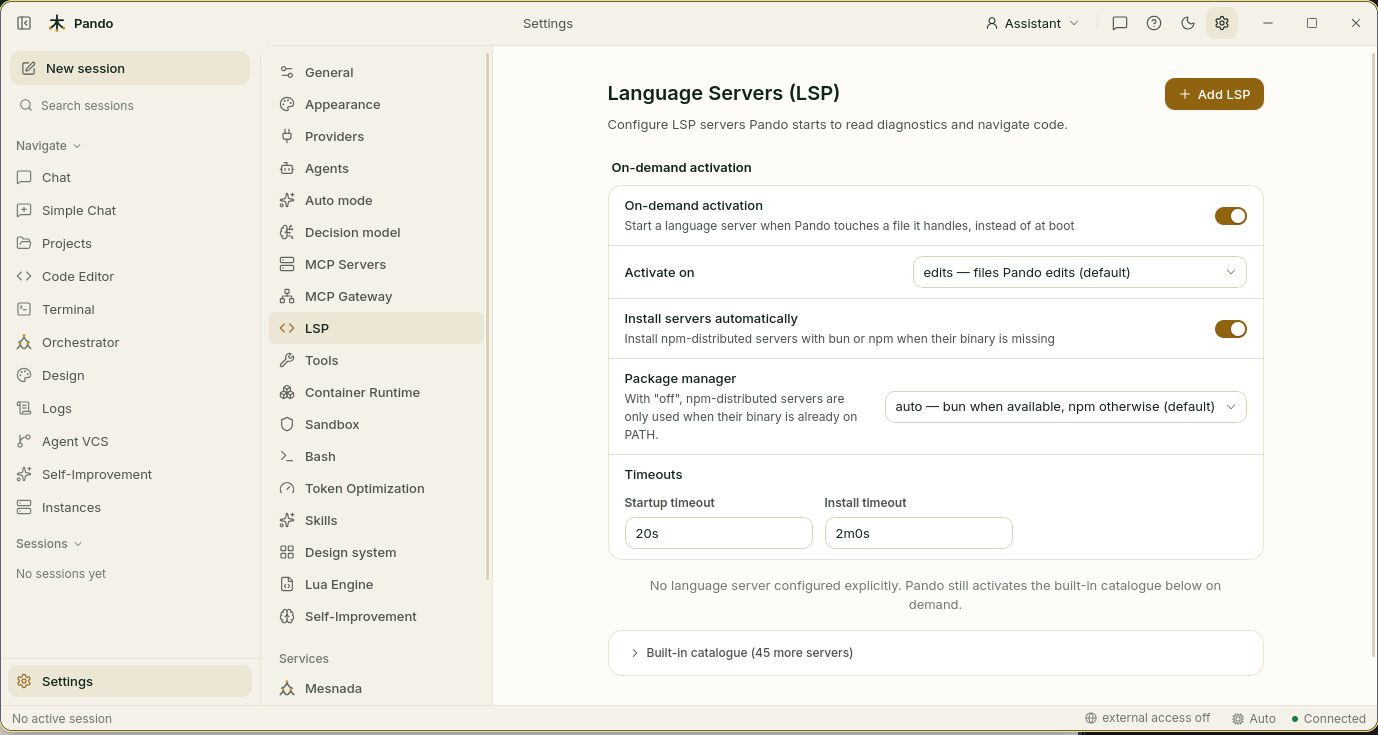
LSP Auto-Activation
Pando automatically detects the programming language of files you open and starts the appropriate Language Server Protocol (LSP) server — providing real-time diagnostics, code completion support, and intelligent analysis without manual configuration.
How It Works
When you open a file in the TUI editor, the file tree, or when the agent reads/writes a file, Pando:
- Detects the file extension (
.go,.ts,.py, etc.) - Looks up the matching LSP server from its built-in catalog of 22 presets
- Checks if the server binary is installed on your system
- Starts the server automatically if available
If the binary isn’t installed, Pando marks it as unavailable and doesn’t retry — no error spam.
Built-in LSP Presets
Pando includes presets for these languages out of the box:
| Language | Server | Binary |
|---|---|---|
| Go | gopls | gopls |
| TypeScript/JavaScript | typescript-language-server | typescript-language-server |
| Python | pyright | pyright |
| Rust | rust-analyzer | rust-analyzer |
| C/C++ | clangd | clangd |
| Java | jdtls | jdtls |
| Ruby | solargraph | solargraph |
| PHP | phpactor | phpactor |
| Swift | sourcekit-lsp | sourcekit-lsp |
| Kotlin | kotlin-language-server | kotlin-language-server |
| And more… |
Configuration
Auto-Activation (Default)
By default, LSP auto-activation is enabled. Servers start on-demand when you open a matching file.
Web UI: Settings > LSP — shows per-server status (installed/not installed), autostart toggle, and auto-activation info.
TUI: Settings > LSP — same fields with keyboard navigation.
Configuration file:
# Global: enable/disable on-demand activation (default: true)
LSPAutoActivate = true
# Per-server configuration
[LSP.gopls]
# Start eagerly at boot (default: false)
Autostart = false
# Never start this server
Disabled = false
[LSP.pyright]
Autostart = true # start pyright at bootAutostart vs On-Demand
| Setting | Behavior |
|---|---|
Autostart = false (default) | Server starts only when you open a matching file |
Autostart = true | Server starts at Pando boot, before any file is opened |
Disabled = true | Server never starts, even if the binary is installed |
Workspace Watching
When LSP auto-activation is enabled, Pando watches your workspace for file changes. Opening or creating files with known extensions triggers automatic server startup — no manual intervention needed.
The watcher skips common non-source directories: .git, node_modules, vendor, dist, build, target, out.
Diagnostics
Once an LSP server is running, Pando shows real-time diagnostics:
- In the TUI status bar: Error and warning counts
- In the editor: Inline diagnostics as you navigate files
- Via the agent: The
diagnosticstool can fetch issues for any file
Agent Integration
When the agent reads, writes, or edits a file, Pando ensures the matching LSP server is running. This means:
- Diagnostics are available immediately after file changes
- The agent can check for type errors and lint issues
- Code completion data is fresh and accurate
Presets vs Custom Servers
You can extend or override the built-in presets:
# Override a preset
[LSP.gopls]
Command = ["gopls", "-remote=auto"]
Autostart = true
# Add a custom server
[LSP.my-custom-lsp]
Command = ["my-lsp", "--stdio"]
Extensions = [".mylang"]User-configured settings always take precedence over presets.
Troubleshooting
Server not starting
- Check if the binary is on your PATH:
which <binary-name> - Check Settings > LSP to see the server status
- If marked “not installed”, install the language server for your system
Diagnostics not appearing
- Ensure the LSP server is running (check Settings > LSP)
- Verify the file extension matches the server’s configured extensions
- Some servers need a project file (e.g.,
go.modfor gopls)
Server starts but crashes
Pando marks crashed servers and won’t restart them in the same session. Restart Pando to retry.