Token Optimization
Reference for the settings that trim what Pando sends to the model. Step by step: Save tokens. Related: Tool Discovery.
All of these are fail-safe: if a compressed read would use more tokens than the raw one, Pando sends the raw one.
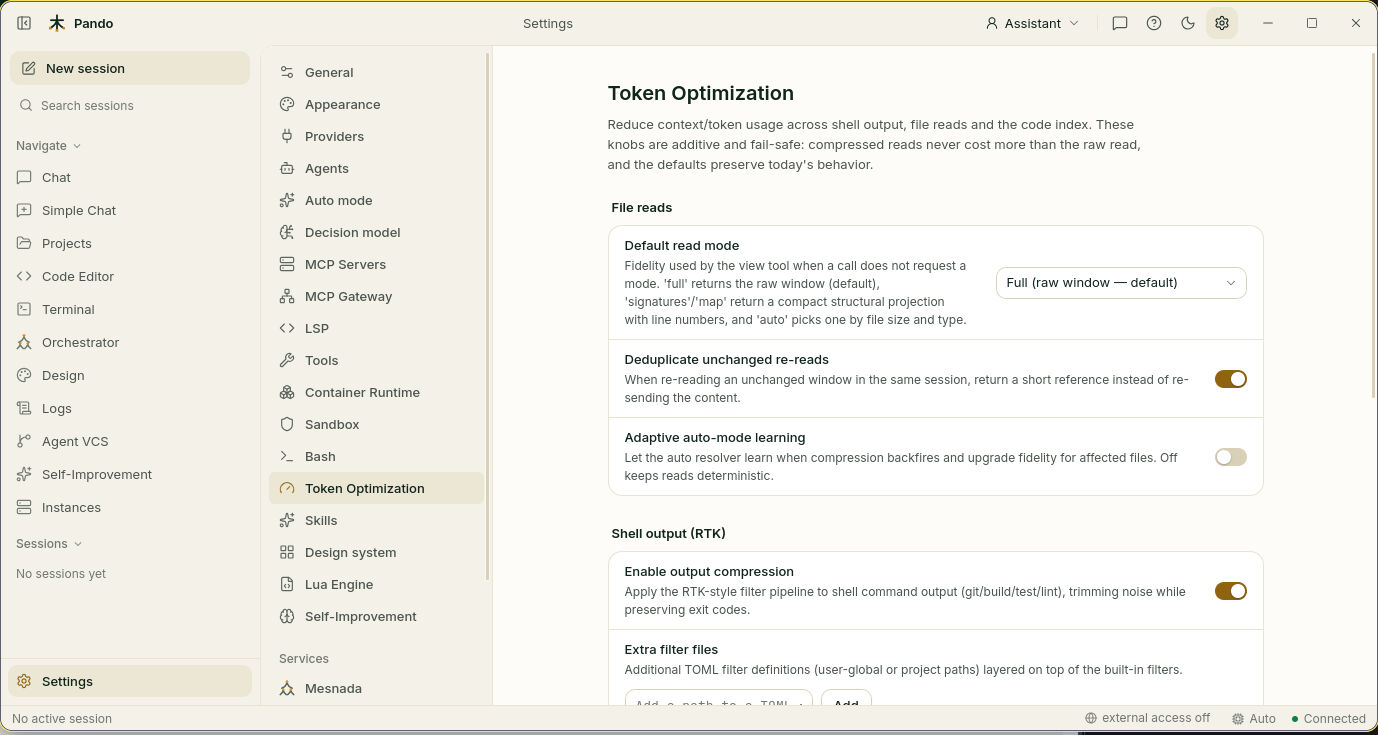
[TokenOptimization]
[TokenOptimization]
ReadModeDefault = "full"         # full | auto | signatures | map
ReadDedupDisabled = false        # true sends unchanged re-reads again in full
ReadModeLearning = false         # extra learning layer for auto mode
BuildCodeGraph = true            # record file relationships while indexing
RelatedFilesHint = false         # add a short list of related files to reads and searches
SavingsLedgerDisabled = false    # true stops recording savings
{
"tokenOptimization": {
"readModeDefault": "full",
"readDedupDisabled": false,
"readModeLearning": false,
"buildCodeGraph": true,
"relatedFilesHint": false,
"savingsLedgerDisabled": false
}
}| Setting (Web UI label) | Key | Default | Meaning |
|---|---|---|---|
| Default read mode | ReadModeDefault | full | full: the file as stored. auto: chosen by size and type. signatures: function and class names with their signatures. map: imports and top-level declarations |
| Deduplicate unchanged re-reads | ReadDedupDisabled | on | A re-read of an unchanged section returns a short reference |
| Adaptive auto-mode learning | ReadModeLearning | off | In auto, Pando always counts “bounces” (a compressed read followed at once by a full read of the same file) per file and per extension, and sends fuller reads where they repeat. This switch adds a statistical layer that predicts them before they happen |
| Build code property graph | BuildCodeGraph | on | Needed for impact analysis and related-file hints |
| Related-files hint | RelatedFilesHint | off | Costs a few tokens per read |
| Record token-savings ledger | SavingsLedgerDisabled | on | Feeds the savings widget and pando gain. Stored in <data dir>/savings/ledger.jsonl |
The bounce tracker only applies to auto. With full, signatures or map chosen explicitly nothing is learned.
PANDO_READ_MODE_DEFAULT=auto overrides the read mode for one run.
Shell output ([Bash])
[Bash]
OutputFilterDisabled = false   # true returns raw command output to the model
OutputFilterPaths = [] # extra TOML filter files; earlier paths win, all override the built-ins| Setting (Web UI label) | Default | Meaning |
|---|---|---|
| Enable output compression | on | Trims boilerplate, repeated headers and formatting from command output (git, builds, tests, linters). Exit codes and errors are kept |
| Extra filter files | empty | Your own filter definitions |
Tool discovery ([ToolDiscovery])
[ToolDiscovery]
Enabled = true
Mode = 'auto'            # auto | always | off
MaxDirectTools = 64      # threshold for auto
SearchLimit = 8          # results per tool_search
NonDeferredTools = []    # tools always visible
DeferredSources = [] # sources to keep back, e.g. "mcp", "lua"| Mode | Behaviour |
|---|---|
auto | Starts when the number of tools goes above MaxDirectTools |
always | Always keeps non-core tools back |
off | All tools visible |
Tool sources: core (built-in, always visible), internal, mcp, lua, mesnada, rag (knowledge base and code index), gateway (favourite MCP tools).
tool_search finds and runs tools. With a query it searches, ranking by how well the words match the tool’s name, aliases, server name, description and parameter names:
{ "query": "search code in repository" }With a tool name it runs it, whether the tool is built in or lives on an MCP server:
{
  "tool_name": "github_create_issue",
  "parameters": { "title": "Fix login redirect" }
}
Other savers
[LLMCache]
Enabled = true     # provider prompt cache
Optimize images and Model Catalog (models.dev) are switches in Settings > General.
Savings report
pando gain                 # all-time summary (aliases: stats, savings)
pando gain --days 30       # a period
pando gain --price 3       # estimate $ saved at this price per 1M tokens
pando gain --json
The pando_stats tool gives the agent the same numbers during a conversation, with an optional days parameter.
Quick reference
| Feature | Default | Recommended | Savings |
|---|---|---|---|
| Read mode | Full | Full or Auto | Medium to high |
| Deduplication | On | On | Medium |
| Adaptive learning | Off | Off | Low |
| Output compression | On | On | High |
| Code graph | On | On | Enables features |
| Related files | Off | Optional | Low |
| Savings ledger | On | On | None (tracking only) |